Logging Console
The Logging Console (Administration > System Status > Logging Console) provides a web-based interface for viewing and downloading Mango log files. This is particularly useful when you do not have direct SSH access to the server, or when you need to quickly review logs without leaving the Mango UI.
Viewing Log Files
The Logging Console displays a table of all log files generated by your Mango instance. Log files are stored in the MA_HOME/logs/ directory and include:
| Log File | Description |
|---|---|
ma.log | The primary Mango application log. Contains startup messages, errors, warnings, and informational messages. |
script.log | Output from scripting data sources, meta data points, and other script executions. |
iastsdb-corruption.log | NoSQL database corruption detection events (if the NoSQL module is installed). |
iastsdb-compression.log | NoSQL database compression events. |
iastsdb-reverse.log | NoSQL database reverse operation events. |
Additional log files may be present depending on which modules are installed and whether custom logging has been configured.
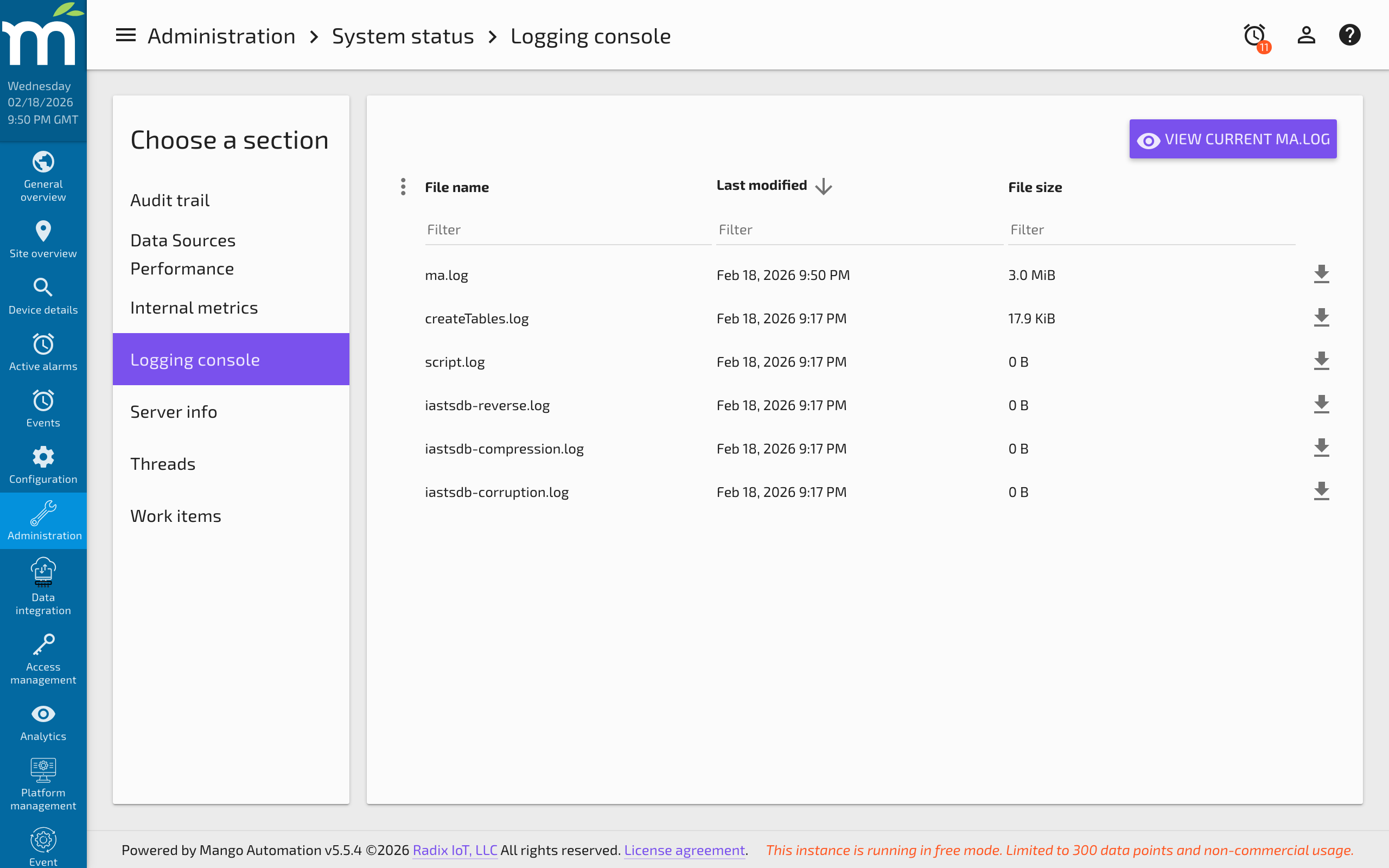
Actions
For each log file, you can:
- View -- Opens the log file content in a popup dialog within the browser. This is convenient for quick inspection of recent log entries.
- Download -- Downloads the log file to your local machine for offline analysis or sharing with support staff.
When viewing a log file, click the Copy to Clipboard button to copy the entire contents for easy pasting into an email, forum post, or text editor.
Log File Location
On a standard Linux installation, log files are found at /opt/mango/logs/. The exact path depends on your paths.logs configuration in mango.properties. The default rolling file configuration creates files with the following patterns:
ma.log-- Current log fileMM-dd-yyyy-N.ma.log.gz-- Rotated and compressed historical logs
Log File Management
Mango's default Log4j2 configuration automatically manages log files through:
- Size-based rotation -- When the current log file reaches a configured size, it is compressed and a new file is started.
- Time-based rotation -- Logs are rotated at the start of each day and on Mango restart.
- Automatic cleanup -- Old log files are deleted based on age, total accumulated size, or total count thresholds.
These settings can be customized in the log4j2.xml configuration file. See Debug Log Settings for details.
Viewing Logs via the Command Line (Linux)
On Linux systems where Mango is managed by systemd, you can also view logs using journalctl:
# View Mango service output
journalctl -u mango

# Follow the log in real time
journalctl -u mango -f

# View logs from the last hour
journalctl -u mango --since "1 hour ago"
To view the application log file directly:
# View the current log
less /opt/mango/logs/ma.log

# Follow the log in real time
tail -f /opt/mango/logs/ma.log
Troubleshooting
Log Files Not Appearing
If the logging console shows no files:
- Verify the
paths.logssetting inmango.propertiesis correct. - Check that the Mango process has write permissions to the logs directory.
- Ensure the Log4j2 configuration is valid and does not contain errors.
Log Files Growing Too Large
If log files are consuming excessive disk space:
- Check whether debug logging has been enabled and not reverted. See Debug Log Settings.
- Review the rolling file configuration in
log4j2.xmlto adjust size limits and retention. - Look for modules that may be generating their own log files outside the standard rotation policy.
Related Pages
- Debug Log Settings — Configure Log4j2 debug loggers and manage log file rotation
- Managing Disk Space — Prevent log files from consuming excessive disk space
- Linux Diagnostic Information — Use JDK tools for deeper JVM diagnostics beyond log analysis
- Mango Properties Reference — Log-related properties including
paths.logs