Mango Cloud Connect Module
The Cloud Connect module provides secure and seamless remote access to Mango installations that are behind customer firewalls or cellular connections. It eliminates the need to open firewall ports, configure VPNs, or install additional remote access software. With a single click from a central Mango server, you can open a remote Mango system and be automatically logged in with synchronized admin credentials.
How It Works
Cloud Connect uses the SSH protocol to establish an encrypted tunnel between a central Mango server and one or more remote Mango client installations. The remote client initiates an outbound SSH connection to the server, which means no inbound ports need to be opened on the client's firewall. Once the tunnel is established, the central server can access the remote Mango UI as if it were on the local network.
Security Features
All communications are secured using industry-standard cryptography:
| Feature | Default Setting |
|---|---|
| Transport protocol | Secure Shell (SSH) |
| Password authentication | Disabled (key-based only) |
| Authentication keys | ECDSA using NIST secp256r1 (NSA Suite B approved) |
| Symmetric cipher | AES 128 CTR |
| Key exchange algorithm | ECDH SHA2 NIST P-521 |
| MAC algorithm | HMAC MD5 |
Users can generate their own keys using the OpenSSH ssh-keygen tool. The module supports RSA keys and other ECDSA parameters. ED25519 is not supported.
Architecture
The Cloud Connect system has two components:
- Server -- Installed on the central management Mango instance. Manages connections to multiple remote clients and provides the UI for accessing them.
- Client -- Installed on each remote Mango instance. Establishes the outbound SSH tunnel to the server.
Configuring the Client
To connect a remote Mango installation to the central server:
Step 1: Access Client Settings
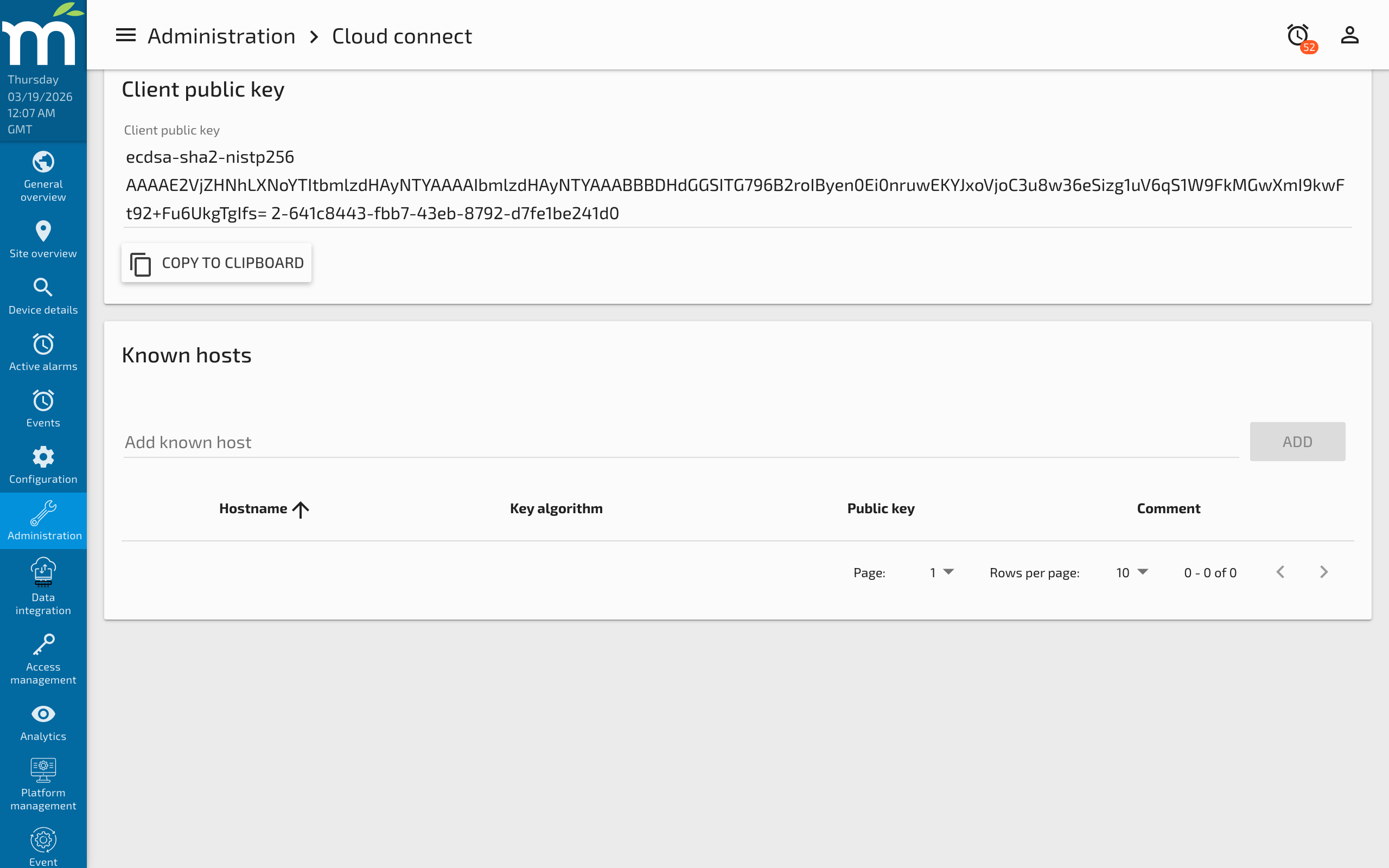
On the remote MangoES or Mango installation, navigate to Administration > Cloud Connect and select the Client tab.
Step 2: Copy the Public Key
Scroll down to the Client public key section and click Copy to Clipboard. This key needs to be registered on the server to authorize the client's connection.
Step 3: Register on the Server
On the central Mango server, navigate to the Cloud Connect server settings and add the client's public key. This authorizes the remote installation to connect.
Step 4: Establish Connection
Once the key is registered, the client can connect to the server. The connection is initiated from the client side, so it works even when the client is behind a restrictive firewall that blocks inbound connections.
Configuring the Server
The server component manages all incoming client connections and provides the administration interface for accessing remote systems.
Server Setup
- Install the Cloud Connect module on your central Mango instance.
- Navigate to Administration > Cloud Connect and select the Server tab.
- Configure the SSH listening port and other server settings.
- Add client public keys for each remote installation that should be allowed to connect.
Accessing Remote Installations
Once a client is connected:
- The remote installation appears in the server's client list.
- Click the remote installation to open its Mango UI.
- Your admin credentials are automatically synchronized, so you are logged in without entering credentials.
Use Cases
- Remote site management -- Administer Mango installations at remote facilities without VPN or site visits.
- Cellular-connected devices -- Access MangoES appliances on cellular networks where opening inbound ports is not possible.
- Multi-site monitoring -- Centrally manage dozens or hundreds of remote Mango instances from a single dashboard.
- Technical support -- Radix IoT support staff can use Cloud Connect to diagnose issues on customer systems (with customer authorization).
Network Requirements
- The client must be able to make outbound TCP connections to the server's SSH port.
- The server must have the configured SSH port accessible from the client networks.
- No inbound ports need to be opened on the client's firewall.
- Standard firewall rules that allow outbound HTTPS traffic typically also allow Cloud Connect, since it uses a similar outbound TCP connection model.
Troubleshooting
Client Cannot Connect
- Verify the server's SSH port is reachable from the client network.
- Check that the client's public key has been registered on the server.
- Review the Mango log files on both the client and server for connection error messages.
Connection Drops
- Cloud Connect includes automatic reconnection logic. Transient network issues should be handled automatically.
- For persistent disconnections, check the network path between client and server for firewalls or proxies that may be terminating idle connections.
Related Pages
- Generate an SSL Keystore — Secure Mango with SSL before exposing it through Cloud Connect
- Users and Permissions — Manage admin credentials that are synchronized through Cloud Connect
- Mango Properties Reference — Cloud Connect configuration properties
- Debug Log Settings — Enable debug logging to troubleshoot connection issues