Accessing the MangoGT
This page walks through the initial setup process for the MangoGT, from connecting cables to logging into the Mango web interface for the first time.
Step 1: Connect the Ethernet Cable
Using an Ethernet cable, connect the MangoGT to a network that supports DHCP. Most small office routers and managed switches are configured for DHCP by default.
Do not connect the MangoGT directly to your computer with a crossover cable. The MangoGT expects a DHCP server to assign its initial IP address. If DHCP is not available on your network, see the Network Configuration page for instructions on setting a static IP.
Step 2: Connect Power
After the Ethernet cable is connected, plug in the power supply to the 12-24 VDC power input on the MangoGT. The unit begins its boot sequence automatically.
The boot process takes approximately 60-90 seconds. During this time, the status LEDs on the top panel will show boot activity. Wait until the power LED shows a steady green before attempting to connect.
Step 3: Discover the MangoGT on Your Network
Once the MangoGT has booted, you can access it using one of the following methods:
Option A: Hostname (Recommended)
Open a web browser and navigate to:
http://mangogtXXXX.local
Replace XXXX with your MangoGT's serial number (found on the label on the unit or on the packaging). This hostname-based access uses mDNS (multicast DNS), which is supported on most modern operating systems without additional configuration.
Option B: Network Scanner
If hostname access does not work (for example, on networks that block mDNS traffic), use a network scanning tool to locate the MangoGT by its IP address:
- Windows: Advanced IP Scanner is a free tool that scans your local subnet and lists discovered devices
- macOS: LanScan is available from the Mac App Store
- Linux: Use
nmap -sn 192.168.1.0/24(adjust the subnet to match your network)
Look for a device named mangoGTXXXX in the scan results and note its IP address.
Option C: Router DHCP Table
Log into your network router's administration interface and check the DHCP lease table. The MangoGT will appear as mangogtXXXX with its assigned IP address.
Step 4: Log Into Mango
Open your web browser and navigate to the MangoGT's address (either the hostname or IP address discovered above). The Mango login page will appear.
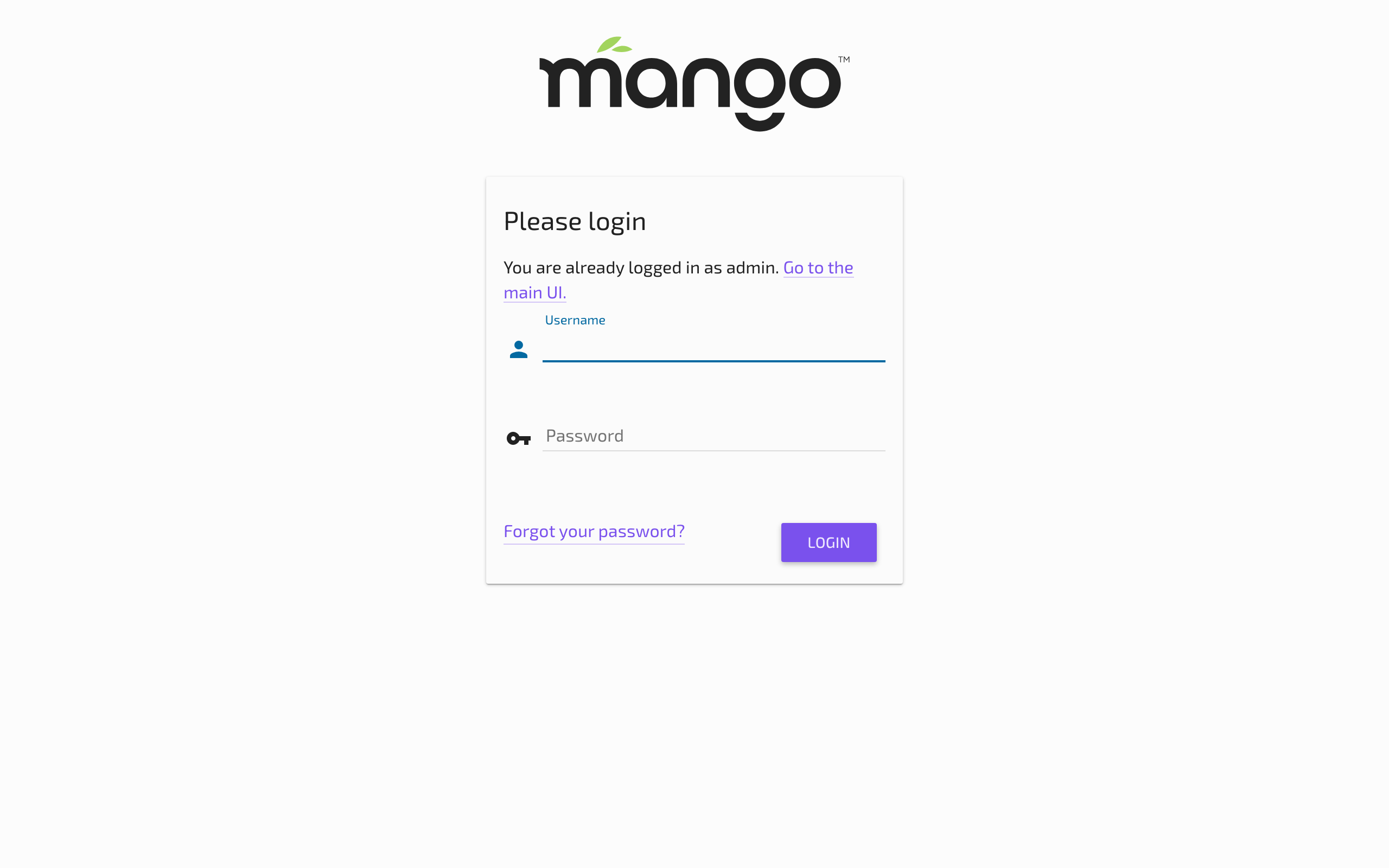
The default credentials for the Mango web interface are:
| Field | Value |
|---|---|
| Username | admin |
| Password | admin |
Change the default admin password immediately after your first login. Navigate to Administration > Users to update the password. Leaving the default password in place is a significant security risk, especially if the MangoGT is accessible from a wider network.
Step 5: Check for Module Updates
After logging in for the first time, navigate to the Modules page under Administration to check for available updates. Keeping modules up to date ensures you have the latest features, bug fixes, and security patches.
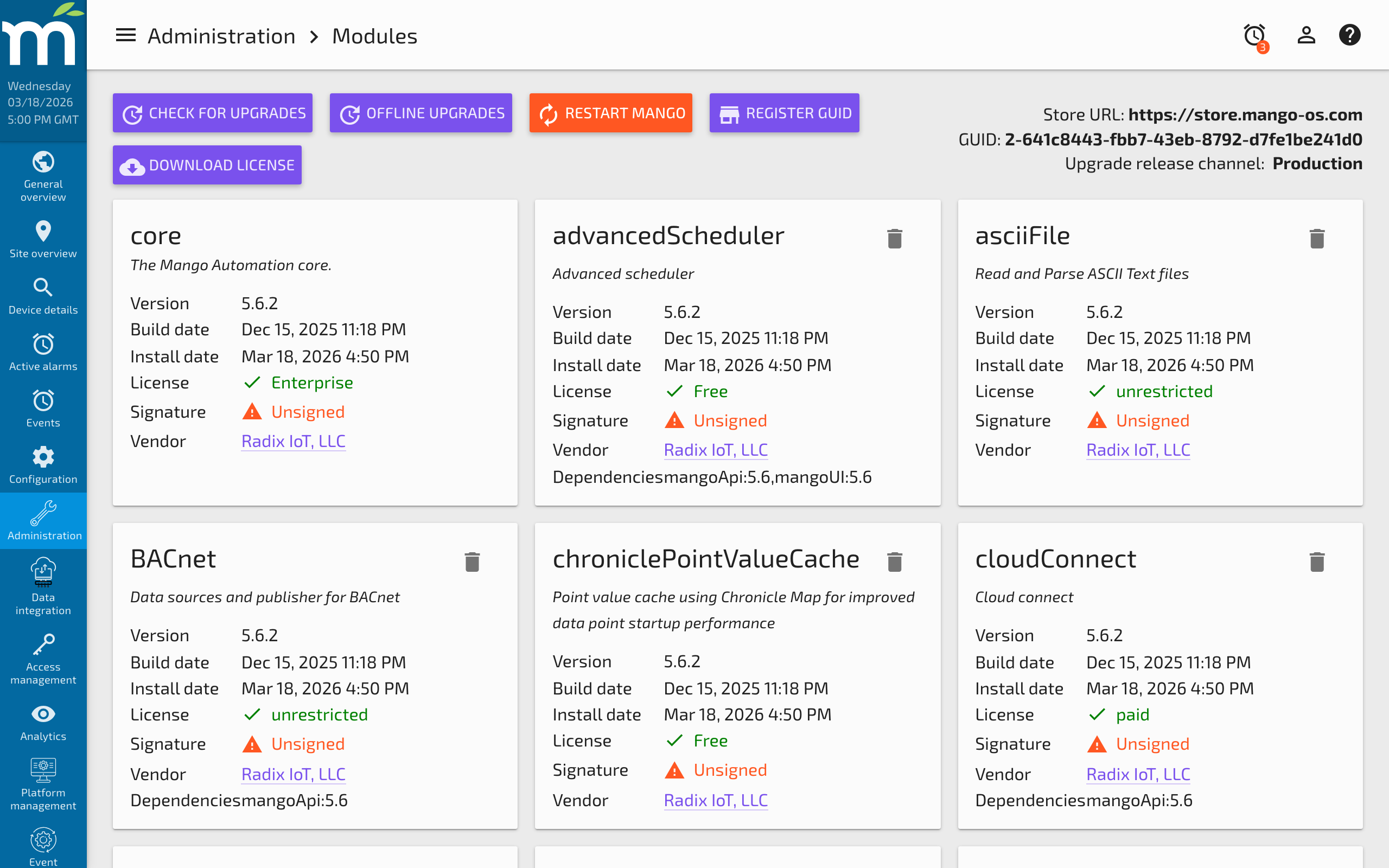
Click Check for Updates to query the Radix IoT module store. If updates are available, you can install them directly from this page. A Mango service restart is required after installing updates.
Accessing the Linux Operating System
In addition to the Mango web interface, you can access the underlying Linux operating system for advanced administration tasks:
- SSH -- Connect to port 2222 using the
mangouser and the unique password from the sticker inside the MangoGT box. See SSH Access for detailed instructions. - SFTP -- Transfer files to and from the MangoGT using an SFTP client connected to port 2222. See SFTP Access for details.
- HDMI terminal -- Connect a monitor and keyboard to the HDMI and USB ports for direct local console access.
The Linux OS password (used for SSH, SFTP, and console access) is different from the Mango web interface password. Each MangoGT ships with a unique Linux password printed on a sticker inside the box.
Troubleshooting First Access
| Symptom | Possible Cause | Solution |
|---|---|---|
Cannot reach mangogtXXXX.local | mDNS not supported or blocked | Use a network scanner to find the IP address directly |
| No network link LED on MangoGT | Ethernet cable not connected or faulty | Try a different cable; verify the switch port is active |
| Login page does not appear | Mango service still starting | Wait 90 seconds after power-on and retry |
| Default password rejected | Password was already changed | Contact the person who set up the unit, or perform a factory reset via the Linux console |
Related Pages
- MangoGT Connections — Identify ports and cable the unit before first access
- Network Configurations — Next step: configure static IP and DNS settings
- SSH Access to the MangoGT — Command-line access for administration