Adding and Using Tags
Tags provide a flexible way to organize, query, and filter data points beyond the built-in device name and point name. Each tag is a key-value pair (for example, Site: Building 1 or Floor: 3), and a data point can carry many different tags. However, each tag key can only have one value per data point.
Why Use Tags
In large-scale deployments with hundreds or thousands of data points, relying solely on device name and point name makes it difficult to build cross-cutting views of your data. Tags solve this by letting you attach arbitrary metadata to any data point. Common use cases include:
- Site and location structure -- Tag points with
site,building,floor, androomto group points by physical location regardless of which data source they belong to. - Equipment classification -- Use tags like
equipmentType: AHUorequipmentType: VAVto filter points by the kind of equipment they monitor. - Dynamic watch lists -- Build query-based watch lists that automatically include any point matching a set of tag values. When new points are added with the correct tags, they appear on the watch list without manual configuration.
- Custom dashboards -- Use tag queries to power dashboard components that adapt to the user's selected site, building, or equipment.
- Permissions and access control -- Organize points by department or responsibility area using tags, making it easier to manage which users can see which data.
Tag Structure
Tags use a {key: value} structure. A few rules apply:
- Keys are case-sensitive strings. Consistent naming conventions (e.g., always using
siterather than mixingSite,SITE, andsite) will prevent confusion. - Values are strings. A data point can have many different tag keys, but only one value per key.
- Built-in tags -- The
deviceandnameproperties of a data point behave like implicit tags and can be used in queries alongside explicit tags.
Adding Tags to Data Points
Tags are assigned on the Tags tab of the data point edit window. To add or modify tags:
- Navigate to the data source page or the bulk data point edit page.
- Select a data point to edit.
- Open the Tags tab.
- Enter a tag key and value. If the key already exists in your system, it will be suggested via auto-complete.
- Click the add button to attach the tag.
- Save the data point.
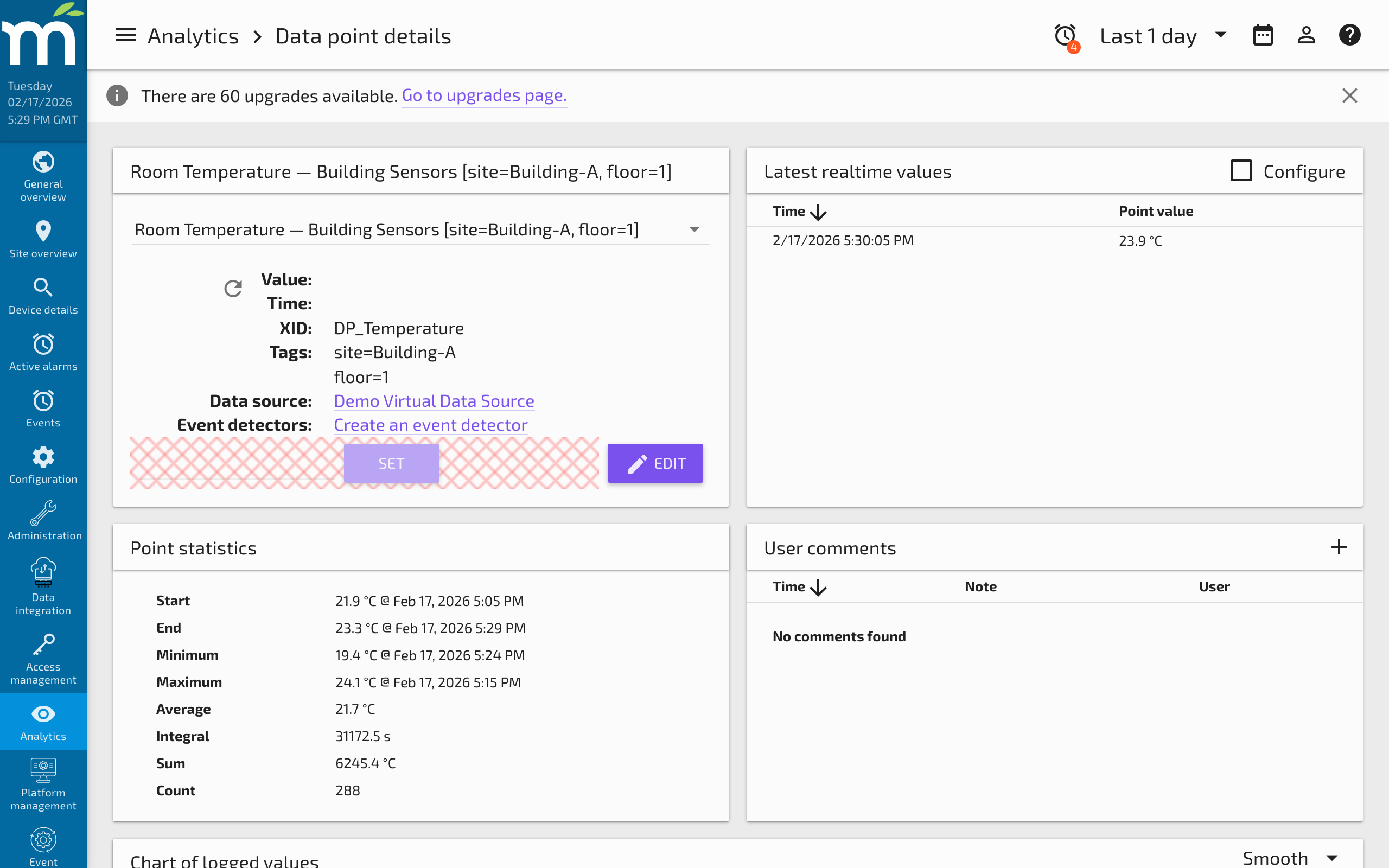
You can also add tags in bulk using the bulk data point edit page or through the CSV import process. When importing via CSV, tag columns use the format tags/keyName as the column header.
Using Tags in Watch Lists
Tags are especially powerful when combined with query-based watch lists. In the Watch List Builder, you can create a Point query watch list that filters data points by tag values. For example:
- A query with
tags.site = "BuildingA"returns all data points tagged withsite: BuildingA. - Combining multiple tag conditions (e.g.,
tags.site = "BuildingA" AND tags.equipmentType = "VAV") narrows results to a specific subset.
You can also use tags as parameters in a watch list, allowing users to select a site or equipment type from a dropdown on the watch list page. This makes watch lists dynamic and reusable across different locations or equipment groups.
Using Tags in REST API Queries
The Mango REST API supports querying data points by tags using RQL (Resource Query Language). Examples:
GET /rest/latest/data-points?tags.site=BuildingA-- Returns all points with thesitetag set toBuildingA.GET /rest/latest/data-points?tags.floor=3&tags.equipmentType=AHU-- Returns points on floor 3 that are associated with AHU equipment.
Tags can also be used in sorting and limiting queries, making them a powerful tool for building API-driven integrations and custom UIs.
Best Practices
- Plan your tag schema before deploying at scale. Decide on a consistent set of keys (e.g.,
site,building,floor,equipmentType,unit) and document the expected values for each. - Use tags instead of point hierarchy for new deployments. Tags are more flexible than the legacy point hierarchy because a single point can belong to multiple logical groups simultaneously.
- Avoid overly specific tag keys. Tags like
sensor_serial_numberare rarely useful for filtering. Keep tag keys at the level of abstraction that supports your watch list, dashboard, and reporting needs. - Use bulk editing to apply tags across many points at once rather than editing points one by one.
Related Pages
- Creating and Configuring Data Points — Step-by-step guide to creating data points and setting properties
- Bulk Importing Data Points — Apply tags in bulk using CSV import with
tags/keyNamecolumn headers - Watch List Builder — Build query-based watch lists that filter data points by tag values
- Data Point Properties Reference — Configure point name, device name, and other identity properties alongside tags