Import and export
Mango's import/export feature lets you extract your entire system configuration as JSON and load it back into the same or a different Mango instance. This is the primary mechanism for migrating configuration between environments, creating configuration backups, and making bulk changes to data sources, points, and other system objects.
This page covers JSON configuration import/export. For bulk data point value import, see the bulk data import documentation.
Overview
The import/export system works with Mango's configuration objects -- data sources, data points, event detectors, event handlers, users, permissions, and more. It does not export historical point value data, which is stored separately in the time-series database.
Every exportable object in Mango has an XID (export ID), a unique string identifier that stays consistent across imports and exports. When you import a JSON file, Mango matches objects by XID:
- If an object with that XID already exists, it is updated with the imported values.
- If no object with that XID exists, a new object is created.
- Objects in the target system that are not in the import file are left unchanged.
This XID-based matching makes it safe to perform partial imports without affecting unrelated configuration.
What can be exported
The following object types are available for export:
| Object type | Description | Dependencies |
|---|---|---|
| Data sources | Connection settings, polling intervals, and protocol configuration | None |
| Data points | Point locator settings, logging, text renderers, chart renderers | Requires the parent data source |
| Event detectors | High/low limits, state detectors, no-update detectors | Requires the parent data point |
| Event handlers | Email handlers, set-point handlers, script handlers | References event detector XIDs |
| Users | Usernames, roles, permissions, home URLs | References permission XIDs |
| Permissions | Role definitions and permission grants | None |
| Mailing lists | Email distribution lists for event handler notifications | References user XIDs |
| Publishers | Outbound data publishing configuration (HTTP, MQTT, etc.) | References data point XIDs |
| JSON data | Arbitrary JSON key-value stores used by dashboards and scripts | None |
| System settings | Global settings such as email configuration, point hierarchy | None |
| Virtual serial ports | Software-defined serial port pairs for testing and bridging | None |
Exporting configuration
Step 1: Open the import/export page
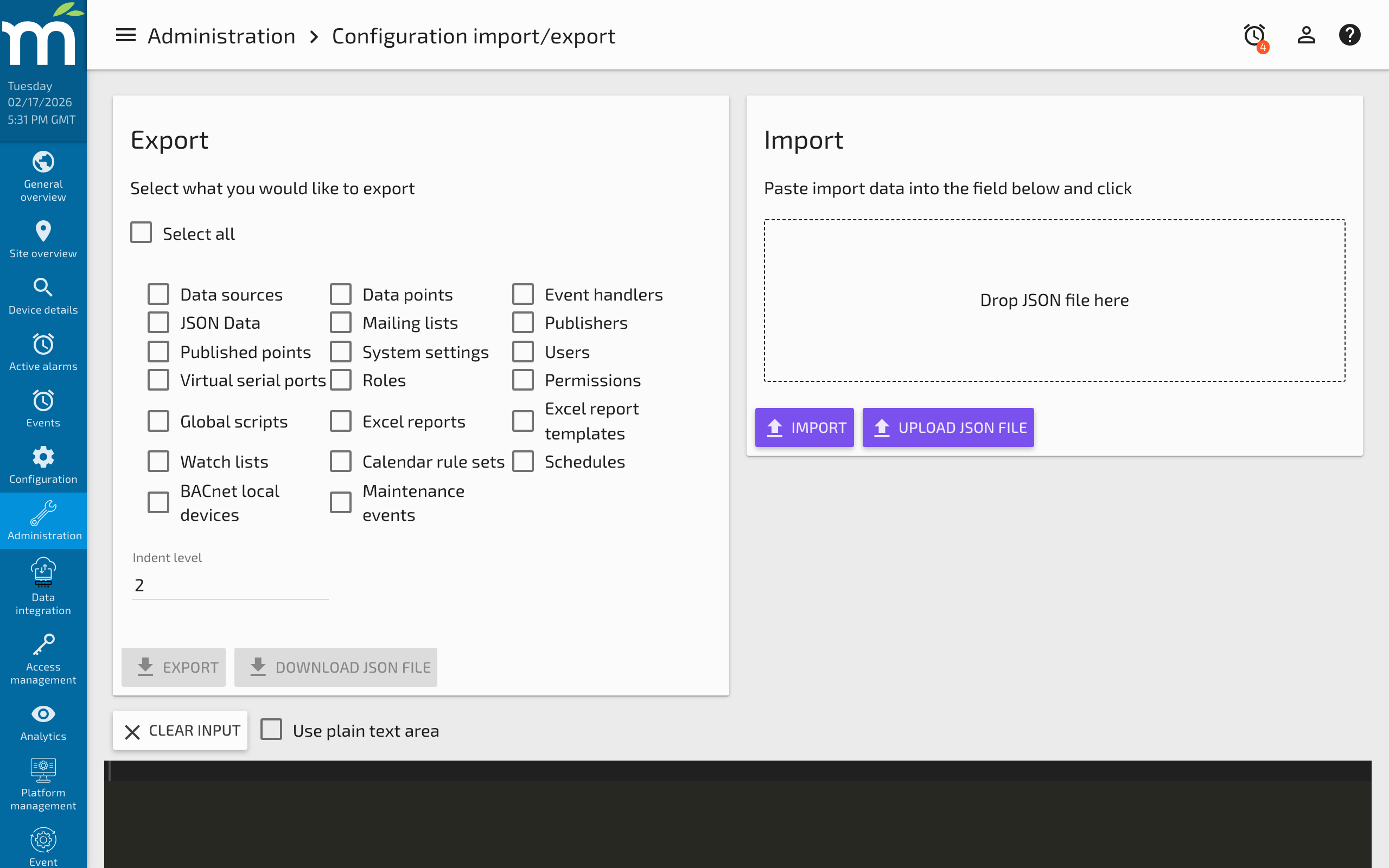
Navigate to Administration > Import/Export in the Mango UI.
Step 2: Select items to export
The export section lists all available object types with checkboxes. Select the types you want to include in the export. You can:
- Select all -- Exports a complete configuration snapshot.
- Select individual types -- Exports only the selected object types. Use this for targeted exports (e.g., exporting only data sources and their points).
Step 3: Download the JSON
Click Export to generate the JSON. The export appears in a text area where you can copy it to the clipboard, or click Download to save it as a .json file.
The exported JSON is a single object with top-level keys for each object type:
{
  "dataSources": [
    {
      "xid": "DS_modbus_01",
      "name": "Building A Modbus",
      "type": "MODBUS_IP",
      "enabled": true,
      "host": "192.168.1.100",
      "port": 502,
      "updatePeriodType": "MINUTES",
      "updatePeriods": 1
    }
  ],
  "dataPoints": [
    {
      "xid": "DP_temp_zone1",
      "name": "Zone 1 Temperature",
      "dataSourceXid": "DS_modbus_01",
      "pointLocator": {
        "dataType": "NUMERIC",
        "offset": 0,
        "modbusDataType": "TWO_BYTE_INT_SIGNED"
      }
    }
  ]
}
Importing configuration
Step 1: Prepare the JSON
You can import JSON from several sources:
- A previously exported file from another Mango instance
- A hand-edited JSON file with modified or new configuration
- JSON generated by an external tool or script
Step 2: Load the JSON
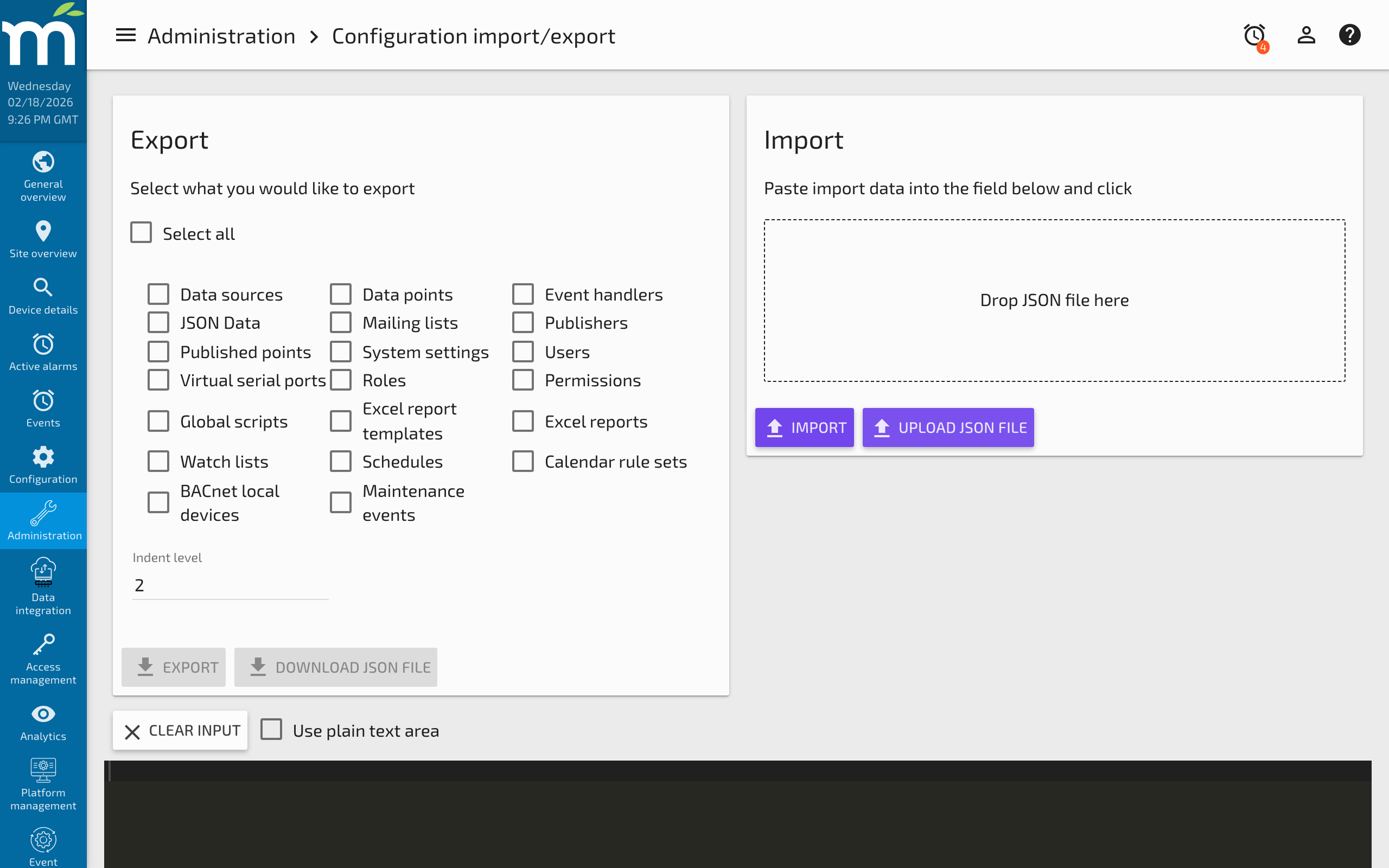
On the Import/Export page, paste the JSON into the text area or click Browse to upload a .json file.
Step 3: Review and apply
Click Import to begin processing. Mango validates the JSON and processes each object in dependency order:
- Permissions and roles
- Users
- Data sources
- Data points
- Event detectors
- Event handlers
- Mailing lists
- Publishers
- JSON data
- System settings
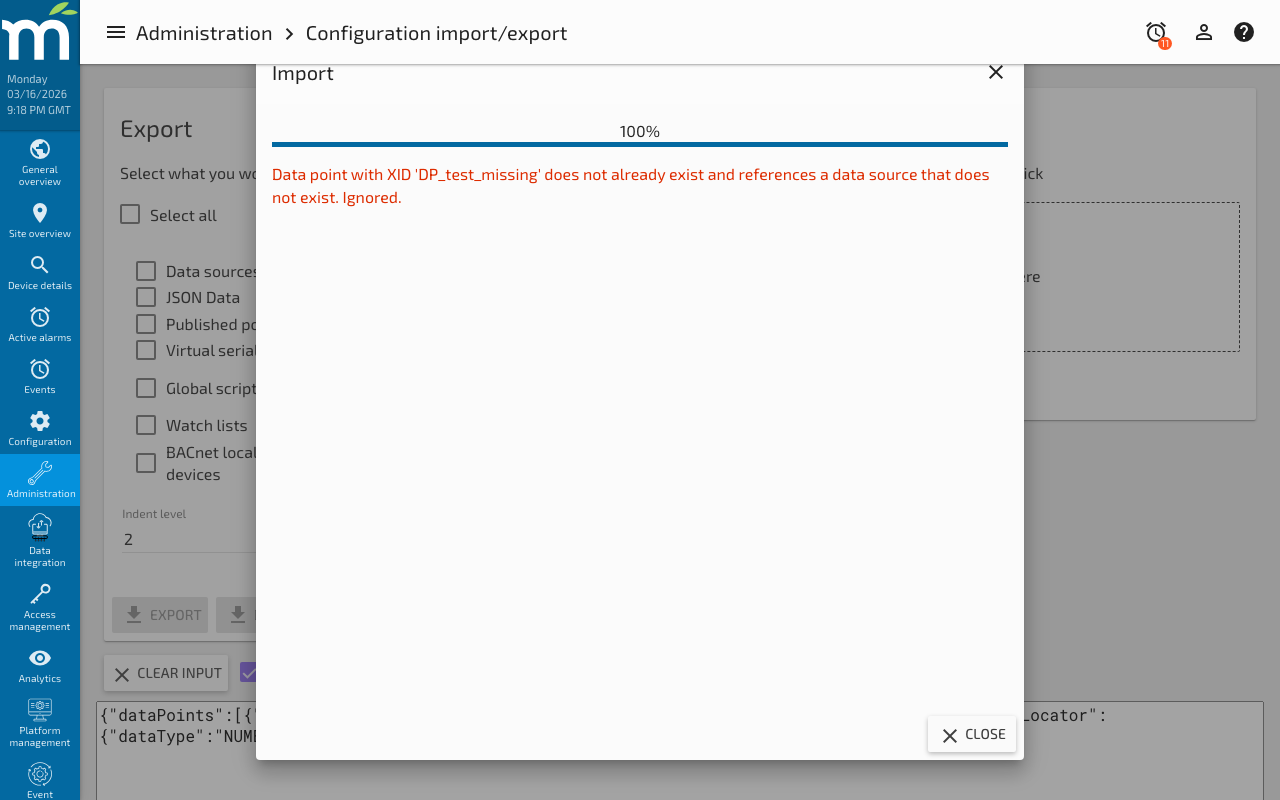
After processing, Mango displays a result summary. For dependency or validation failures, Mango reports the specific object XID and reason — for example: "Data point with XID 'DP_x' does not already exist and references a data source that does not exist. Ignored." If the request itself is malformed or invalid, a generic error such as "Bad Request" is shown instead.
Common use cases
Migrating configuration between instances
The most common use case is moving configuration from a development or staging instance to production:
- Export the full configuration from the source instance.
- Transfer the JSON file to the target system.
- Import on the target instance.
Mango matches objects by XID, so the target instance will create any objects that do not exist and update any that already do. Data point historical values are not included -- only the configuration.
Backing up configuration
Regular configuration exports provide a safety net against accidental changes or data loss. Unlike database backups, JSON exports are human-readable and can be version-controlled.
Recommended practice:
- Export the full configuration on a regular schedule (weekly or before major changes).
- Save the JSON files with timestamps (e.g.,
mango-config-2026-02-16.json). - Store exports in a secure location separate from the Mango server.
Version-controlling configuration in Git
Because the export is plain JSON, you can commit it to a Git repository to track configuration changes over time:
# Export configuration (via REST API)
curl -u admin:admin https://mango-host/rest/latest/json-emport \
  -o mango-config.json

# Commit changes
git add mango-config.json
git commit -m "Configuration snapshot: added Building B data sources"
git push
This gives you a full audit trail of who changed what and when, with the ability to roll back to any previous configuration.
Bulk changes via JSON editing
For repetitive configuration changes -- such as renaming 50 data points or changing the polling interval on all Modbus sources -- it is often faster to:
- Export the relevant objects.
- Edit the JSON in a text editor or with a script (e.g., Python,
jq). - Re-import the modified JSON.
For example, to change the polling interval on all data sources:
# Use jq to set all data source polling to 30 seconds
jq '.dataSources[] | .updatePeriodType = "SECONDS" | .updatePeriods = 30' \
  mango-config.json > updated-config.json
Import behavior and conflict resolution
Understanding how Mango resolves conflicts during import prevents unexpected results:
| Scenario | Behavior |
|---|---|
| Object XID exists in target | Object is updated with imported values. Fields not in the import are left unchanged. |
| Object XID does not exist | A new object is created. |
| Object references a missing dependency | Import fails for that object. For example, a data point referencing a data source XID that does not exist will not be created. |
| Duplicate XIDs in the import file | The last occurrence wins. |
| Import file contains only some object types | Objects of other types are not affected. |
Import order matters
Mango processes objects in dependency order, but if you are importing a file that you assembled manually, ensure dependencies are present:
- Data points require their parent data source to exist (either already in the system or included in the same import).
- Event detectors require their parent data point.
- Event handlers that reference detectors require those detectors.
If you are migrating a complete configuration to an empty instance, export and import everything at once to ensure all dependencies are satisfied.
Common pitfalls
| Problem | Cause | Solution |
|---|---|---|
| "Data point with XID '...' does not already exist and references a data source that does not exist. Ignored." | The parent data source was not included in the import or does not exist on the target | Export and import data sources before (or along with) data points |
| Points are created but disabled | The imported data source is disabled | Enable the data source after import, or set "enabled": true in the JSON before importing |
| XIDs collide with unrelated objects | Two different Mango instances generated the same auto-XID | Manually assign unique XIDs before importing. Use a prefix convention like SITE_A_DS_001 |
| Import succeeds but values look wrong | Text renderer or chart renderer not included | Export data points with their full configuration, including renderers |
| "Permission denied" during import | The importing user lacks admin privileges | Import must be performed by an admin user |
| Large import times out | Very large configuration file (thousands of objects) | Break the import into smaller batches by object type: data sources first, then points, then detectors |
REST API import/export
You can automate import/export operations using the REST API, which is useful for CI/CD pipelines and scheduled configuration backups.
Export via API
curl -u admin:admin \
  "https://mango-host/rest/latest/json-emport" \
  -o mango-config.json
Import via API
curl -u admin:admin \
  -X POST "https://mango-host/rest/latest/json-emport" \
  -H "Content-Type: application/json" \
  -d @mango-config.json
The API returns a result object with counts of created, updated, and failed objects, along with error messages for any failures.
Related pages
- Data sources overview -- Understanding data source types and configuration
- REST API overview -- Automating Mango operations through the API
- Event detectors -- Configuring alarm conditions on data points
- Data points -- Creating and managing data points