Script editor
The Mango script editor is a built-in code editing environment available wherever scripts are used in the system, including meta data points, scripting data sources, set point event handlers, and the global scripts module. It provides syntax highlighting, validation, test execution, and contextual help to streamline writing and debugging JavaScript within Mango.
Overview
Every scriptable component in Mango presents the same editor interface. Rather than writing scripts in an external text editor and pasting them in, the built-in editor gives you immediate access to context variables, validation feedback, and test execution so you can iterate quickly without leaving the Mango UI.
Where to find the script editor
The script editor appears in several locations throughout Mango:
- Meta data points -- When creating or editing a meta data point, the script editor is the primary configuration area. Navigate to the data point's edit page and look for the Script text area.
- Scripting data source -- The scripting data source module provides a script editor for each point and for the data source-level context script.
- Set point event handlers -- Event handlers that set point values can use a script to calculate the value. The script editor appears when you select "Script" as the set value type.
- Global scripts module -- The SST Global Scripts page provides an editor for defining functions that are available across all script contexts.
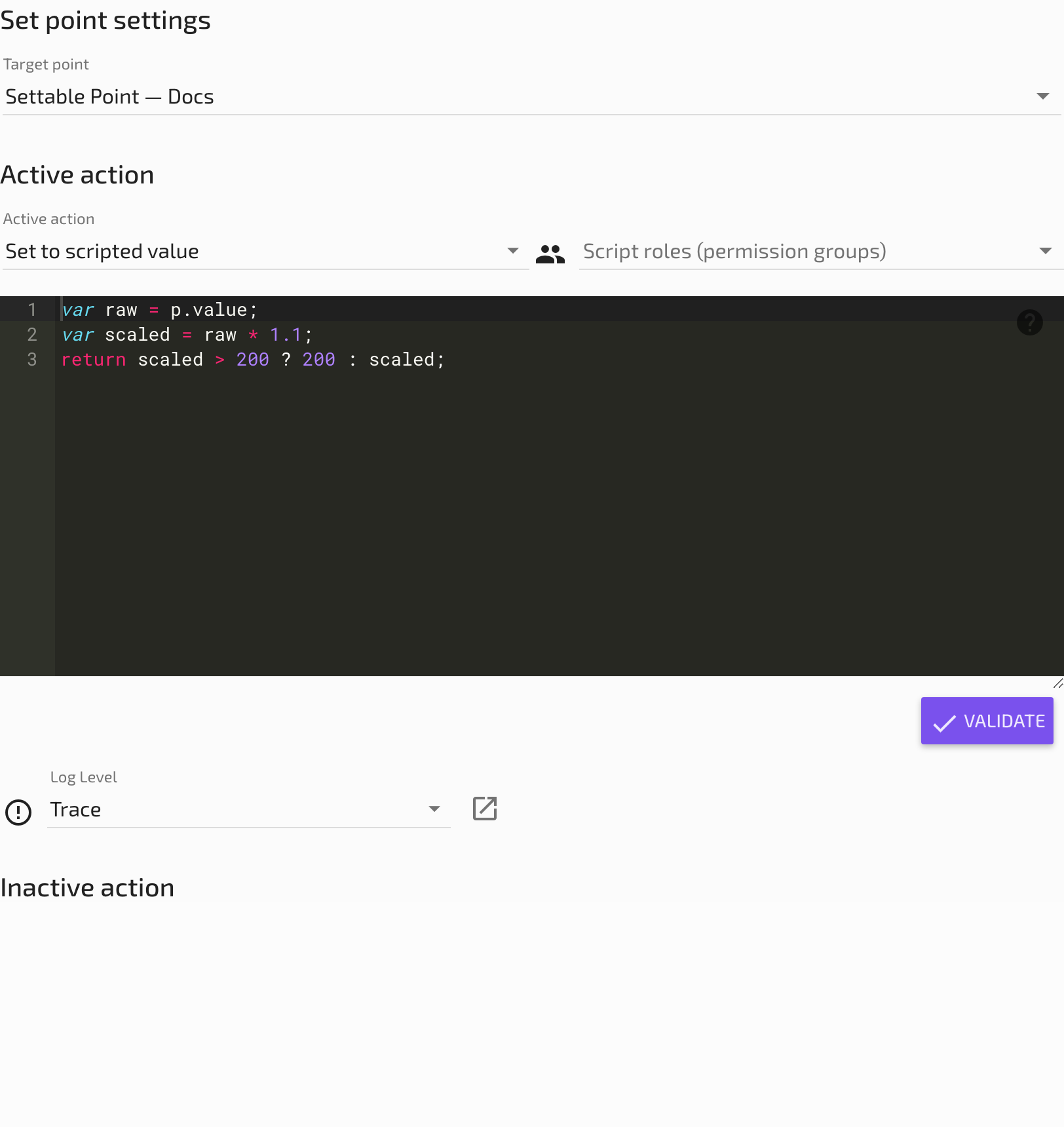
Editor layout
The script editor interface consists of several areas:
Script text area
The main editing area where you write your JavaScript code. It supports:
- Syntax highlighting -- Keywords, strings, numbers, and comments are color-coded for readability.
- Tab indentation -- Use the Tab key to indent code blocks for better organization.
- Scrollable area -- The editor expands or can be scrolled for longer scripts.
Context variable list
To the right of (or adjacent to) the script area, you will find the list of context variables. These are the data point references available to your script. Each context variable shows:
| Column | Description |
|---|---|
| Variable name | The JavaScript identifier you use in your script (e.g., sensor1, tempAvg) |
| Data point | The data point this variable references |
| Data type | The point's data type (Numeric, Binary, Multistate, Alphanumeric) |
| Update context | Whether changes to this point trigger the script to execute (meta points only) |
You assign variable names when you add context points. Choose short, descriptive names since you will reference them frequently in code. Variable names must be valid JavaScript identifiers -- they cannot start with a number or contain spaces.
Help button
Most script editors have an adjacent blue question mark icon. Clicking it opens a contextual help panel that describes:
- Available context variables and their methods (
value,time,last(),ago()) - Special variables like
TIMESTAMPandUNCHANGED - Utility objects such as
RuntimeManager,DataPointQuery, andDateTimeUtility - Global functions loaded from modules (e.g.,
max(),min(),avg(),sum())
The help content is version-specific, so it always reflects the features available in your installed version of Mango.
Script validation
Before saving, you should always validate your script. Click the check mark (validate) icon next to the script area to run the script in test mode.
What validation checks
Validation performs two things simultaneously:
- Syntax check -- The JavaScript engine parses your script and reports any syntax errors such as missing brackets, unterminated strings, or invalid keywords.
- Test execution -- The script runs against the current values of all context variables. The result is displayed below the editor without saving any values to the database.
Reading validation results
After clicking validate, the editor displays one of the following:
- Success with a result value -- A green result area shows the computed value and its data type. This is the value that would be saved if the script ran in production.
- Script error -- A red error area shows the error message, including the line number where the problem occurred (when available).
If the result value does not match the data type of the target point, Mango will attempt to coerce it. If coercion fails, a script error event is raised at runtime.
Testing scripts from the UI
The validate button is also your primary testing tool. Use it to experiment with your script logic before committing changes.
Test execution behavior
When you click the validate button:
- Mango retrieves the current runtime values of all context variables.
- The script executes with those values.
- The result is returned and displayed, but no values are saved and no events are raised.
- Side effects from utility objects (e.g.,
RuntimeManager.enableDataSource()) do execute during test mode, so use caution with scripts that perform system actions.
Iterative testing workflow
A productive workflow for developing scripts:
- Start with a simple script that returns a single context variable's value (e.g.,
return sensor.value;). - Click validate to confirm the context variable is accessible and has a value.
- Incrementally add logic, validating after each change.
- Once the script produces the expected result, save the data point.
Context variables available in the editor
Every script context provides the following variables and objects:
Point context variables
Each data point added to the context is available by its assigned variable name. These objects provide:
p.value-- The current value of the point.p.time-- The timestamp of the current value (milliseconds since epoch).p.ago(periodType, count)-- The point's value from a specified time ago.p.last(count)-- A list of the most recentcountPoint Value Time objects.p.lastValue(index)-- A specific historical value by index (0 = most recent).- Time component fields:
p.millis,p.second,p.minute,p.hour,p.day,p.dayOfWeek,p.dayOfYear,p.month,p.year.
See the JavaScript guide for detailed documentation of these methods and fields.
Built-in objects
| Object | Description |
|---|---|
TIMESTAMP | Set this to override the result's timestamp (milliseconds since epoch) |
UNCHANGED | Return this to prevent the point from updating its value |
RuntimeManager | Access to data source enable/disable, point set commands |
DataPointQuery | Query data points by RQL from within the script |
DateTimeUtility | Date/time helper methods for calculations |
JsonEmport | Access to Mango's JSON import/export system |
LOG | Logger object for writing messages to the Mango log |
Global functions
If the SST Global Scripts module is installed, convenience functions are available in all script contexts:
max(a, b, c, ...)-- Returns the maximum value.min(a, b, c, ...)-- Returns the minimum value.avg(a, b, c, ...)-- Returns the average of all values.sum(a, b, c, ...)-- Returns the sum of all values.
Debugging techniques
Using the LOG object
The LOG object writes messages to a dedicated scripting log file (e.g., logs/scripting-{id}.log). This is the primary debugging tool for scripts that run in production.
LOG.info("Script started, sensor value = " + sensor.value);

var result = sensor.value * calibration.value;
LOG.info("Calculated result = " + result);

if (result > threshold.value) {
    LOG.warn("Result exceeds threshold: " + result + " > " + threshold.value);
}

return result;
Available log levels:
| Method | Use case |
|---|---|
LOG.trace(message) | Very detailed diagnostic output (usually filtered out) |
LOG.debug(message) | Diagnostic messages for development |
LOG.info(message) | General informational messages |
LOG.warn(message) | Warning conditions that may indicate a problem |
LOG.error(message) | Error conditions that need attention |
To see debug and trace messages, set the Log level on the scripting data source to the desired level (Trace or Debug).
Inspecting intermediate values
When a script produces an unexpected result, break it down by logging intermediate calculations:
var raw = sensor.value;
LOG.info("raw = " + raw);

var scaled = raw * 0.01;
LOG.info("scaled = " + scaled);

var offset = scaled + calibrationOffset.value;
LOG.info("offset = " + offset);

return offset;
Checking for null values
A common source of errors is accessing a context variable that has no value yet (the point has never been updated). Always check for null:
if (sensor.value == null) {
    LOG.warn("sensor has no value yet");
    return UNCHANGED;
}
return sensor.value * 2;
Common script errors and how to fix them
| Error | Cause | Solution |
|---|---|---|
ReferenceError: x is not defined | The variable name does not match any context variable | Check the variable name in the context list matches exactly (case-sensitive) |
TypeError: Cannot read property 'value' of null | The context variable has no value (point never updated) | Add a null check before accessing .value |
SyntaxError: Unexpected token | Syntax mistake such as missing bracket or semicolon | Review the indicated line number for typos |
Script result is null | The script does not return a value | Add a return statement at the end of the script |
Coercion error | Returned value cannot be converted to the point's data type | Return a value matching the expected type (number for Numeric, boolean for Binary) |
Script execution timeout | Script runs longer than the allowed execution time | Reduce loop iterations, avoid infinite loops, simplify logic |
Performance considerations
Scripts execute on the Mango server's JVM, and poorly written scripts can degrade system performance.
Execution time limits
Mango enforces a configurable timeout for script execution. If a script does not complete within the allowed time, it is terminated and a script error event is raised.
Memory usage
Each script execution allocates memory for variables, intermediate results, and historical data queries. To minimize memory usage:
- Limit
last()calls -- Requesting large numbers of historical values (e.g.,sensor.last(10000)) loads all those values into memory. Use the smallest count that meets your needs. - Avoid storing large arrays -- Building large arrays in a loop consumes memory that is not released until the script completes.
- Use
ago()instead oflast()when possible -- If you only need a value from a specific time period ago,ago()retrieves a single value rather than a list.
Polling frequency impact
For meta data points, the script executes every time a context variable updates. If a context variable updates every second and the script takes 500ms to execute, you are consuming significant server resources. Strategies to manage this:
- Limit update context triggers -- Only check the "Update context" box for variables whose changes should trigger recalculation.
- Use
UNCHANGEDto skip unnecessary updates -- ReturnUNCHANGEDwhen the inputs have not changed meaningfully. - Consider execution frequency -- If the script only needs to run every 5 minutes, use a cron pattern or reduce the update frequency of the source points.
Script complexity guidelines
| Complexity | Execution time | Recommendation |
|---|---|---|
| Simple arithmetic | < 1 ms | No concerns |
| Conditional logic with a few branches | < 5 ms | No concerns |
Loops over last(100) values | 10-50 ms | Acceptable for most deployments |
Loops over last(1000) values | 50-500 ms | Monitor execution time, consider reducing |
External queries (DataPointQuery) | 100-1000 ms | Use sparingly, cache results if possible |
| JSON import/export operations | 500+ ms | Avoid in frequently executing scripts |
Related pages
- About Mango JavaScript -- JavaScript language features, Point Value Time objects, and built-in variables
- Script examples -- Practical script examples for common use cases
- Global scripts -- Defining reusable functions available across all script contexts
- Scripting overview -- High-level introduction to scripting in Mango