Watch List Builder
The Watch List Builder page is used to create and configure groups of data points for display on the Watch List page. At its simplest, a watch list is a hand-picked set of data points. More advanced Point query watch lists use parameters and RQL queries to dynamically select points based on system state and user input.
Creating a Watch List
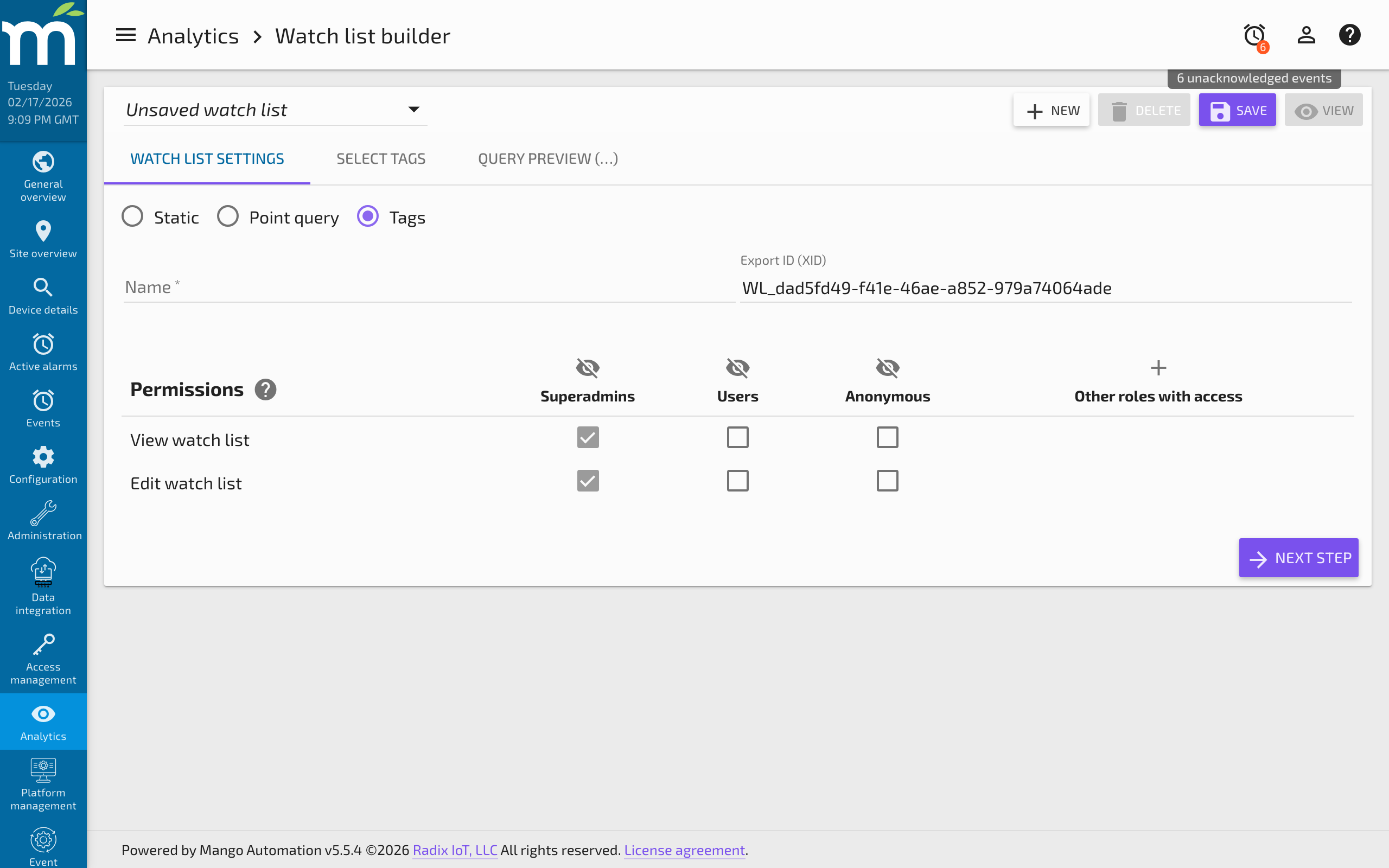
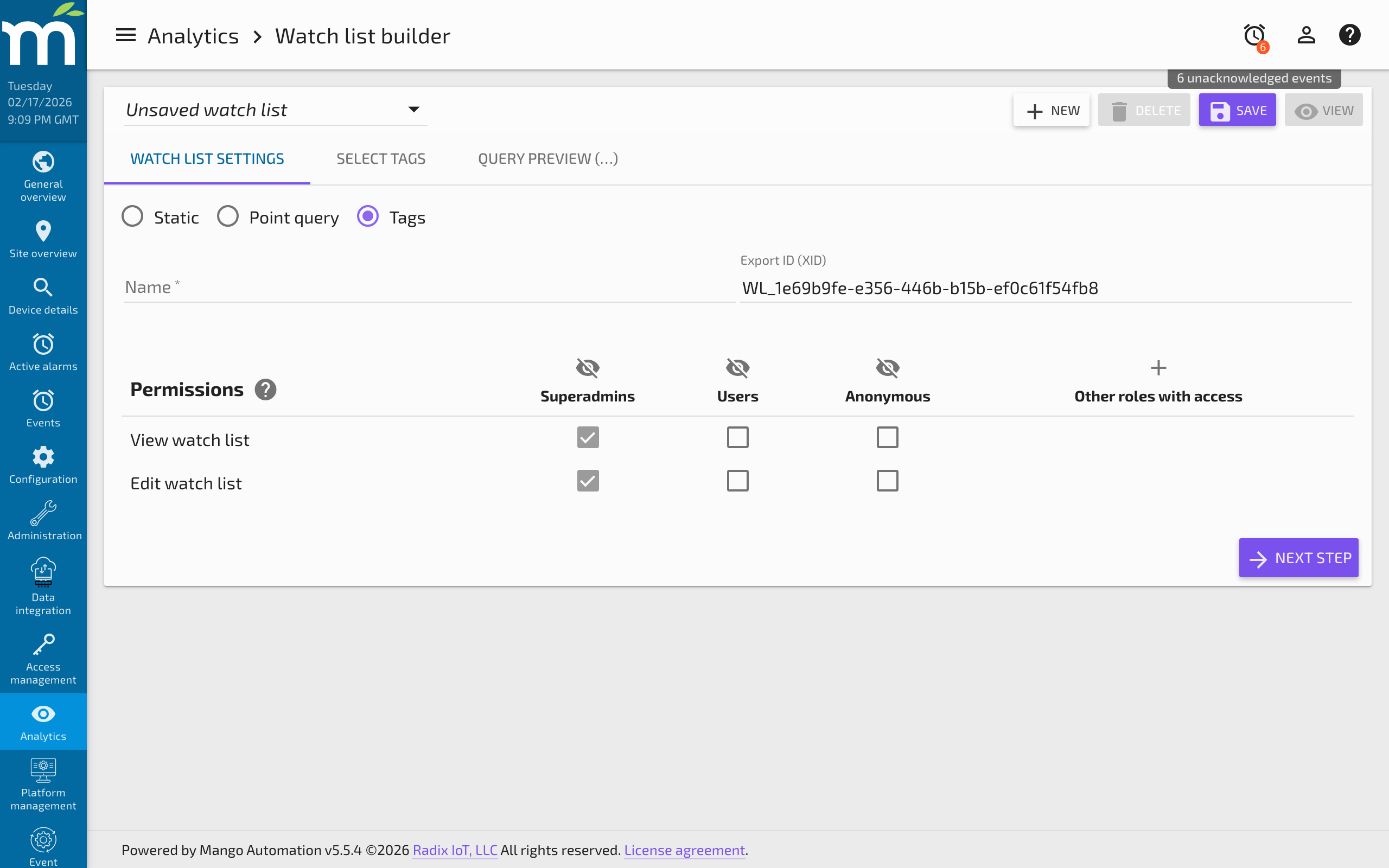
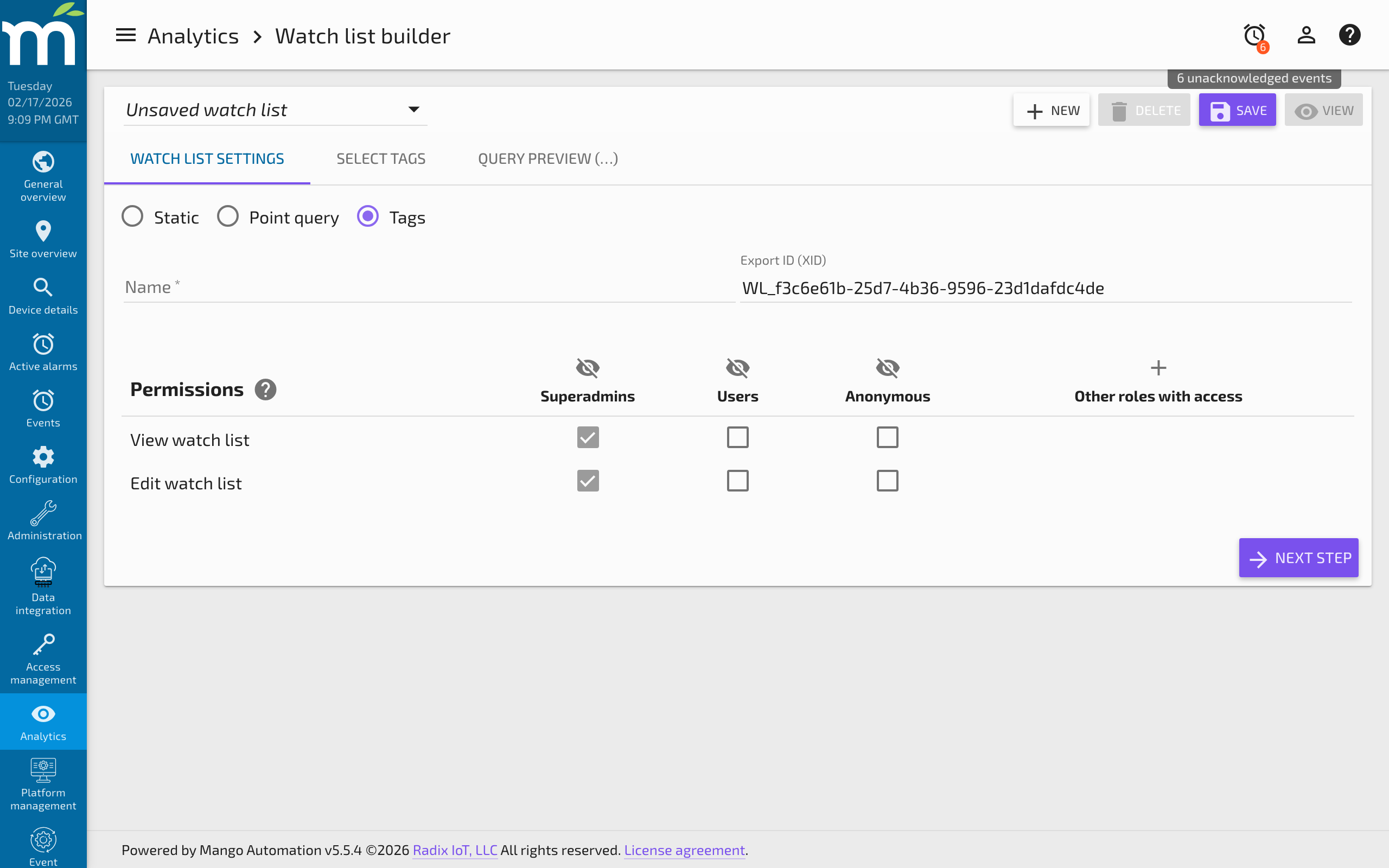
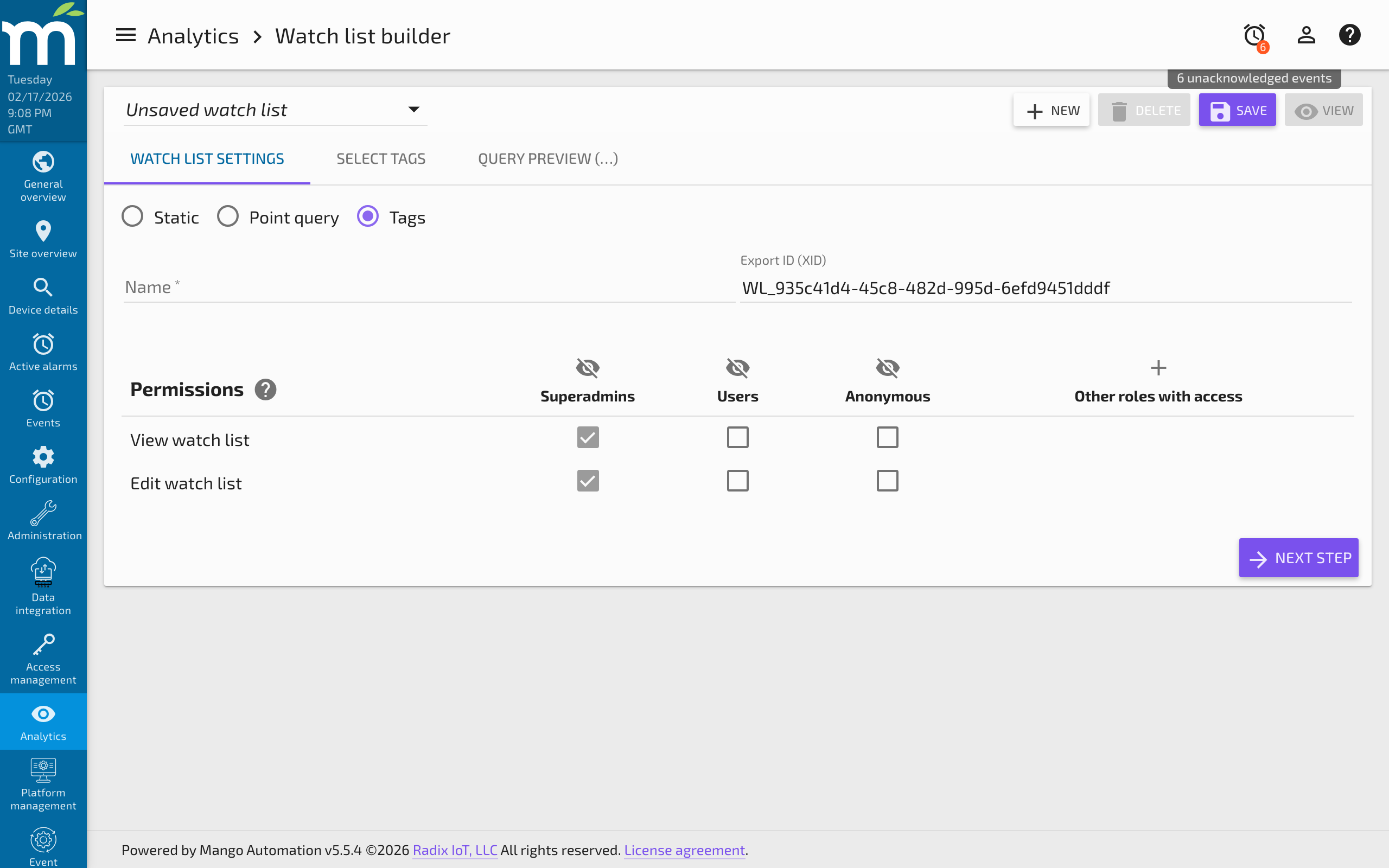
When you create a new watch list:
- Navigate to the Watch List Builder page.
- Click New to start a new watch list.
- Enter a Name for the watch list. Names should be descriptive (e.g., "Building A - HVAC Temperatures").
- An Export ID (XID) is automatically generated. You can override this with a custom value if desired.
- Set Read permission (defaults to
user) and Edit permission (defaults toedit-watchlists). - Select the watch list type: Static, Point query, or Point hierarchy.
- Configure the type-specific settings (described below).
- Click Save.
The dropdown at the top of the page lets you select an existing watch list to edit. The Delete button removes a watch list, and the View button opens the Watch List page with the selected list.
Static Watch Lists
A Static watch list is a manually curated set of data points. You select specific points from your system, and the list contains exactly those points in the order you arrange them.
Selecting Points
The Select From Table tab presents a searchable table of all data points in the system. Filter the table using the search box, then click the checkbox next to each point you want to include. The top checkbox selects or deselects all currently visible rows.
Managing Selected Points
The Selected Points tab shows all points currently in the watch list. From here you can:
- Remove points by checking their boxes and clicking Remove Selected.
- Reorder points by dragging the three-dash handle icon up or down. The order on this tab determines the display order on the Watch List page.
Point Hierarchy Watch Lists
A Point hierarchy watch list selects points based on the hierarchical folder structure. Under the Select Folders tab, the system's point hierarchy is displayed as a tree. Clicking the checkbox next to a folder includes all data points in that folder in the watch list.
This is useful when your point hierarchy mirrors your physical site structure (buildings, floors, zones) and you want a watch list that includes all points in a particular location.
Point Query Watch Lists
A Point query watch list dynamically selects data points using RQL (Resource Query Language) queries. This is the most powerful type of watch list because it can include parameters that let users change the query from the Watch List page without editing the watch list itself.
Parameters
Parameters define user-selectable inputs that are plugged into the RQL query. Click Add a Parameter to create a new parameter with:
- Label -- The text displayed next to the parameter input on the Watch List page.
- Parameter name -- The variable name used in the query (e.g.,
dnfor device name). - Parameter type -- The type of input control. Available types include:
- Device name -- A dropdown of device names in the system. Options like "Name contains" can filter the dropdown.
- Data source -- A dropdown of data sources.
- Tag value -- A dropdown of values for a specific tag key.
- Select -- A custom dropdown with manually defined options. Can be configured as multi-select.
- Text input -- A free-form text field.
Each parameter type has configuration options accessible via the gear icon on the parameter row. For example, the Device Name parameter can be filtered to show only device names containing a specific string.
Query Construction
The Query tab is where you build the RQL expression. Click Add Expression to add a condition. Each expression has:
- Property -- The data point field to query (e.g.,
deviceName,name,tags.site). - Operation -- The comparison operator (equals, contains, starts with, etc.).
- Value -- A static value or a parameter reference using Angular interpolation syntax:
{{parameterName}}.
For example, to query points where the device name equals the user's selected device, set:
- Property:
deviceName - Operation:
eq - Value:
{{dn}}(wherednis the parameter name)
Multiple expressions can be combined with AND/OR logic. The RQL is automatically generated from the visual expression builder -- you usually do not need to write RQL manually.
Sort and Limit
Below the expressions, you can configure:
- Sort -- Up to three sort properties with ascending/descending order (e.g., sort by
nameascending). - Limit -- The maximum number of data points returned by the query.
- Start -- The starting index for pagination. For example, with a limit of 10 and start of 10, points 11-20 are returned.
Advanced Query Example
Consider a site with devices named VAV101, VAV102, VAV201, VAV202, etc. Each VAV in the 100 range belongs to RTU1, each in the 200 range belongs to RTU2, and so on. A watch list needs to show all points for a selected VAV plus a related RTU point.
This can be achieved with a single Device Name parameter (variable: dn) and two expression groups:
- Group 1:
deviceName eq {{dn}}-- Matches all points for the selected VAV. - Group 2:
deviceName eq RTU{{dn.substr(3,1)}}ANDname eq "Supply Air Temp"-- Dynamically constructs the RTU device name by extracting the digit at position 3 of the VAV name. If the user selectsVAV201, the expression becomesdeviceName eq RTU2.
This approach allows the watch list to show related cross-device data without requiring separate lists for each RTU/VAV combination.
Tips and Best Practices
- Start with static watch lists for small, fixed sets of points that rarely change.
- Use point query watch lists when the number of points is large, the point set changes over time, or you want users to interact with parameters.
- Name parameters clearly. The label text is what users see on the Watch List page. "Select Building" is better than "p1."
- Test queries after saving by switching to the Watch List page and verifying that the expected points appear.
- Use tag-based queries for the most flexible watch lists. Tags allow multi-dimensional filtering (site, floor, equipment type) that device names alone cannot provide.
- Limit results for large systems. A watch list with 500+ points may be slow to load and chart. Use limits and require parameter selections to keep the point count manageable.
Related Pages
- Watch Lists Overview — View watch lists in real time with charting and data download capabilities
- Watch List Charts — Configure charts with parameter-driven watch lists on dashboards
- Adding and Using Tags — Use tags for flexible multi-dimensional watch list queries
- Users and Permissions — Configure read and edit permissions for watch lists