How to Restore an H2 Database Backup
Mango automatically creates periodic backups of the H2 database as compressed SQL dump files. These backups can be restored through the Mango UI or via the command line. This page covers both methods.
Restoring via the Mango UI
- Navigate to Administration > System Settings > SQL database backup.
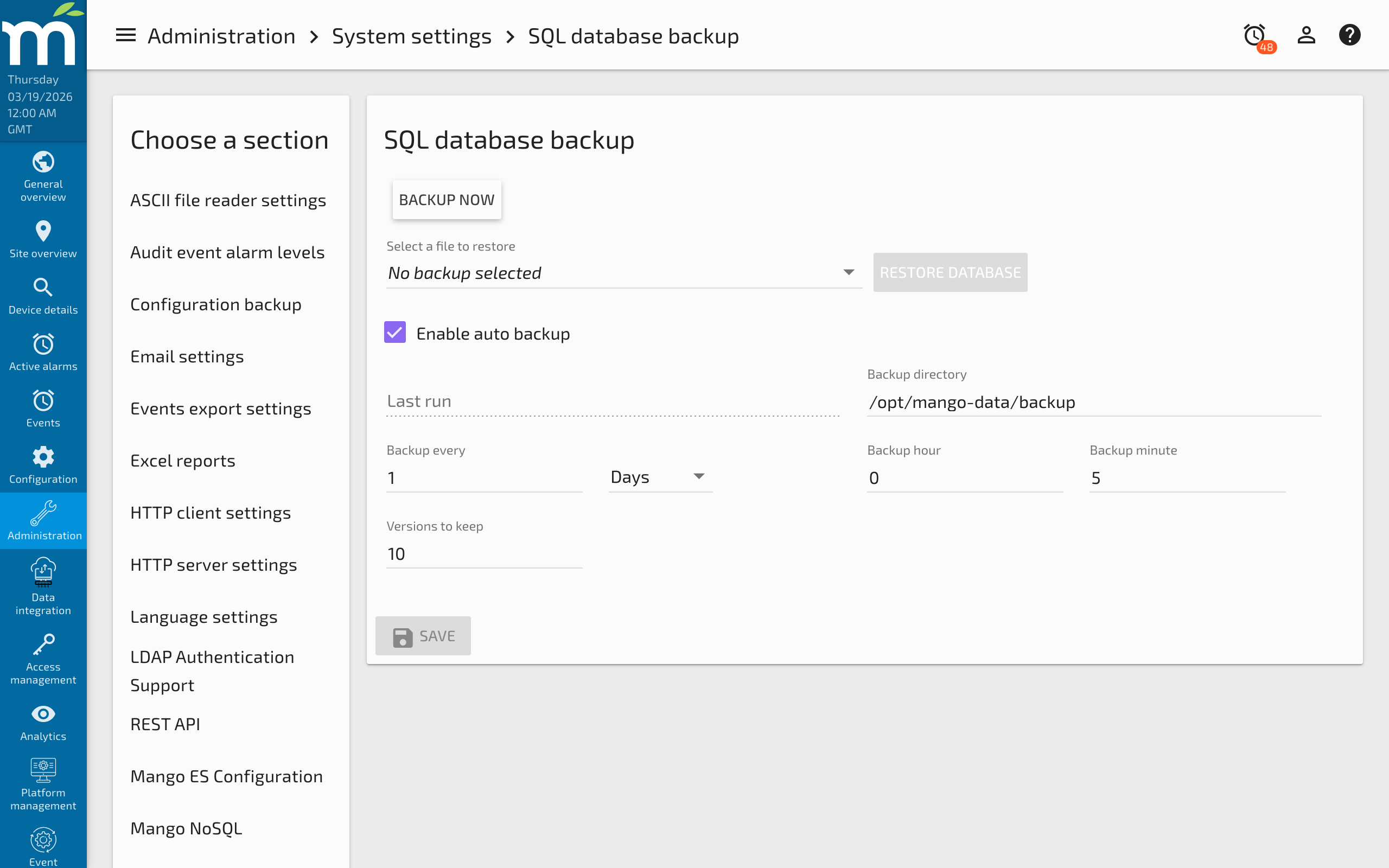
- Click the down arrow in the "Select a file to restore" list and select the backup you want to restore from the drop-down.
- Click the Restore database button.
- Once the restore has finished, restart Mango to ensure all configuration is loaded properly.
Restoring When Mango Cannot Start
If you are having issues starting Mango due to a corrupted H2 database, follow these steps:
- Rename or delete the current H2 database file at
MA_HOME/databases/mah2.232.mv.db(the filename encodes the H2 build ID; for older Mango versions the file may be namedmah2.200.mv.dbormah2.h2.db). - Start Mango. It will create a new, empty database.
- Log in with the default credentials:
admin/admin. - Navigate to the SQL database backup settings and complete the restore process.
Do not restore a backup that was created with an older version of Mango. The database schema may have changed between versions, which can cause errors or data corruption.
Restoring via the Command Line (Linux)
For headless servers or situations where the Mango UI is not accessible, you can restore an H2 backup from the command line.
Step 1: Stop Mango
systemctl stop mango
Step 2: Move the Existing Database
Relocate the current database files for safekeeping in case you need to roll back:
mv /opt/mango/databases/mah2.232.* ~/
Step 3: Locate Required Paths
Before running the restore command, identify:
- The H2 JAR file:
MA_HOME/lib/h2-2.3.232.jar(Mango 5.6.x uses H2 2.3.232; older Mango versions usedh2-1.4.200.jarorh2-1.4.196.jar) - The databases directory:
MA_HOME/databases/ - The backup directory:
MA_HOME/backup/(or wherever your backups are stored) - The specific backup file you want to restore
Step 4: Run the Restore
java -cp /opt/mango/lib/h2-2.3.232.jar org.h2.tools.RunScript \
  -url "jdbc:h2:/opt/mango/databases/mah2.232" \
  -user "" -password "" \
  -script /opt/mango/backup/core-database-H2-Sep-01-2021_000500.zip \
  -options compression zip
Step 5: Fix File Ownership
Ensure the restored database files are accessible to the Mango service user:
chown -R mango:mango /opt/mango/databases
Step 6: Start Mango
systemctl start mango
Restoring Any Database from a Backup File
You can also configure Mango to automatically restore from a backup file on startup by setting the following property in mango.properties:
db.createTables.restoreFrom=/path/to/backup-file.zip
This supports both .zip and .sql backup files. The restore will run the next time Mango creates its database tables (typically when the database file does not exist). Remove or comment out this property after the restore is complete.
Best Practices
- Test your backups regularly by restoring them on a separate system to verify they are valid.
- Keep multiple backup versions -- the default setting of 10 is usually sufficient, but increase it if you need a longer history.
- Store backups offsite -- copy backup files to a remote location in addition to the local disk.
- Coordinate with NoSQL backups -- if you use the NoSQL module, the H2 backup only contains configuration data. You need separate NoSQL backups to preserve point value history.
Related Pages
- About the H2 Database — Understanding the default H2 database, its features, and limitations
- How to Backup Your Mango System — Comprehensive backup strategy covering SQL, NoSQL, and configuration backups
- Database Conversions — Migrate from H2 to MySQL or another database engine
- Mango Properties Reference — Database backup properties including
db.createTables.restoreFrom - Managing Disk Space — Monitor disk usage to prevent backup failures from full disks