How to Backup Your Mango System
A comprehensive backup strategy for Mango involves backing up the relational database, the NoSQL time-series database (if installed), and the Mango file structure. This page covers the automated backup features built into Mango and best practices for ensuring you can recover from data loss.
You must stop Mango before manually copying the H2 database file or the NoSQL database files. Copying these files while Mango is running will result in corrupt backups. Use the built-in backup features instead, which create consistent snapshots without requiring a shutdown.
What to Back Up
| Component | Location | Contains |
|---|---|---|
| SQL Database | MA_HOME/databases/ | Configuration, users, events, data point definitions |
| NoSQL Database | MA_HOME/databases/mangoTSDB/ | Point value history (if NoSQL module installed) |
| Configuration files | MA_HOME/mango.properties, MA_HOME/overrides/ | System settings, custom properties |
| File store | MA_HOME/filestore/ | Uploaded files, dashboard resources |
| Custom content | MA_HOME/web/ overrides | Background images, custom CSS, logos |
Backing up only the database(s) preserves your configuration and historical data, but items like custom dashboard background images and file store uploads are stored on the filesystem. For a complete backup, include the entire MA_HOME directory tree.
We highly recommend using an automatic offsite backup service to back up at least once daily, preferably during a non-peak usage time.
SQL Database Backup Settings
Navigate to Administration > System Settings > SQL database backup to configure automated SQL database backups.
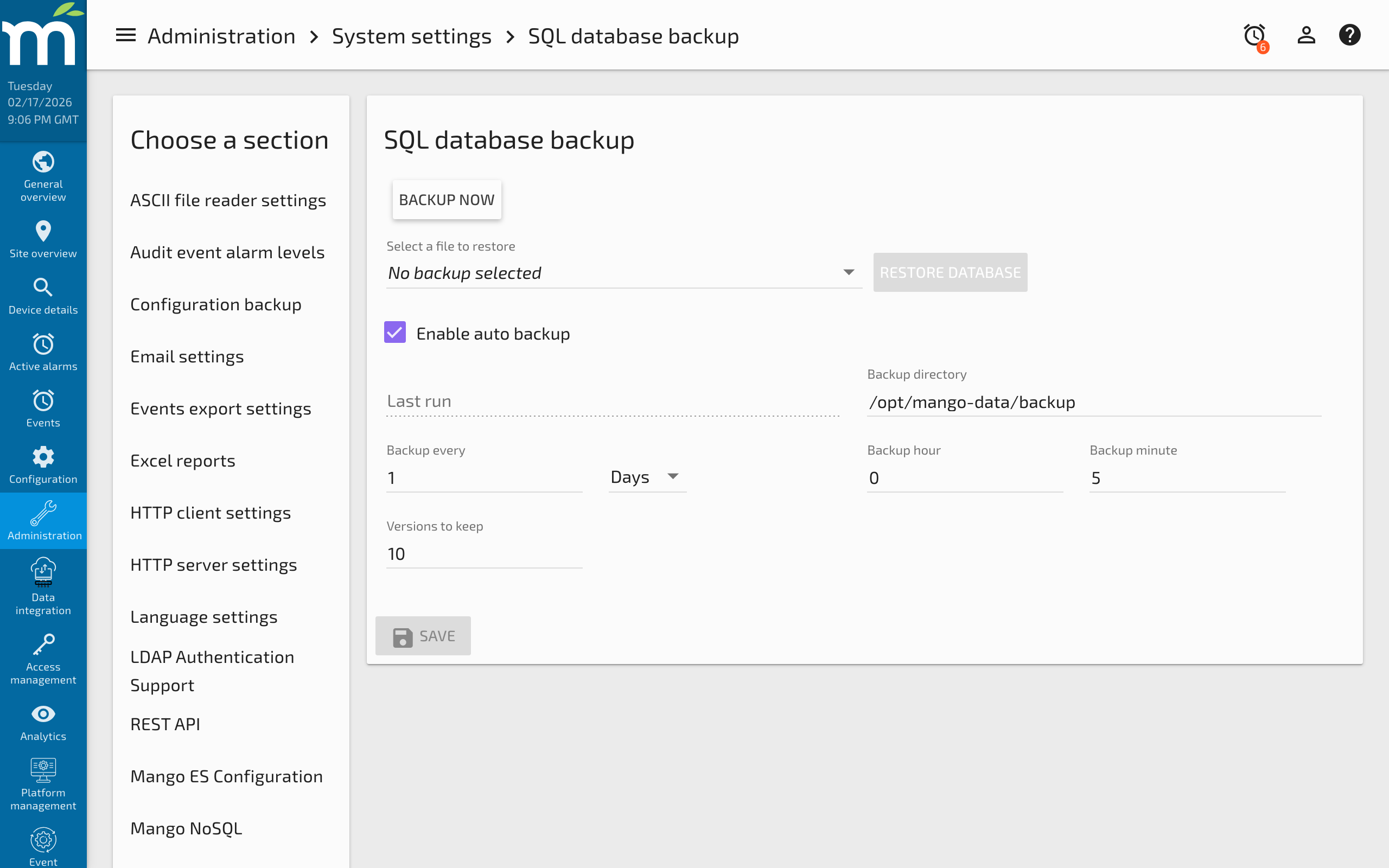
| Setting | Description | Default |
|---|---|---|
| Enable auto backup | Turn on scheduled backups | Enabled |
| Last run | Timestamp of the most recent backup | -- |
| Backup directory | Where backup files are stored | MA_HOME/backup |
| Backup frequency | How often to create backups (periods) | Daily |
| Backup time | Preferred time of day (hour 0-23, minute 0-59) | Midnight |
| Versions to keep | Number of backup files to retain | 10 |
When more than one version is kept, backup files are named with the pattern core-database-[db type]-date_time.zip. When set to 1, the file is always named core-database-[db type].zip and is overwritten each time.
Click the Backup now button to queue an immediate backup job.
NoSQL Database Backup Settings
If the MangoNoSQL module is installed, a separate backup configuration is available under Administration > System Settings > Mango NoSQL Configuration. The NoSQL backup creates zip files of the time-series shard files.
The NoSQL backup supports incremental backups, which capture only changes since the last backup. This dramatically reduces backup time and file size for large datasets. To restore incremental backups, apply them in order on top of the base backup.
| Setting | Description | Default |
|---|---|---|
| Enable auto backup | Turn on scheduled backups | Enabled |
| Backup directory | Where backup files are stored | MA_HOME/backup |
| Backup frequency | How often to create backups | Daily |
| Versions to keep | Number of backups retained | 365 |
| Incremental backups | Only backup changes since last backup | Enabled |
Configuration Backup
Mango also supports JSON configuration backups that export all configuration objects (data sources, data points, event detectors, event handlers, users, etc.) to a .json file. This is configured separately and produces smaller files that are useful for transferring configuration between instances.
Best Practices
- Back up both databases -- If using the NoSQL module, you need separate backups for the SQL and NoSQL databases. The SQL backup alone will not include point value history.
- Copy backups offsite -- Keep copies of backup files on a separate machine, network share, or cloud storage. Local backups will not help if the entire disk fails.
- Schedule backups during off-peak hours -- Backup operations consume disk I/O and CPU. Running them during low-activity periods minimizes impact on data collection.
- Test restores regularly -- A backup is only useful if it can be restored. Periodically test the restore process on a separate system. See How to Restore an H2 Database Backup.
- Monitor backup success -- Check the "Last run" timestamps periodically to ensure backups are completing. Set up event handlers to notify you of backup failures.
- Consider filesystem-level backups -- For large production systems, filesystem snapshots (LVM, ZFS, or cloud provider snapshots) may be more practical than application-level backups.
Related Pages
- How to Restore an H2 Database Backup — Restore H2 database backups via the UI or command line
- Enterprise NoSQL Database — NoSQL backup settings and incremental backup configuration
- Managing Disk Space — Monitor backup file disk usage and manage retention
- How to Upgrade Mango — Create a backup before upgrading Mango
- Mango Properties Reference — Backup-related properties and file paths