How to Upgrade Mango
Mango automatically checks for new updates daily and notifies you on the Modules page, displaying the number of modules that can be upgraded. New features and bug fixes are released regularly, so it is good practice to check for updates often. An event is also raised when new upgrades are available, which you can configure to send email notifications.
It is recommended that you read the release notes for every upgrade before performing it to ensure it will not cause unexpected changes to your Mango configuration. Use caution when installing any new modules -- be sure you understand what they do before installing them.
Automatic Upgrade (Recommended)
Step 1: Check for Upgrades
Navigate to Administration > Modules and click the Check for upgrades button. Mango will contact the store and display a list of available upgrades and new modules.
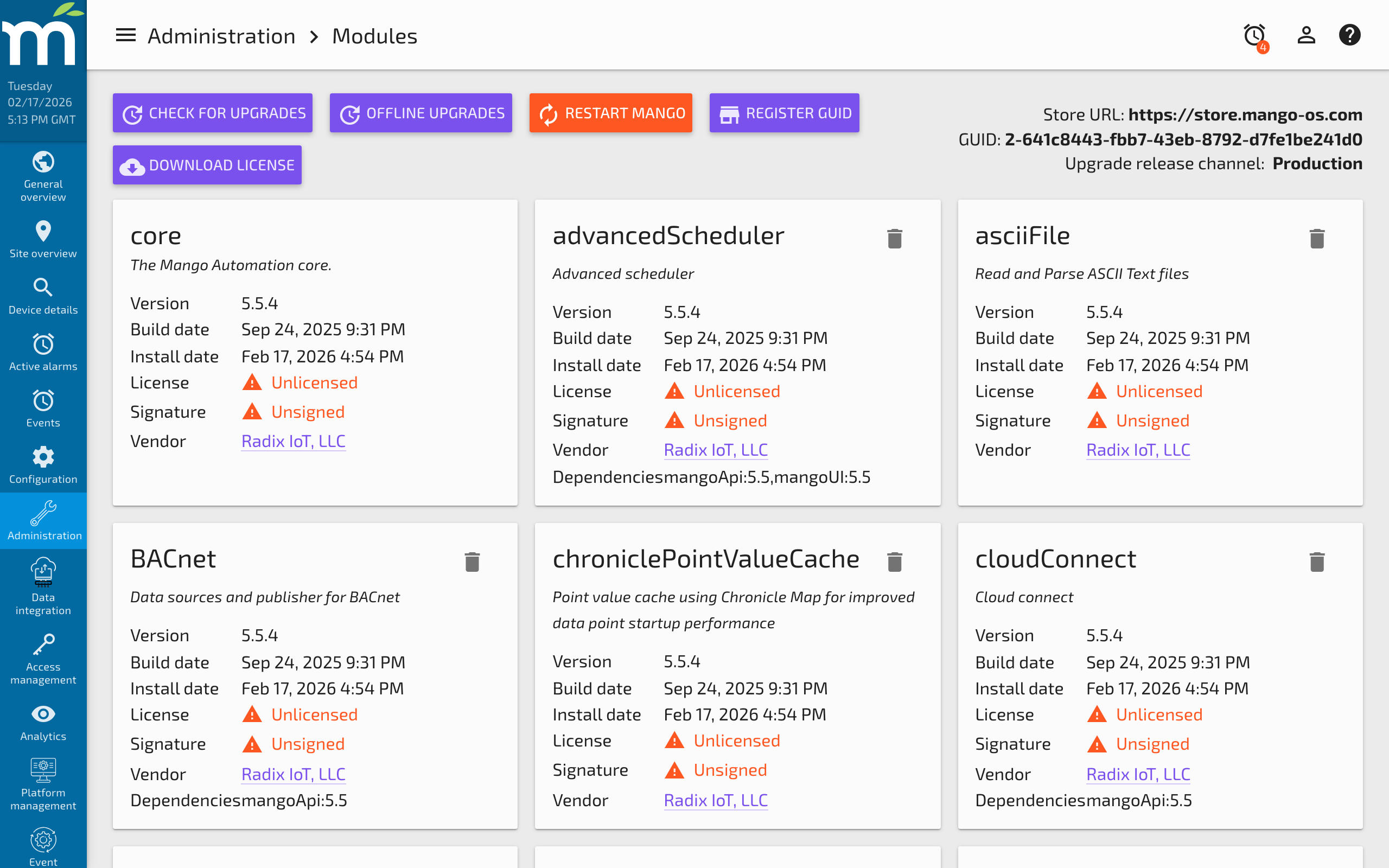
Step 2: Select and Install
Select the modules you want to upgrade and click the Upgrade/Install button. Mango will:
- Download the selected module packages.
- Shut down automatically.
- Install the new modules.
- Restart with the updated modules.
Offline Upgrade
If your Mango server does not have internet access, you can perform an offline upgrade:
- On a machine with internet access, download the Module manifest file from your Mango Modules page.
- Upload the manifest at https://store.mango-os.com/account/manualUpdate to download the offline update package.
- Transfer the package to your Mango server.
- Use the offline upgrade option on the Modules page to apply the update.
Pre-Upgrade Checklist
Before performing any upgrade:
- Read the release notes for all modules being upgraded.
- Create a full backup of the
MA_HOMEdirectory, including both databases. See How to Backup Your Mango System. - Verify your
mango.propertiescustomizations are in the overrides directory (MA_HOME/overrides/properties/). This ensures your settings survive the upgrade. - Note your current version so you can report issues accurately if the upgrade causes problems.
- Plan for downtime -- Mango must restart during the upgrade process.
Standard Manual Upgrade Instructions
For systems that cannot use the automatic upgrade:
- Stop Mango.
- Create a full backup of the
MA_HOMEdirectory and database. For MySQL, runmysqldumpto back up the database. - Ensure your customized properties file has been copied to
MA_HOME/overrides/properties/mango.properties(this ensures changes are preserved after the upgrade). - Delete the
libdirectory inMA_HOME. - Download and extract the new Mango release zip file into the
MA_HOMEdirectory, overwriting existing files. - Start Mango and verify the upgrade completed successfully.
Windows Service Management
If you are running Mango as a Windows service, keep the following in mind when upgrading:
- Use the automatic upgrade from the Modules page and select the option to not restart Mango after downloading.
- Once the download completes, stop the Mango Windows service.
- Start Mango once from the command line using
bin\mango.cmdto allow the upgrade to complete. - After verifying the upgrade was successful, stop the command-line instance and restart the Windows service.
Troubleshooting
Module Versions Not Updating
If the Modules page still shows old versions after an upgrade, the lib directory may not have been properly cleaned. Stop Mango, delete the lib directory, re-extract the release files, and restart.
Upgrade Event Notifications
Configure an email event handler for the "Upgrade Available" system event to receive automatic notifications when new versions are released.
Related Pages
- How to Backup Your Mango System — Always create a full backup before upgrading
- Database Conversions — Convert your database as a separate step after upgrading
- Updating the Mango Store Path — Ensure the store URL is correct for module downloads and upgrades
- Starting in Safe Mode — Start with all data sources disabled if an upgrade causes problems
- Mango Properties Reference — Preserve custom properties in the overrides directory during upgrades