Email Settings
Email settings control all outgoing email from your Mango instance, including alarm notifications, event handler emails, password reset messages, and scheduled reports. Proper email configuration is essential for any production deployment where operators need to be notified of alarm conditions.
Accessing Email Settings
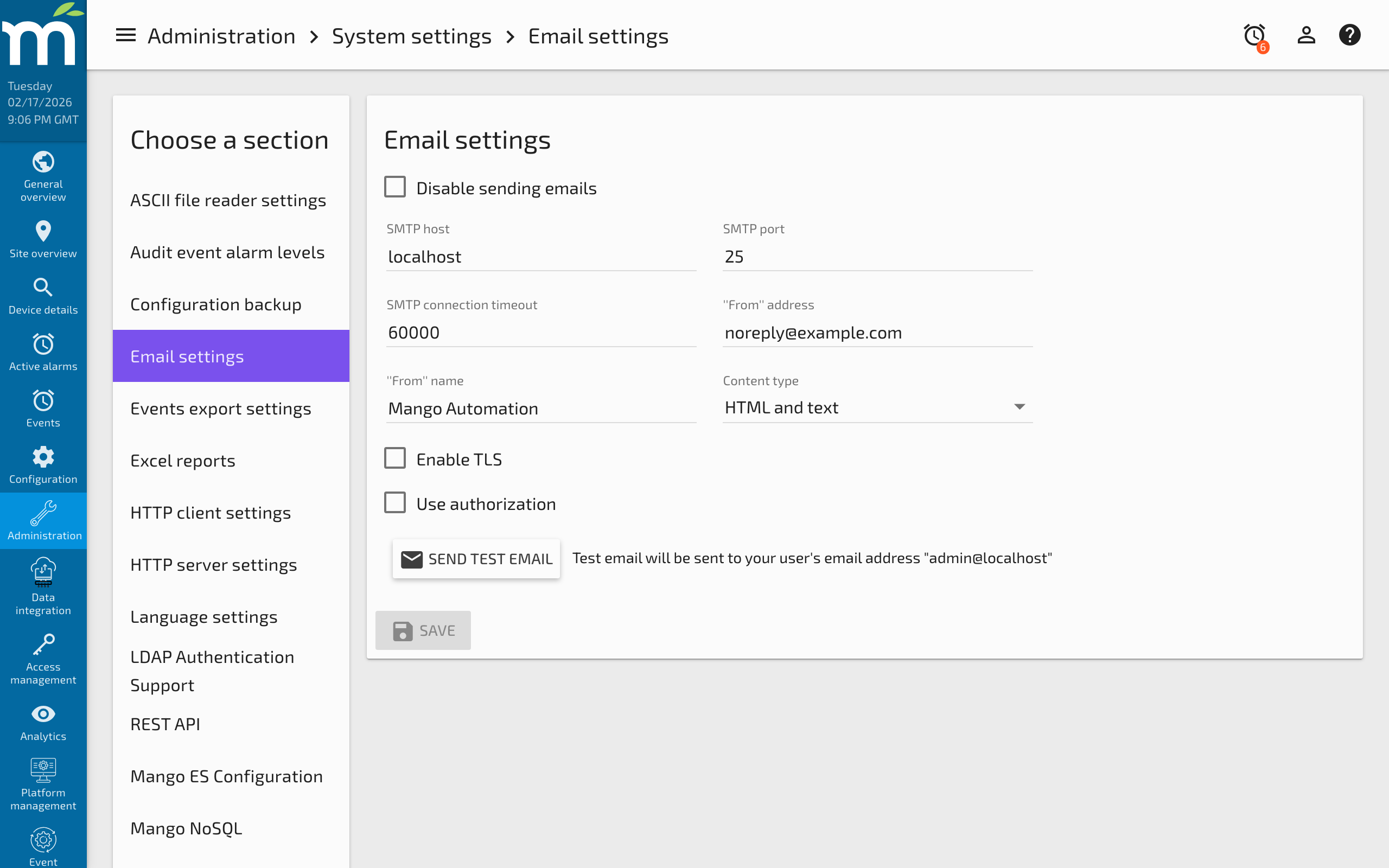
Navigate to Administration > System Settings > Email Settings to configure outgoing email.
SMTP Configuration
SMTP Host
The SMTP host is the hostname or IP address of the mail transfer agent (MTA) that Mango will use to send outgoing email. Common examples include:
smtp.gmail.comfor Gmail/Google Workspacesmtp.office365.comfor Microsoft 365smtp-relay.gmail.comfor Google Workspace SMTP relaylocalhostif running a local mail server (e.g., Postfix, Sendmail)
SMTP Port
The port used depends on your encryption configuration:
| Port | Protocol | Use Case |
|---|---|---|
| 25 | SMTP (unencrypted or STARTTLS) | Local mail servers, relay servers |
| 465 | SMTPS (implicit TLS) | Legacy SSL connections |
| 587 | Submission (STARTTLS) | Standard authenticated email submission |
Authentication
If your SMTP host requires authentication, check the Use authorization box and fill in:
- Username: Your SMTP account username (often the full email address).
- Password: Your SMTP account password or application-specific password.
For Gmail and Google Workspace, you will need to generate an App Password if two-factor authentication is enabled on the account.
TLS/SSL Encryption
Check the Enable TLS checkbox if your SMTP server requires encrypted connections. Most modern email providers (Gmail, Microsoft 365, etc.) require TLS. When TLS is enabled, Mango uses STARTTLS to upgrade the connection to an encrypted channel.
Connection Timeout
SMTP connection timeout is specified in milliseconds. A value of 0 means no timeout (Mango will wait indefinitely for a connection). The recommended value for production is between 10000 (10 seconds) and 30000 (30 seconds) to prevent email operations from hanging if the SMTP server is unreachable.
Sender Configuration
From Address
The 'From' address is the email address that appears as the sender on all outgoing messages from Mango. This should be a valid email address that your SMTP server is authorized to send from. Using an unauthorized sender address may cause emails to be rejected or flagged as spam.
From Name
The 'From' name is an optional display name (also called a "personal" name) shown alongside the email address. For example, setting this to "Mango Automation" would cause emails to appear from Mango Automation <alerts@example.com> rather than just alerts@example.com.
Content Type
Use the Content type select box to choose the format of Mango email notifications:
| Content Type | Description |
|---|---|
| HTML and text (default) | Creates a multi-part MIME email with both text/html and text/plain parts. The email client displays whichever format it prefers. |
| HTML only | Single-part HTML email. May become multi-part if there are attachments or inline content. |
| Text only | Simple single-part plain text email. No HTML formatting is included. |
The content type affects how custom email templates are rendered in email event handlers. If you use custom FreeMarker templates with HTML formatting, ensure the content type is set to either "HTML and text" or "HTML only".
Testing Email Configuration
After entering your email settings, click the Send Test Email button to verify the configuration. Mango will attempt to send a test email to the currently logged-in admin user's email address. Make sure the admin user has a valid email address configured in Administration > Users.
If the test email fails, check the following:
- SMTP host and port: Verify the hostname is correct and the port is reachable from the Mango server.
- Authentication credentials: Confirm the username and password are correct. For Gmail, ensure you are using an App Password.
- TLS setting: Try toggling the TLS checkbox. Some servers require it; others reject connections that use it.
- Firewall rules: Ensure the Mango server can reach the SMTP host on the configured port. Use
telnet smtp.example.com 587from the server to test connectivity. - From address: Ensure the from address is authorized for sending on the SMTP server.
Common SMTP Provider Configurations
Gmail / Google Workspace
SMTP Host: smtp.gmail.com
Port: 587
Use Authorization: Yes
Username: your-email@gmail.com
Password: (App Password, not your Google password)
Enable TLS: Yes
Microsoft 365
SMTP Host: smtp.office365.com
Port: 587
Use Authorization: Yes
Username: your-email@yourdomain.com
Password: your-password
Enable TLS: Yes
Local Postfix (No Authentication)
SMTP Host: localhost
Port: 25
Use Authorization: No
Enable TLS: No
Properties File Configuration
Email settings can also be configured directly in mango.properties or via environment variables. This is useful for automated deployments and containerized environments. The relevant properties include:
# SMTP settings are managed through the System Settings UI by default.
# For container deployments, they can be set via the REST API on first startup.
Best Practices
- Use TLS: Always enable TLS when connecting to external SMTP servers to protect credentials and email content in transit.
- Use application-specific passwords: For services like Gmail, generate app-specific passwords rather than using your main account password.
- Set a meaningful From name: Use a name like "Mango SCADA Alerts" so recipients can quickly identify the source.
- Configure alarm email levels on users: In addition to event handler emails, users can automatically receive alarm emails at or above a configured severity level.
- Monitor the mail queue: If Mango cannot send email (e.g., SMTP server is down), messages may queue up. Check the Mango log for email delivery errors.
- Test after any network changes: If firewall rules or network configurations change, re-test email delivery to ensure SMTP connectivity is maintained.
Related Pages
- Email Notification Setup — Configure email event handlers with recipients, escalation, and templates
- Custom Email Templates — Customize email content using FreeMarker templates
- Mango Properties Reference — All configurable properties including SMTP-related settings
- Creating Excel Reports — Schedule automated report delivery via email