Custom Email Templates
Mango allows you to customize the content of email notifications sent by email event handlers using FreeMarker templates. You can include data point values, historical data, event details, and custom formatting to create informative notifications tailored to your operations team.
Prerequisites
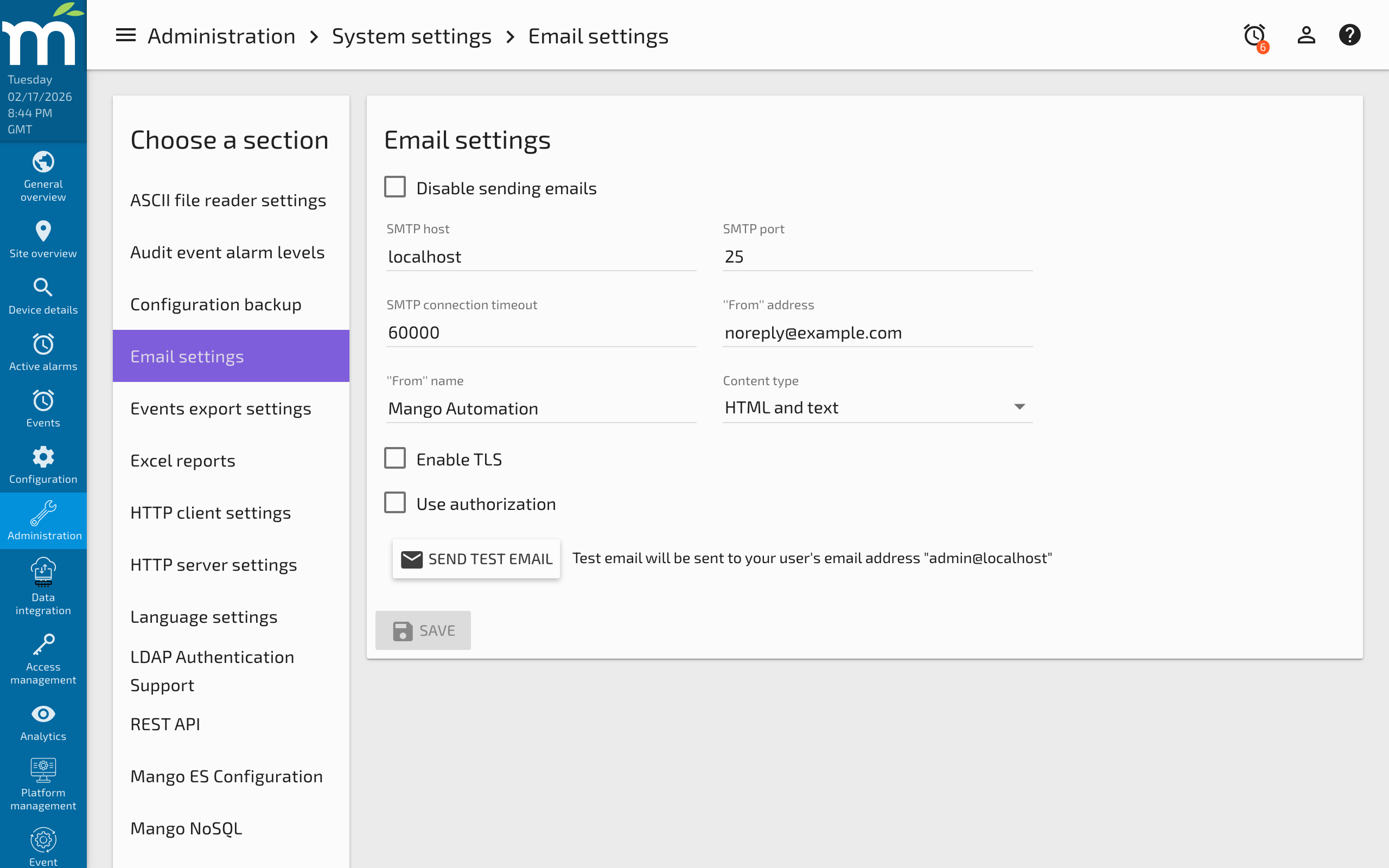
Before creating custom email templates, ensure that outgoing email is configured:
- Navigate to Administration > System Settings > Email Settings.
- Configure the SMTP host, authentication, and content type.
- Send a test email to verify the configuration is working.
For detailed SMTP setup instructions, see Email Settings.
Setting Up Event-Triggered Emails
To send a custom email when an alarm condition occurs, you need three components:
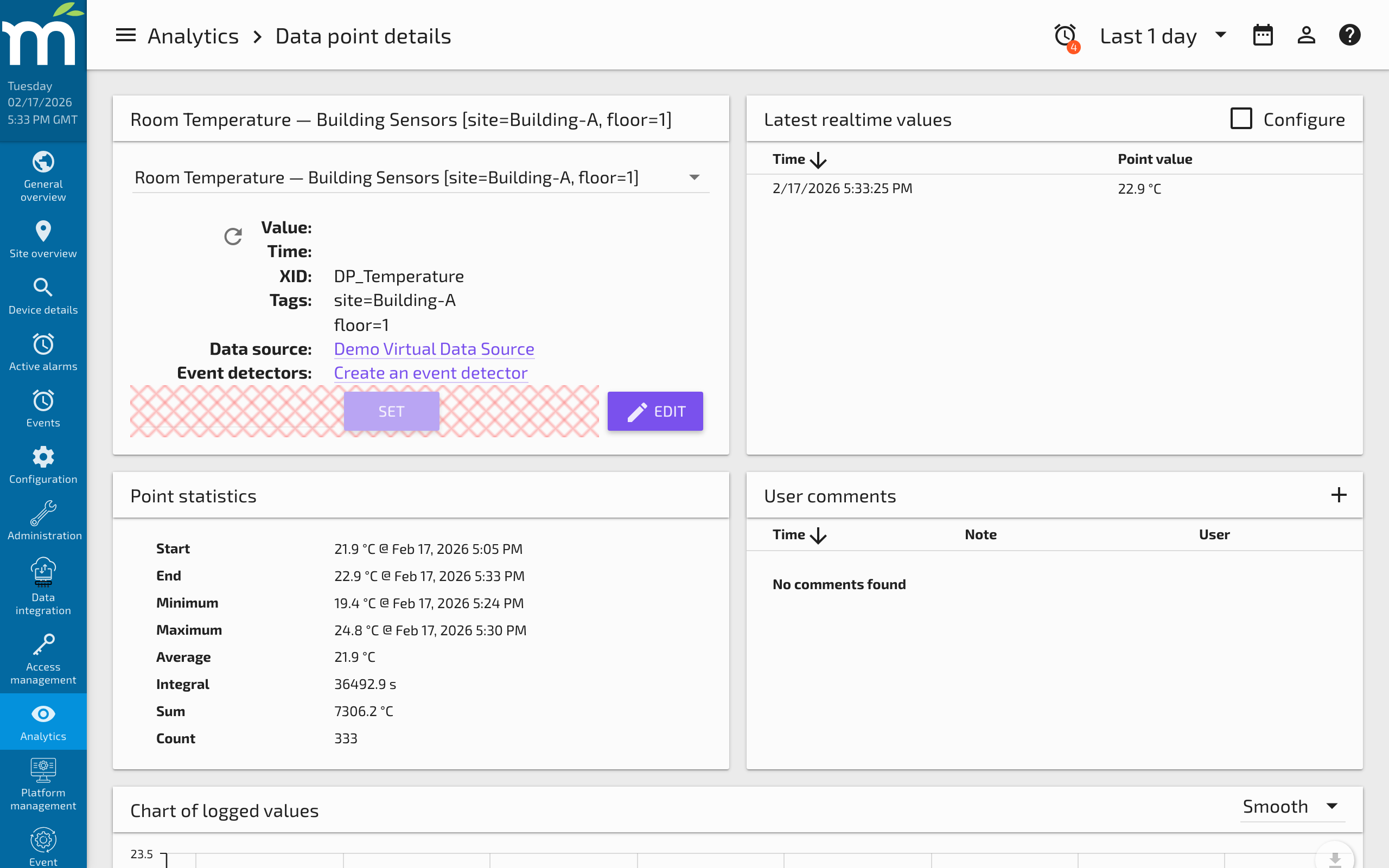
1. Event Detector
Create an event detector on the data point you want to monitor. For example, to monitor a temperature data point that should not exceed 50 degrees:
- Navigate to the data point's Event Detectors section.
- Add a High Limit detector with a limit of 50.
- Set an appropriate alarm level (e.g., Warning or Urgent).
2. Email Event Handler
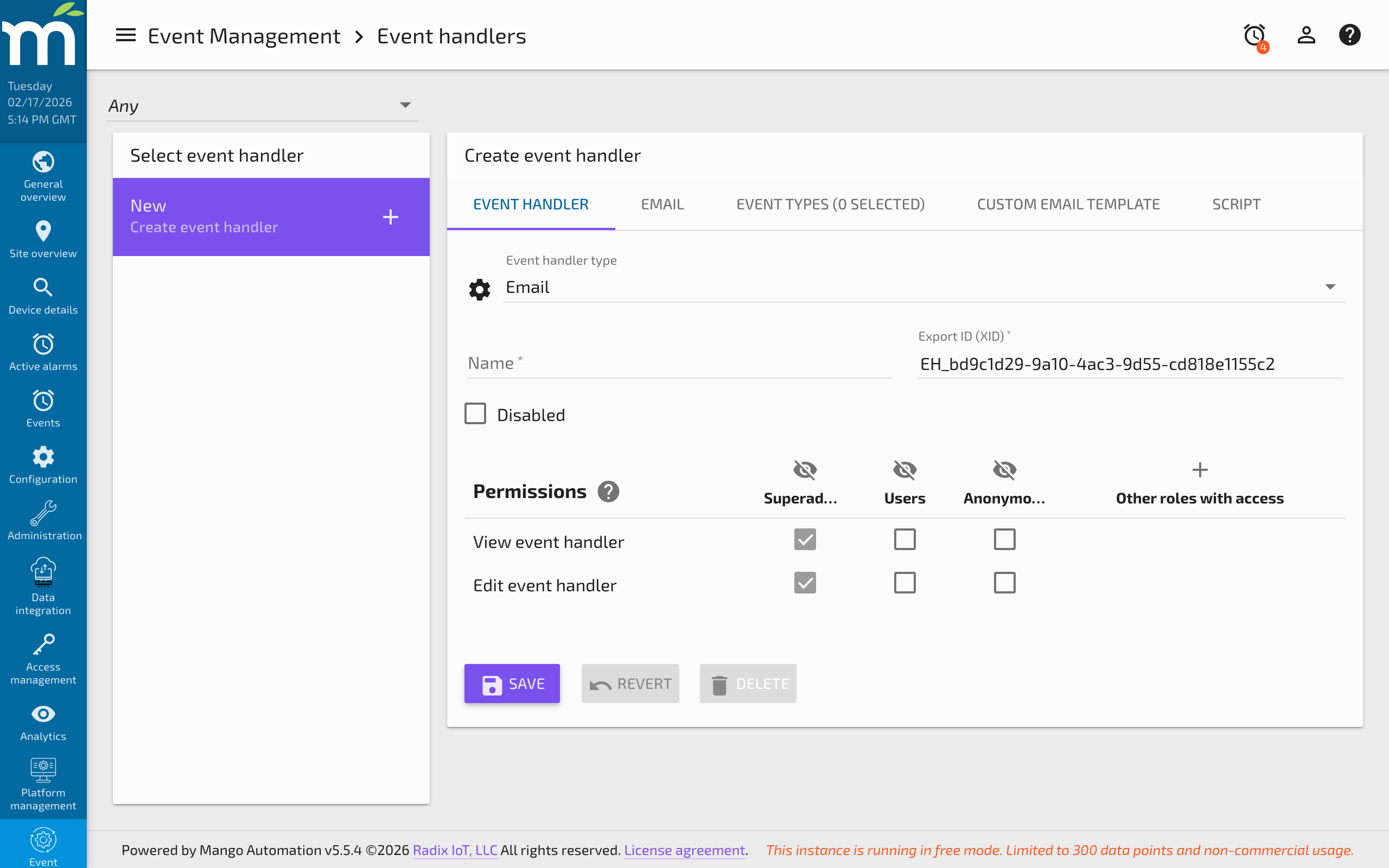
Create an email event handler linked to the event detector:
- Navigate to the Event Handlers page.
- Create a new handler and choose Email type.
- Link it to the event detector you created.
- Add email recipients (mailing lists, specific users, or direct email addresses).
- Select data points to include as additional context in the email.
3. Custom Template
In the Custom Template field of the email event handler, enter your FreeMarker template code. This template overrides the default email body.
FreeMarker Template Basics
Mango uses FreeMarker as its template engine. FreeMarker provides a powerful syntax for generating dynamic HTML and text content.
Setting a Custom Subject Line
Use the <@subject> directive to override the default email subject:
<@subject>Alert - Temperature Exceeded Limit</@subject>
Accessing Event Data
The event object is available as evt in the template model:
<p>Event ID: ${evt.id}</p>
<p>Alarm Level: ${evt.alarmLevel}</p>
<p>Time: ${evt.activeTimestamp?number_to_datetime}</p>
Including Data Point Values
When you add data points to the email handler's additional context, they become available under additionalContext using the template key you assign to each point. Each context point provides:
name-- the data point namedeviceName-- the device namevalues-- a list of rendered point value/timestamp entries
For point events, renderedHtmlPointValues contains the most recent rendered values of the event's source point. This variable is only available for point events when the email content type is set to HTML or both HTML and Text.
Example: Basic Custom Template
<@subject>Hey - Stuff is happening with the automation system and I think you should know</@subject>
<#if renderedHtmlPointValues??>
  <#list renderedHtmlPointValues as renderedPvt>
  ${additionalContext.temperature.deviceName} - ${additionalContext.temperature.name} - ${renderedPvt.value} - ${renderedPvt.time}<br/>
  </#list>
</#if>
In this example, temperature is the template key assigned to the temperature data point in the event handler's additional context configuration.
Example: Including Point History
You can use an optional script in the email event handler to add historical data to the model before template rendering. For example, to include the last 10 values of a temperature point:
model.put("temperatureValues", temperature.last(10));
Then in the template:
<h3>Recent Temperature Readings</h3>
<table>
  <tr><th>Value</th><th>Time</th></tr>
  <#list temperatureValues as pv>
    <tr><td>${pv.value}</td><td>${pv.time}</td></tr>
  </#list>
</table>
Available Template Variables
The following variables are available in email templates:
| Variable | Description |
|---|---|
evt | The event instance object, providing id, alarmLevel, activeTimestamp, message, context, and more. |
point | For point events, the data point object with name, deviceName, tags, and other properties. |
renderedHtmlPointValues | For point events with HTML content type, an array of the most recent rendered point values. |
additionalContext | A map of additional context points keyed by the template key you assign in the handler configuration. |
model | The full model map (accessible in scripts to add custom data before template rendering). |
Accessing Data Point Tags
If your data points use tags, you can iterate over them in the template:
<#list point.tags as tag, value>
  ${tag}: ${value}<br/>
</#list>
Event Context by Event Type
Different event types provide different context data:
- Data point events:
evt.context.dataSourceprovides the data source object. - Data source events:
evt.context.dataSourceprovides the data source object. - Publisher events:
evt.context.publisherprovides the publisher object. - Audit events:
evt.contextprovides JSON describing the changes made. - System events:
evt.contextis null.
Advanced: Using Scripts with Templates
The email event handler supports an optional script that runs before the template is rendered. The script receives the full model map and can modify it, add new entries, or cancel the email entirely.
Script Return Values
- Return
CANCELto suppress the email for this event. - Return
UNCHANGEDto send the email with the current model. - Any other return value (or no explicit return) sends the email normally.
Example: Conditional Email Suppression
// Only send email if temperature exceeds 100 (suppress for minor threshold crossings)
if (additionalContext.temperature.value < 100) {
    return "CANCEL";
}
return "UNCHANGED";
Email Content Types
The content type configured in your Email Settings affects template rendering:
- HTML and text (default): Mango creates a multi-part MIME email. Your custom template should produce HTML content.
- HTML only: Single-part HTML email (may become multi-part if there are attachments).
- Text only: Plain text email. Use plain text in your template rather than HTML tags.
Best Practices
- Start with the defaults: The built-in templates at
MA_HOME/ftl/provide good examples. Copy and modify them rather than writing from scratch. - Test with low-severity events: Configure a test event detector at the Information level so you can trigger emails without creating false alarms.
- Use conditional blocks: Wrap optional sections in
<#if variable??>checks to prevent errors when variables are not available. - Keep templates readable: Use FreeMarker comments (
<#-- comment -->) to document complex template logic. - Include the
<@subject>directive: This gives recipients a clear, actionable subject line rather than the default format.
For complete FreeMarker documentation, see the FreeMarker Manual.
Related Pages
- Email Settings — Configure SMTP host, authentication, and content type before using templates
- Email Notification Setup — Complete guide to email event handlers, recipients, and escalation
- Setting Up Event Detectors — Create detectors that trigger the email handlers using custom templates
- Adding and Using Tags — Access point tags in FreeMarker templates for context-rich notifications