Advanced Scheduler
The Advanced Scheduler in Mango allows you to define weekly repeating schedules with override days for holidays and special events. Schedules raise events when they become active, and those events can be handled by event handlers to perform automated tasks such as sending emails, running external processes, or setting data point values.
Overview
A schedule is a periodic weekly repeating list of time periods during which an event is active. When the schedule enters an active period, it raises an event at the configured alarm level. When the active period ends, the event returns to normal. These schedule events appear on the Events page and can be linked to any event handler.
Common use cases for the Advanced Scheduler include:
- HVAC control: Automatically adjust heating and cooling setpoints based on occupancy schedules.
- Lighting automation: Turn lights on and off according to business hours with holiday exceptions.
- Report generation: Trigger periodic report emails during business hours.
- Shift management: Raise events at shift boundaries to trigger data logging or operator notifications.
- Maintenance windows: Define recurring maintenance periods where certain alarms are suppressed.
Configuration
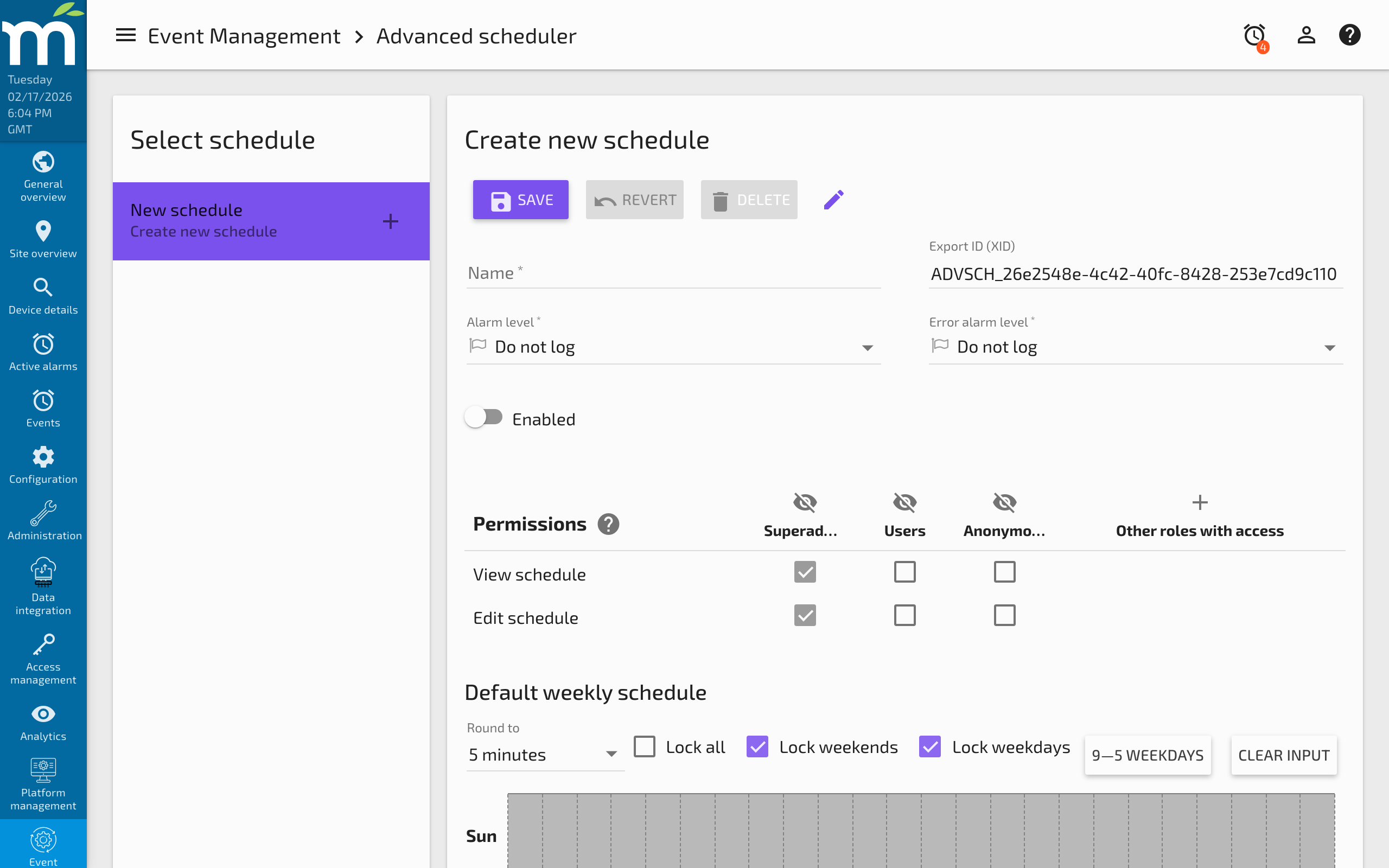
Each schedule has the following properties:
| Property | Description |
|---|---|
| Name | A descriptive name for the schedule (e.g., "Business Hours", "Night Shift"). |
| XID | A unique export identifier used for import/export operations. |
| Read permission | Controls which users can view the schedule. |
| Edit permission | Controls which users can modify the schedule. |
| Alarm level | The severity level at which the event is raised when the schedule goes active. |
| Error alarm level | The severity level for error events if something goes wrong with the schedule. |
Default Weekly Schedule
The default weekly schedule defines the active and inactive periods for each day of the week, starting on Sunday. If no event is defined at the start of a day, the schedule is assumed to be inactive for that day.
You can add active time periods to each day by specifying start and end times. Multiple active periods can exist within a single day to handle scenarios like split shifts or lunch breaks.
Lock Options
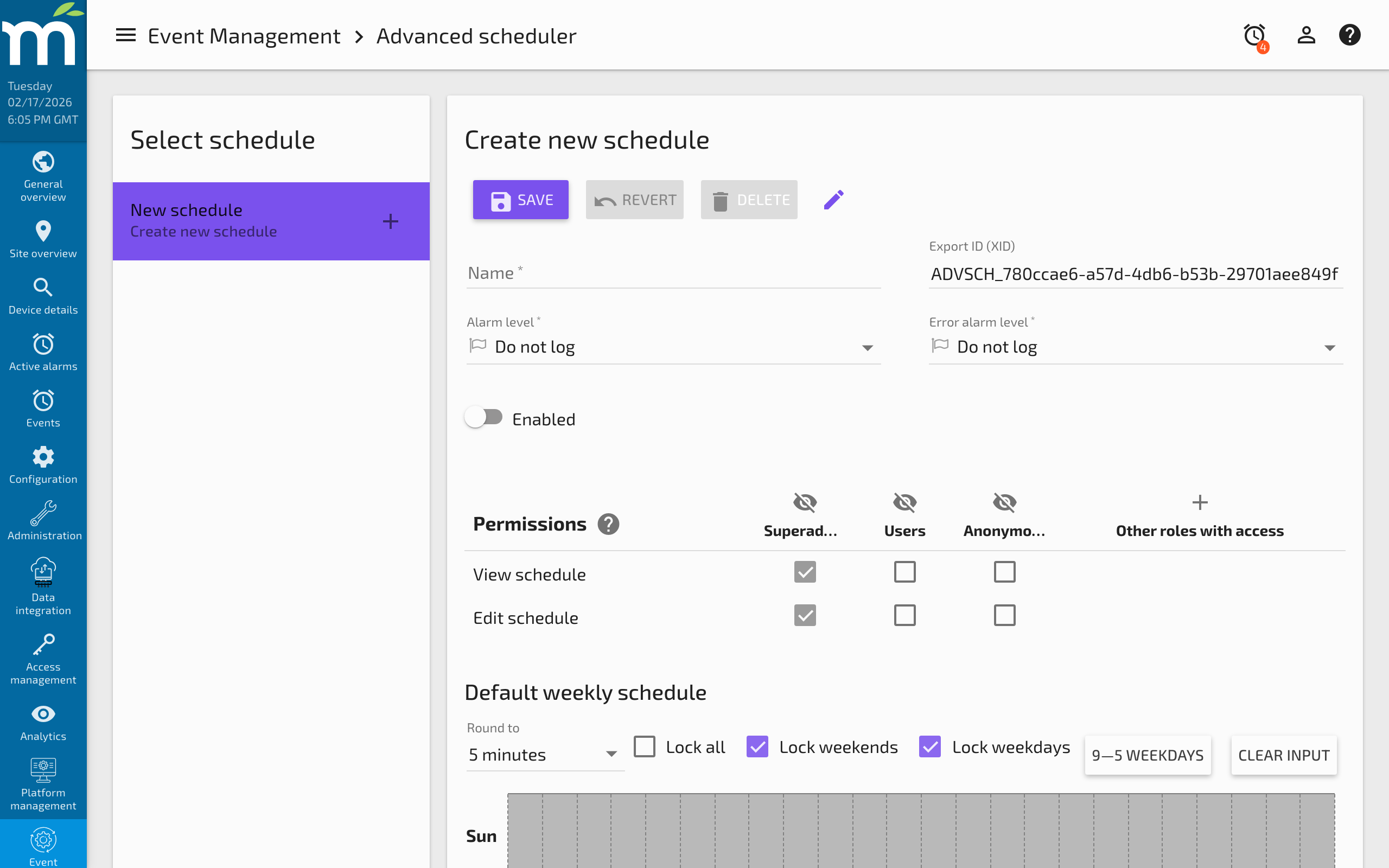
To simplify configuration when multiple days share the same schedule, use the lock checkboxes:
- Lock all: Every day of the week uses the same active/inactive times. Editing one day automatically updates all others.
- Lock weekdays: Monday through Friday share the same schedule. Changing any weekday updates all weekdays.
- Lock weekends: Saturday and Sunday share the same schedule. Changing one weekend day updates the other.
These options are especially useful for standard business-hour schedules where weekdays are identical and weekends are either all active or all inactive.
Exceptions
Exceptions allow you to override the default weekly schedule for specific dates such as holidays, special events, or maintenance windows. Each exception consists of a date-matching rule and a set of active/inactive times that replace the default schedule for that day.
Exception Priority
Exceptions are applied in order from highest priority (first in the list) to lowest priority (last in the list). If multiple exceptions match the same date, the highest priority exception is used. This allows you to create general rules (e.g., "every December 25th") and then override them with more specific rules when needed.
Date Matching Rules
Exceptions use rules to match dates. You can configure rules to match:
- A specific calendar date (e.g., December 25, 2026)
- A recurring annual date (e.g., every January 1st)
- A day-of-week pattern (e.g., the last Friday of November)
- A date range (e.g., December 24-26)
For each matched date, you define the active/inactive time periods just as you would for any day in the weekly schedule. If you want the schedule to be completely inactive on a holiday, simply define no active periods for that exception.
Event Handling
When a schedule transitions to an active period, it raises an event that can be captured by event handlers. The event context includes the following data, which is accessible in email templates and scripts:
| Context Variable | Type | Description |
|---|---|---|
isStartup | boolean | Indicates whether this event was raised or deactivated during schedule startup (as opposed to a normal scheduled transition). |
vo | ScheduleVO | The schedule configuration object containing name, XID, and permissions. |
state | ScheduleState | The current state of the schedule including active/inactive status. |
Email Handler Integration
When using an email event handler with the Advanced Scheduler, you can reference the schedule context in custom FreeMarker templates. For example:
<#if evt.context.isStartup>
  Schedule "${evt.context.vo.name}" was activated during system startup.
<#else>
  Schedule "${evt.context.vo.name}" has become active.
</#if>
Set Point Handler Integration
A common pattern is to link the schedule event to a Set Point event handler that changes a control point when the schedule becomes active or inactive. For example, you might set a temperature setpoint to 72 degrees during business hours and 60 degrees after hours.
Practical Example
Consider an office building HVAC system:
- Create a schedule named "Business Hours" with active periods from 07:00 to 18:00 Monday through Friday.
- Lock weekdays so all weekdays share the same schedule.
- Leave weekends inactive with no active periods.
- Add exceptions for company holidays (New Year's Day, Independence Day, Thanksgiving, Christmas, etc.) with no active periods.
- Create a Set Point event handler that sets the HVAC mode point to "Comfort" when the schedule goes active and "Setback" when it returns to normal.
- Create an email event handler to notify the facilities team when the schedule transitions, so they can verify the HVAC system responds correctly.
Troubleshooting
- Schedule not firing: Verify that the schedule is enabled and that the current time falls within a defined active period. Check that exceptions are not overriding the expected behavior.
- Wrong exception applied: Review exception priority ordering. Higher-priority exceptions (higher in the list) take precedence.
- Startup events: When Mango restarts, the scheduler evaluates the current state and may raise or deactivate events. The
isStartupflag in the event context distinguishes these from normal transitions.
Related Pages
- Event Handlers — Configure email, set point, process, or script handlers for schedule events
- Email Notification Setup — Send email notifications when schedules transition
- Custom Email Templates — Customize schedule notification emails with FreeMarker templates
- Process Type Event Handler — Execute shell commands when schedules become active or inactive