Process Type Event Handler
The Process type event handler executes a local process or shell command when an event is raised or deactivated. This enables Mango to integrate with external systems, trigger scripts, send custom notifications, or perform automated remediation actions in response to alarm conditions.
Prerequisites
The process event handler is disabled by default and must be explicitly enabled in mango.properties:
event-handlers.process.enabled=true
Command interpolation (the ${...} variable substitution syntax) is also disabled by default and must be separately enabled:
event-handlers.process.interpolation-enabled=true
Without these settings, process commands will be rejected with a warning in the log.
Overview
Process event handlers provide two command slots:
- Active process command: Executes when the event is raised (becomes active).
- Inactive process command: Executes when the event returns to normal (becomes inactive).
Both commands are optional. You can configure only an active command, only an inactive command, or both depending on your use case.
Commands should be specified exactly as they would be typed at a terminal command prompt. For complex operations, write a shell script file and call that script from Mango rather than trying to embed the entire logic in the command field.
Process Behavior
Execution Environment
The command runs as a local operating system process under the same user account that is running the Mango application. On Linux systems, this is typically the mango user. The working directory for the process is the Mango installation directory.
Output Handling
- Standard output (stdout): Non-empty output from the process is written to the Mango log at the
TRACElevel. - Standard error (stderr): Non-empty error output is written to the Mango log at the
TRACElevel.
Timeout
Processes are automatically terminated if they run for longer than 15 seconds. If your command needs more time (e.g., a database backup or network operation), have the command launch a background process or use a wrapper script that handles its own timeout logic.
Error Handling
If a process fails to start for any reason (e.g., command not found, permission denied), a system event is raised with the failure description. This system event can itself be handled by other event handlers, creating a notification chain.
Configuring a Process Event Handler
Step 1: Create the Event Handler
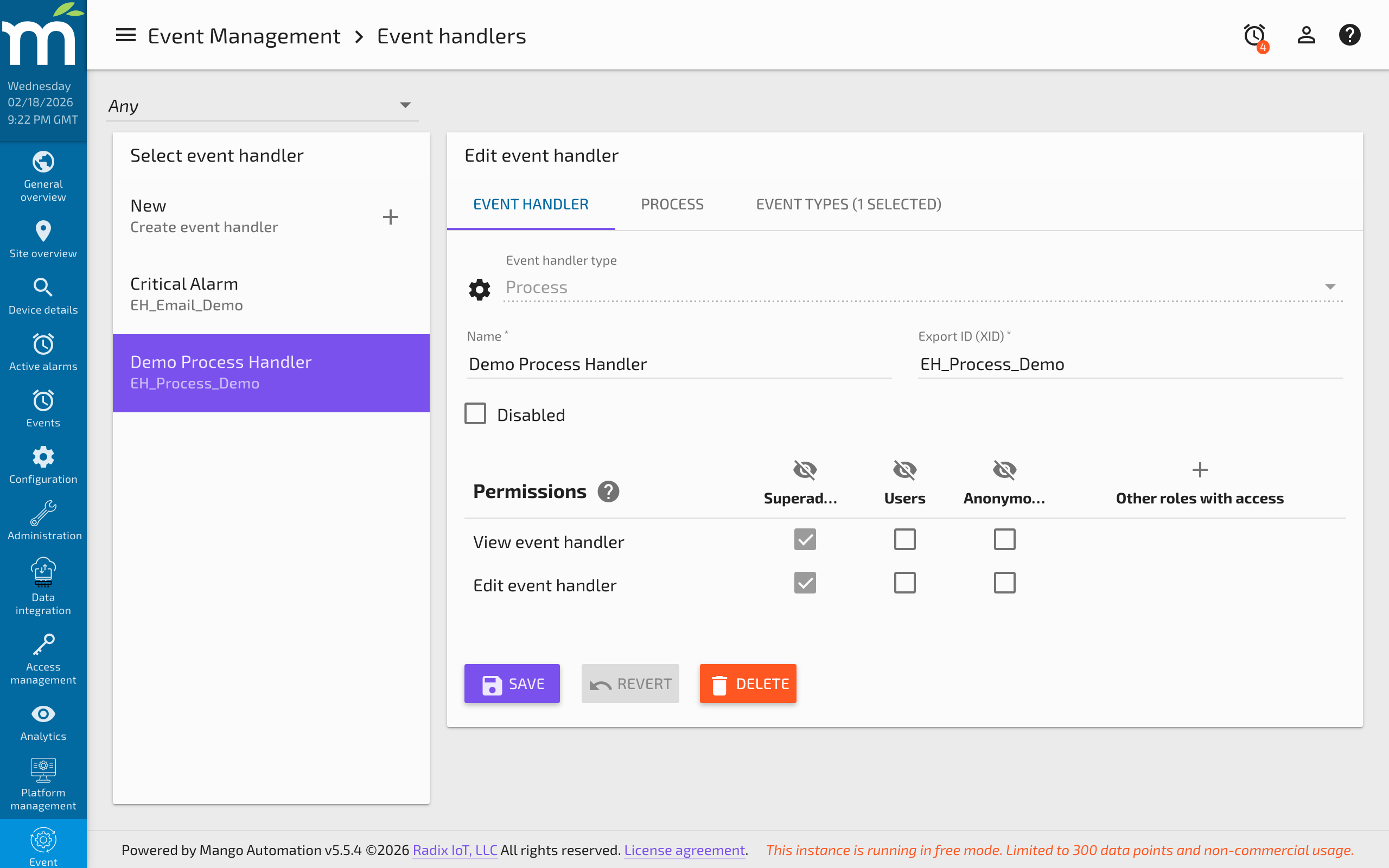
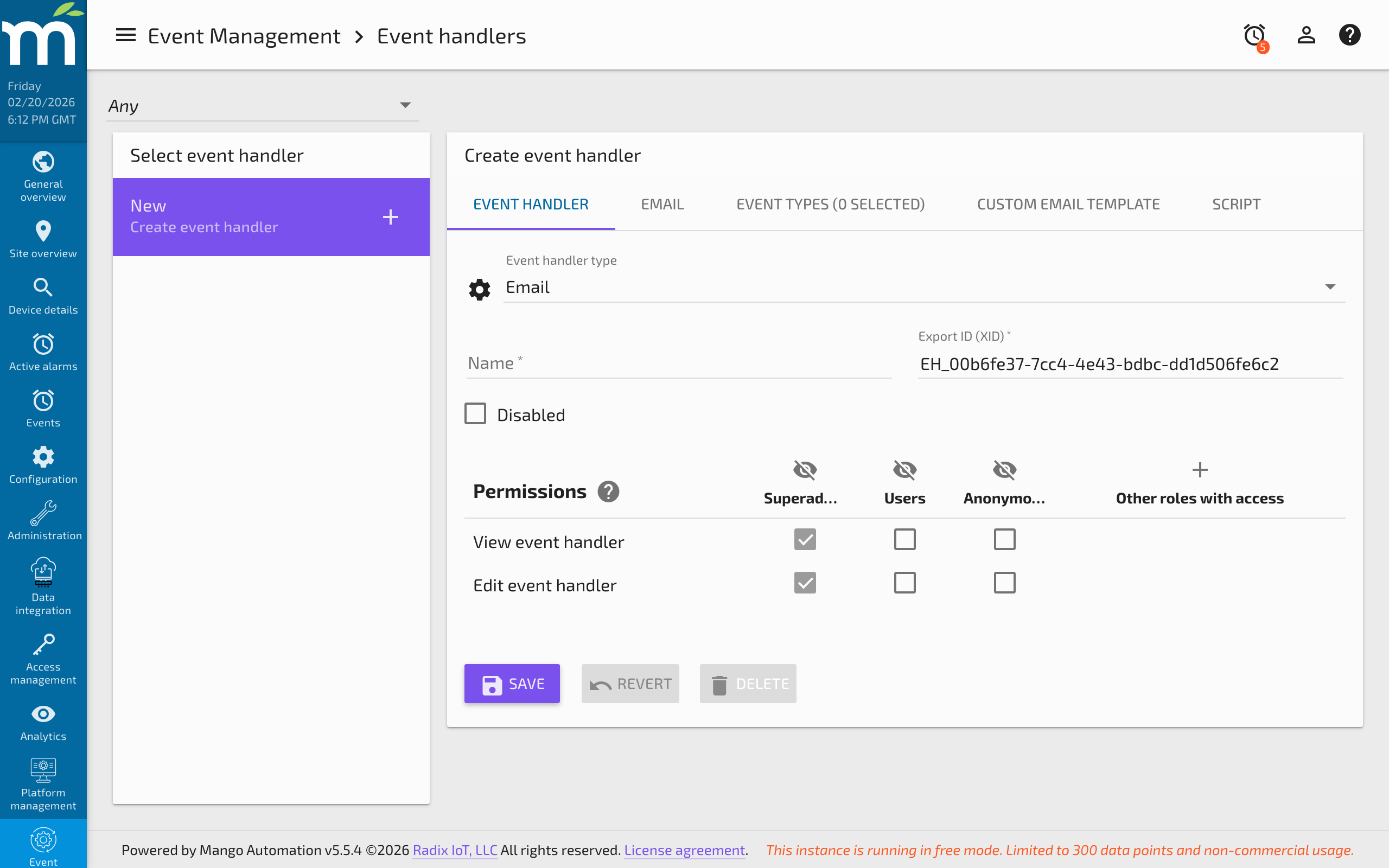
Navigate to the Event Handlers page. Click New and select Process as the handler type. Give the handler a descriptive name.
Step 2: Define the Commands
In the Active process command field, enter the command to execute when the event fires. In the Inactive process command field, enter the command to run when the event returns to normal.
Step 3: Link to Event Types
Under the Event Types tab, select the events you want this handler to process. You can select from:
- Data point event detectors (high limit, low limit, state change, etc.)
- Data source events (connection errors, poll failures)
- System events (user login, system startup/shutdown)
- Publisher events (queue warnings, connection failures)
- Scheduled events from the Advanced Scheduler
Using Event Context Variables
Process commands can include context variables from the triggering event using the ${...} syntax. These variables are replaced with actual values when the command executes.
Common Context Variables
| Variable | Description |
|---|---|
${event.id} | The unique numeric ID of the event instance. |
${event.eventType.eventType} | The type category (e.g., DATA_POINT, DATA_SOURCE, SYSTEM). |
${event.eventType.eventSubtype} | The specific subtype (e.g., USER_LOGIN, POINT_EVENT). |
${event.activeTimestamp} | The timestamp (in milliseconds since epoch) when the event became active. |
${event.rtnTimestamp} | The timestamp when the event returned to normal (available in inactive commands). |
${event.alarmLevel} | The alarm level as a string (e.g., INFORMATION, WARNING, CRITICAL). |
${event.message} | The human-readable event message. |
Example: Logging Event Details
echo ${event.id} ${event.eventType.eventType} ${event.eventType.eventSubtype}
This writes the event ID, type, and subtype to stdout, which Mango logs at the INFO level.
Example: Viewing All Event Properties
To inspect all available properties of an event object, use:
echo ${event}
This produces output similar to:
EventInstance [id=112, eventType=SystemEventType(subtype=USER_LOGIN),
activeTimestamp=1652727951202, rtnApplicable=false, rtnTimestamp=null,
rtnCause=null, alarmLevel=INFORMATION,
message=com.serotonin.m2m2.i18n.TranslatableMessage@d2ca928b,
eventComments=[], handlers=[...], acknowledgedTimestamp=null,
acknowledgedByUserId=null, acknowledgedByUsername=null,
alternateAckSource=null, hasComments=false, idsToNotify=null, context={}]
Practical Examples
Send a Custom SNMP Trap
/usr/bin/snmptrap -v 2c -c public monitoring-server '' 1.3.6.1.4.1.99999 1.3.6.1.4.1.99999.1 s "Mango alarm: event ${event.id}"
Write to a Custom Log File
/bin/bash -c "echo $(date) - Event ${event.id} - ${event.alarmLevel} >> /var/log/mango-alarms.log"
Trigger a Webhook
/usr/bin/curl -X POST -H "Content-Type: application/json" -d '{"event_id": "${event.id}", "level": "${event.alarmLevel}"}' https://hooks.example.com/mango-alert
Run a Python Script
/usr/bin/python3 /opt/scripts/handle_alarm.py --event-id ${event.id} --level ${event.alarmLevel}
Restart a Service on Failure
Active command (event raised):
/usr/bin/sudo /bin/systemctl restart my-service
Inactive command (event cleared):
/bin/bash -c "echo Service recovered at $(date) >> /var/log/mango-recovery.log"
Best Practices
- Use absolute paths for all commands and script files to avoid issues with the working directory.
- Keep commands fast: Remember the 15-second timeout. For long-running operations, launch a background process.
- Test commands manually from the terminal first, running as the same user that Mango uses.
- Handle errors in scripts: If you call a shell script, include proper error handling so that meaningful error messages are written to stderr for Mango to log.
- Avoid blocking operations: Do not write commands that wait for user input or require interactive terminal features.
- Secure sensitive data: If commands include credentials (e.g., API keys in webhook URLs), consider storing them in a script file with restricted file permissions rather than placing them directly in the command field.
Related Pages
- Event Handlers — Overview of all event handler types including process handlers
- Setting Up Event Detectors — Create the detectors that trigger process commands
- Mango Properties Reference — Enable the process handler with
event-handlers.process.enabled=true - Linux Security — Run Mango as a non-root user for security when using process handlers
- Advanced Scheduler — Trigger process commands on schedule transitions