Create Excel Reports
The Excel Reports module allows you to generate reports from Excel template files. Mango automatically inserts data point values, timestamps, and statistics into named ranges within the template, then delivers the completed report as a download or an email attachment.
Access the Excel Report page under Administration > Excel Reports.
Creating a Report Template
Click the New Template link to open the report setup section.
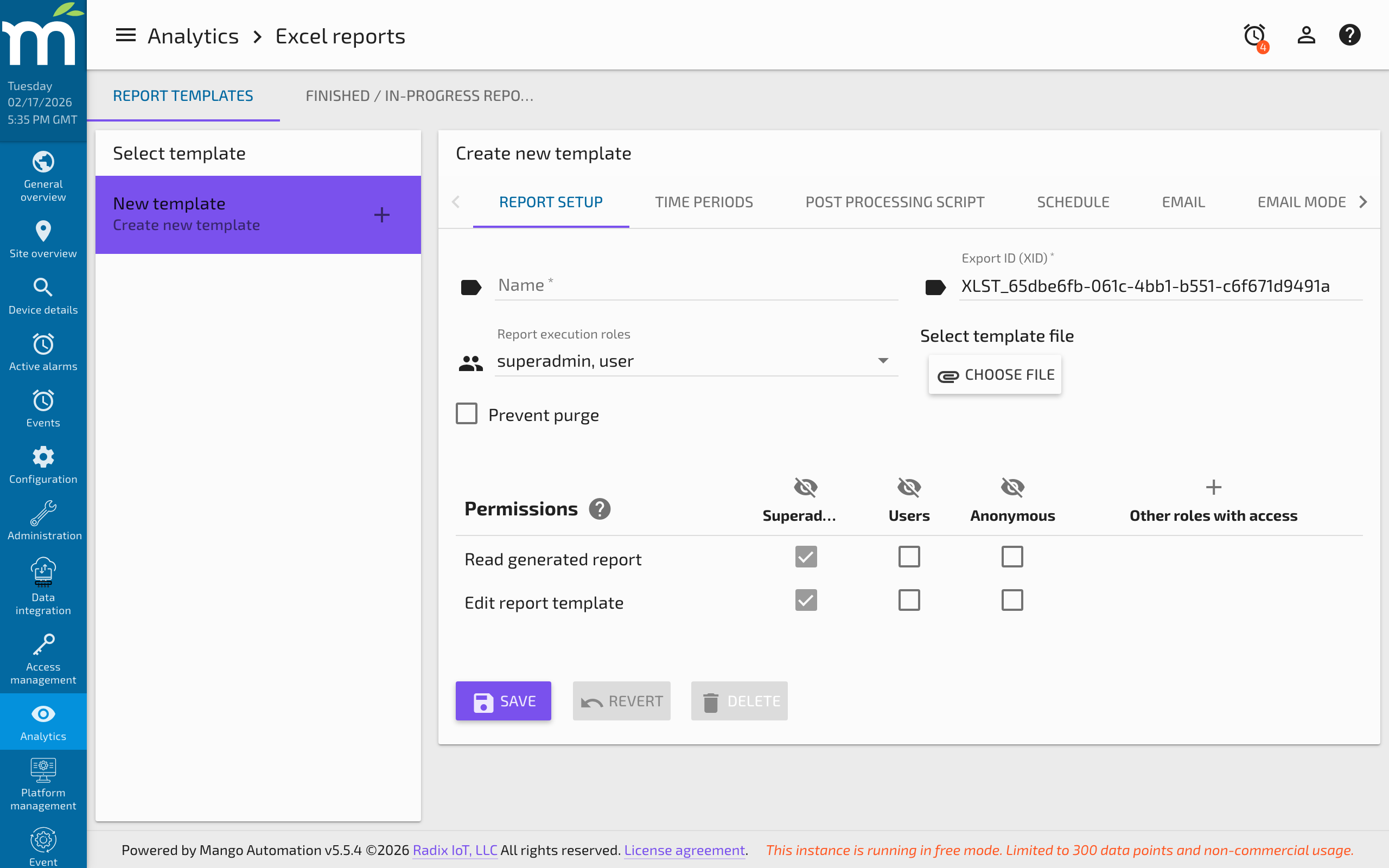
Template Settings
- Name -- A descriptive name for the template. This name is used to identify the report and will be the name of all generated reports. Unique names are recommended.
- Template -- The Excel file (.xlsx) that defines the named ranges where Mango will insert data. Upload your prepared template file here.
- Prevent purge -- When enabled, generated reports will not be automatically purged by the system.
- Edit permission -- User groups that can modify this template.
- Report read permission -- User groups that can view generated reports.
Time Periods
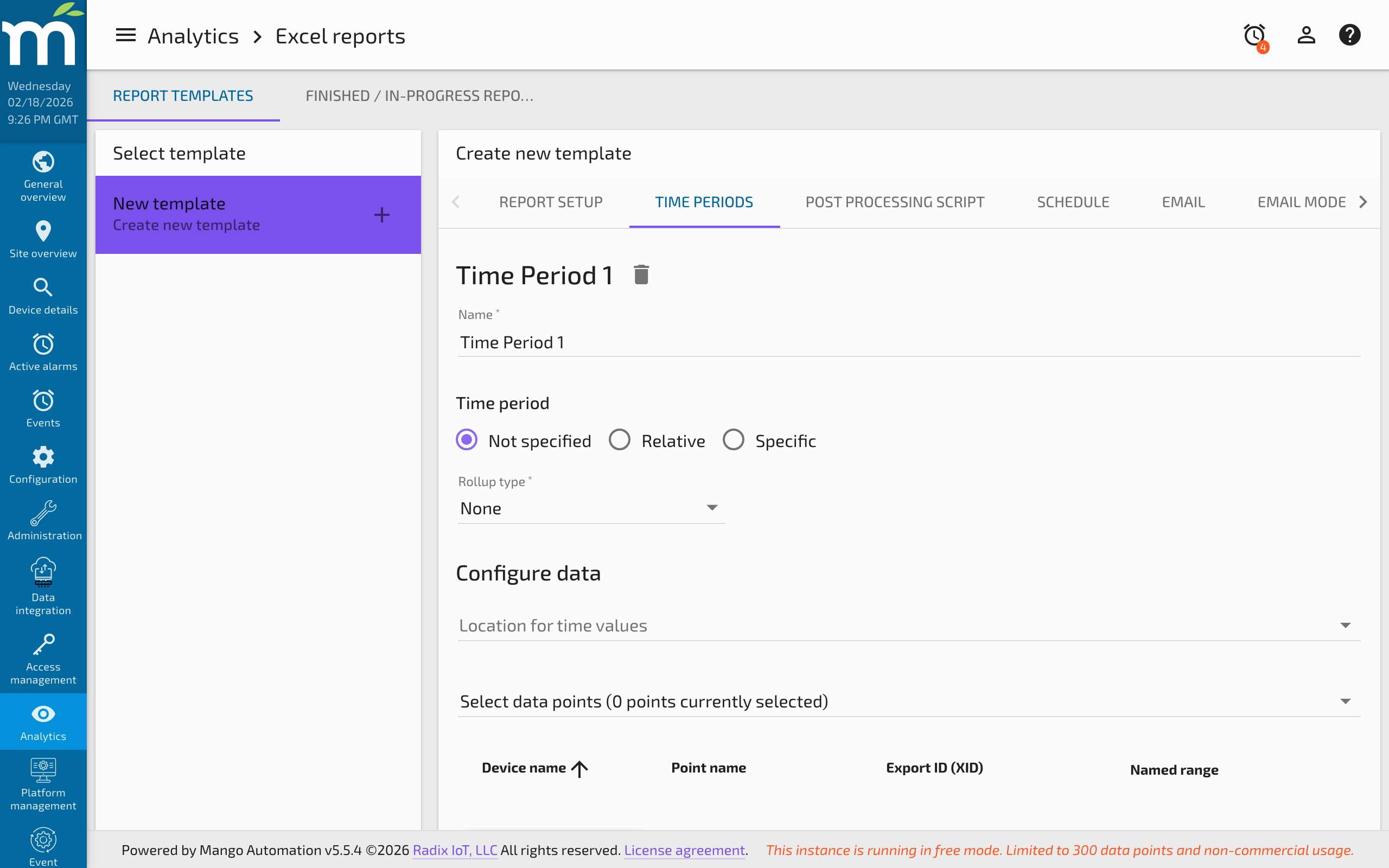
Time periods define how data is selected and aggregated for the report. Each time period links data points to a date range and an optional rollup.
Time Period Settings
- Name -- An identifier for the time period (e.g., "Last Month," "Yesterday").
- Time Period -- The date range for data selection. Can be relative or absolute:
- Past -- Includes the specified time period ending at the moment the report runs. For example, "Past 24 Hours" covers the last 24 hours from now.
- Previous -- Includes the specified time period, but the end time is quantized to the period boundary. For example, "Previous 1 Hour" at 18:05 covers 17:00 to 18:00. "Previous 3 Hours" at 18:05 covers 15:00 to 18:00. "Previous 1 Month" covers the complete previous calendar month.
- Current -- Starts at the quantized beginning of the current period and ends at the moment the report runs. For example, "Current 1 Day" at 14:30 covers midnight today to 14:30.
- Ago -- Covers a complete quantized period that occurred a specified number of periods in the past. For example, "2 Months Ago" in January covers the entire month of November of the previous year.
- Rollup -- Groups data into discrete intervals within the time period. For example, requesting hourly averages over a daily range produces 24 data points. Rollups reduce data volume and make reports more manageable.
- Location for time values -- The named range in the Excel template where timestamps will be placed. Must be a contiguous group of cells (part of a column or row). Mango expands or reduces this range to fit the data. This field is optional.
Adding Points to a Time Period
Click Add a point to include a data point in the time period. If Add to all time periods is checked, the point is added to every time period at once.
Each point requires a named range that identifies where in the Excel template its values will be placed. The range must be a contiguous set of cells. Additional derived ranges are automatically available based on the assigned range name. For example, if you assign the range last_month_voltage, the following statistic ranges become available:
last_month_voltage.averagelast_month_voltage.sumlast_month_voltage.minimumValuelast_month_voltage.maximumValuelast_month_voltage.countlast_month_voltage.firstValuelast_month_voltage.lastValuelast_month_voltage.integrallast_month_voltage.delta
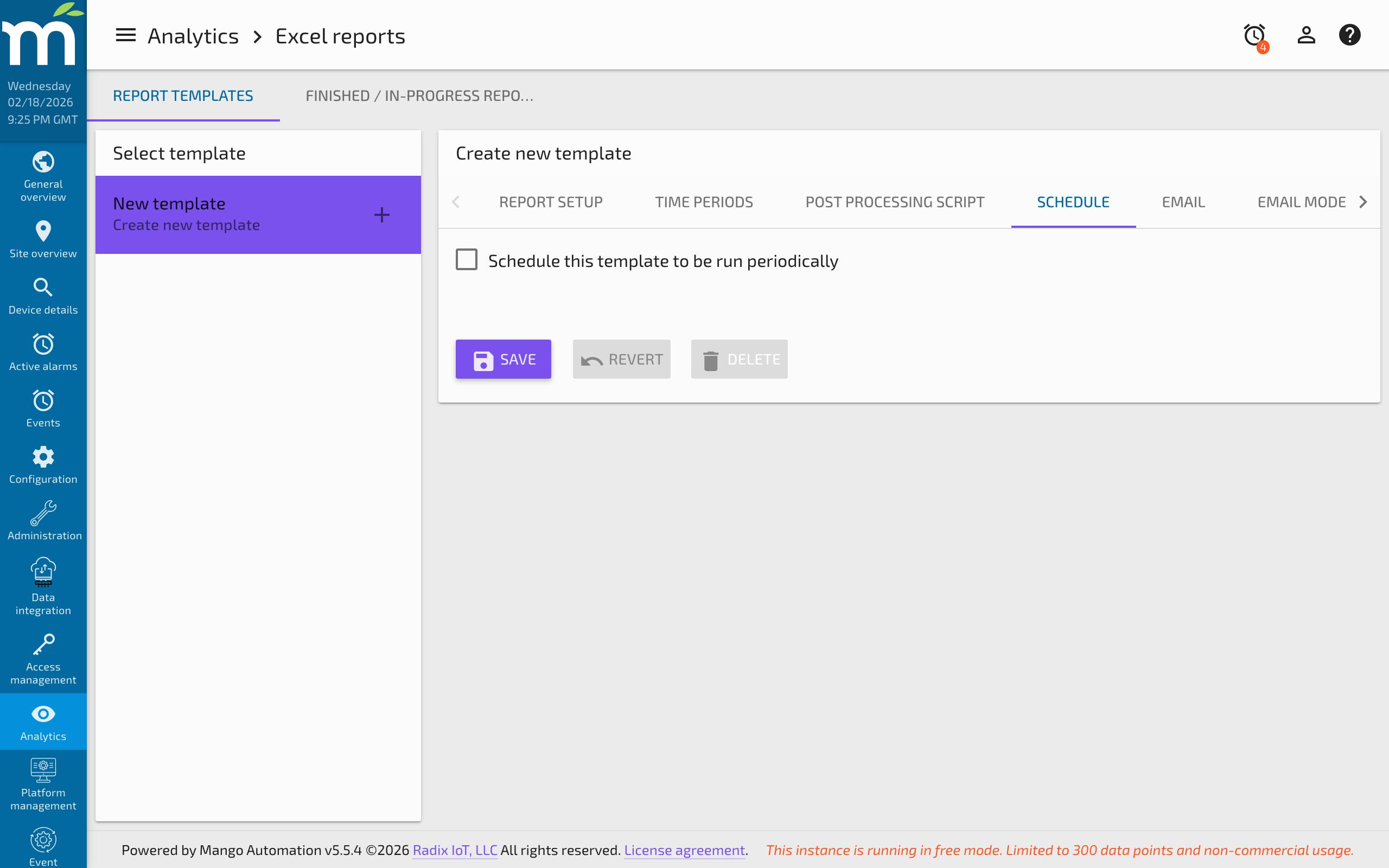
Report Scheduling
Reports can be scheduled to run automatically using a cron expression. Enter a custom cron expression or use the built-in cron builder to generate the pattern.
Common schedules:
0 0 8 * * ?-- Every day at 8:00 AM0 0 8 ? * MON-- Every Monday at 8:00 AM0 0 0 1 * ?-- First day of each month at midnight
Scheduled reports for disabled user accounts do not run.
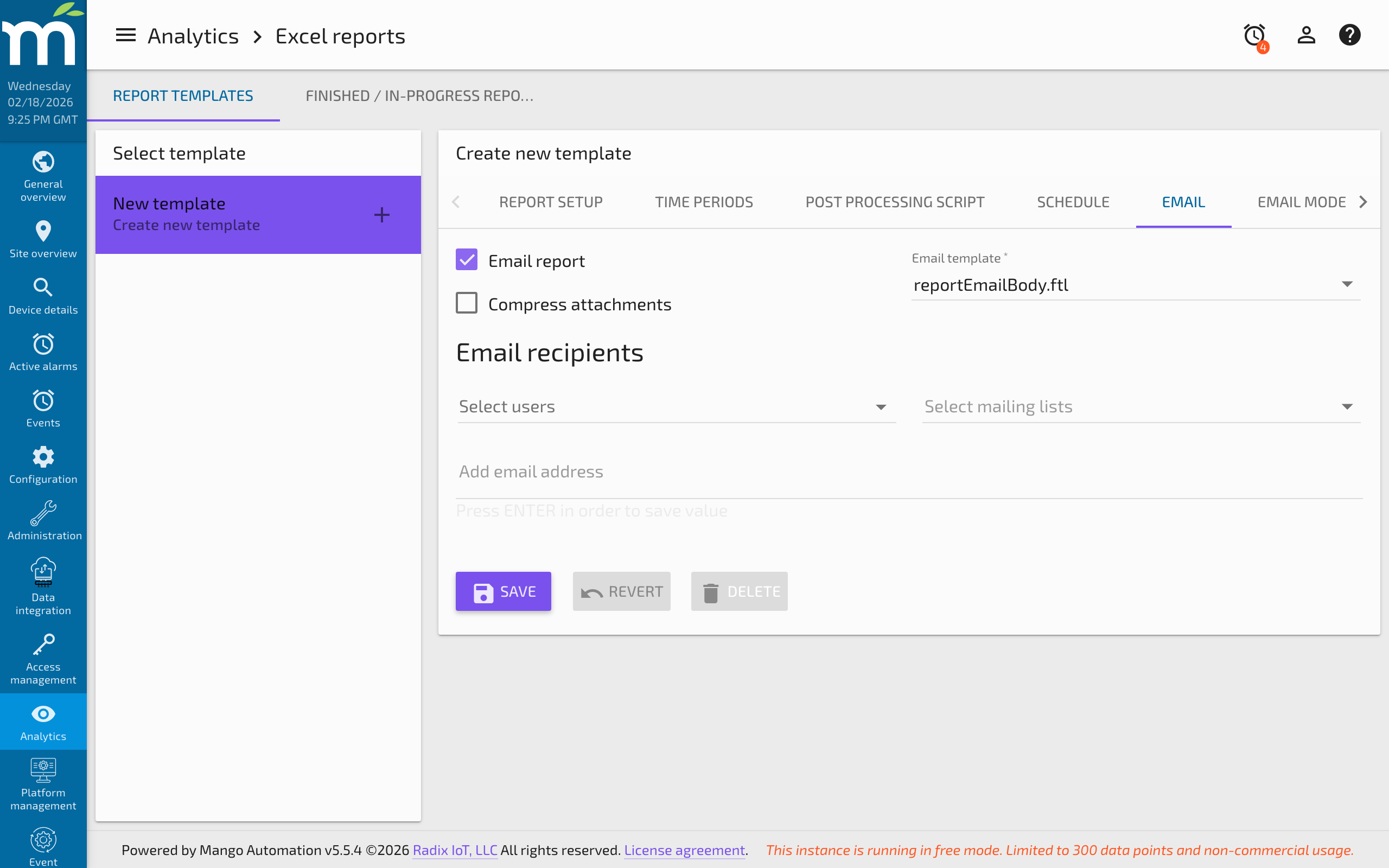
Report Emailing
Reports can be automatically emailed upon completion. The email includes the generated Excel file as an attachment (optionally compressed).
Select Email recipients from available mailing lists, system users, or enter free-form email addresses.
Email Templates
Email body content uses FreeMarker templates. The default template can be customized or replaced. Any template placed in the module's web/ftl directory appears in the Template dropdown.
Preparing Excel Templates
The Excel template file defines the structure of the report. Mango fills named ranges with data, so you need to set up named ranges in Excel that correspond to the ranges configured in the report template.
Step-by-Step Template Preparation
-
Create a data table in Excel with headers for each data point and a column for timestamps.
-
Select the cells (including headers) that will receive data.
-
Create named ranges by going to Formulas > Create from Selection. Select Top row to create named ranges from the header text. Verify the named ranges by checking the Name Box dropdown.
-
Create a timestamp range for the time values. This range name will be entered as the Location for time values in the report configuration.
-
Build charts and summary sheets on additional Excel sheets that reference the named ranges. These sheets will automatically update when Mango fills in the data.
-
Save the template as an .xlsx file and upload it to the report configuration.
Running Reports
Run Now
Click the run icon to immediately schedule the report. The report runs in the background and appears in the Finished / In-Progress Reports table when complete.
Run With Specific Dates
Override the report's time period settings by clicking the date-override run option. A dialog lets you enter custom date ranges before running the report.
Copy Report
Creates a copy of the current template configuration for modification. The copy must be saved before it becomes a separate template.
Delete Report
Permanently removes the report template and all generated reports.
Viewing Generated Reports
Completed reports appear in the Finished / In-Progress Reports table. Click the download icon to retrieve the generated Excel file. The file contains the original template with all named ranges filled with data point values and timestamps.
Related Pages
- Rollups and Statistics — Understand rollup types used for aggregating data in report time periods
- Email Settings — Configure SMTP settings required for automated report email delivery
- Custom Email Templates — Customize the email body for report delivery notifications
- Data Point Properties Reference — Configure point units and display settings that affect report output