Custom Pages
Custom pages can be created from within Mango's CMS environment, using the built-in Code Editor and UI Component Library to create and link new pages to the app. Mango's HTML components combined with AngularJS's templating syntax allow you to create dynamic pages of any complexity, pulling data from Mango's database and visualizing it as responsive interface elements, charts, and tables.
Interactive Demos and Examples can be found under the Examples menu section. Full documentation of all parameters of each component can be found under API Docs. You may need to enable these menu items to see them.
The Page Editor
The Page Editor can be found under Administration > Edit pages in the menu. You can use this tool to manage all of your custom pages.
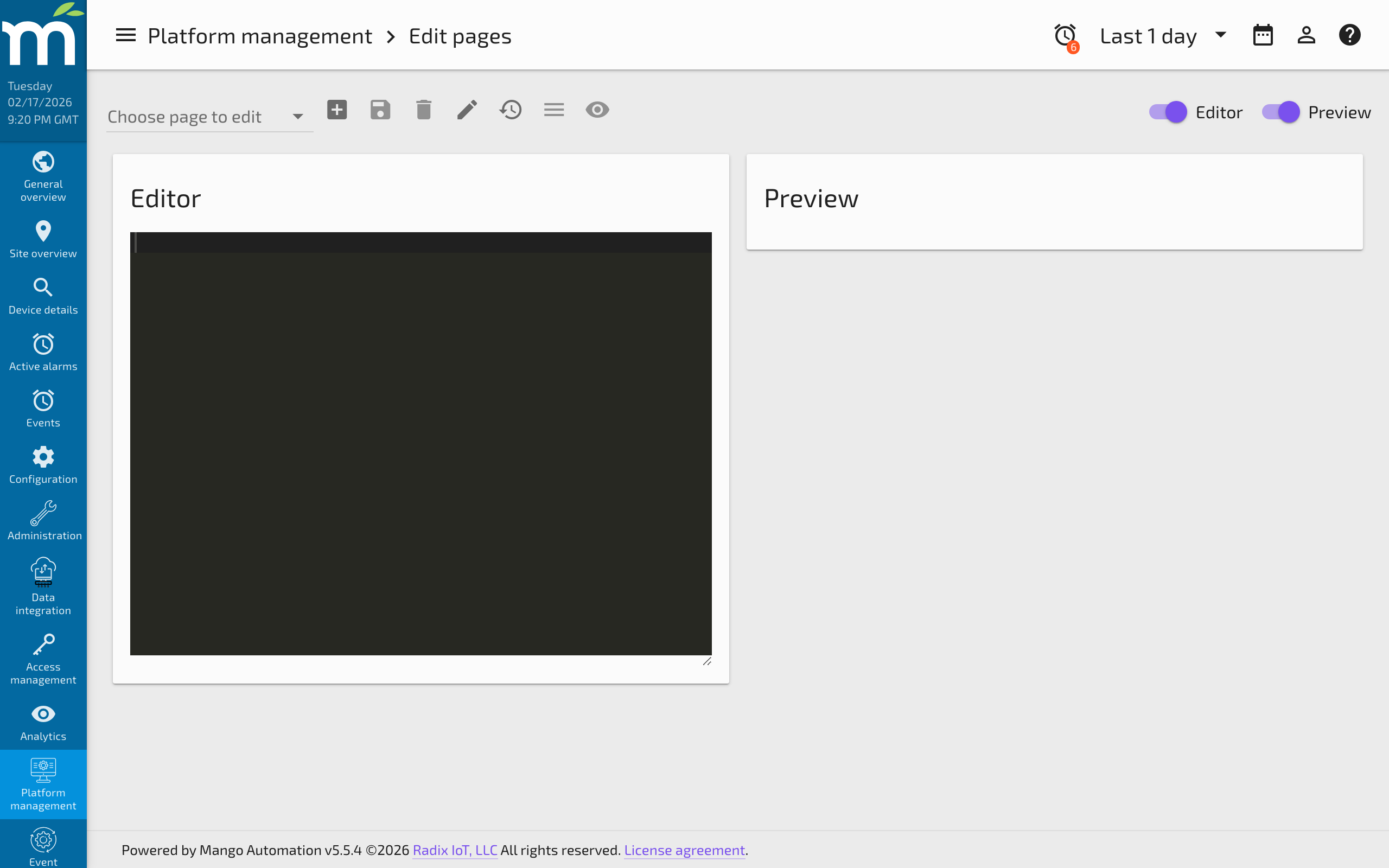
The dropdown to the left of the icon buttons allows you to choose an existing page to edit. The New page icon sets up a blank page for you to work with. The Save icon saves your changes to the page you are currently editing. Before you can save a new page, you will need to give it a Page name. The Delete icon removes a page from the system after confirming.
Be sure to Save changes to your page often. You can use the keyboard shortcut Ctrl/Cmd+S to quickly save your changes without leaving the keyboard.
The Edit name and permissions button opens the controls for editing page properties. Read / Edit Permissions can be used to prevent access to a page based on user permissions. Page name can be updated independently of the page's menu item and URL.
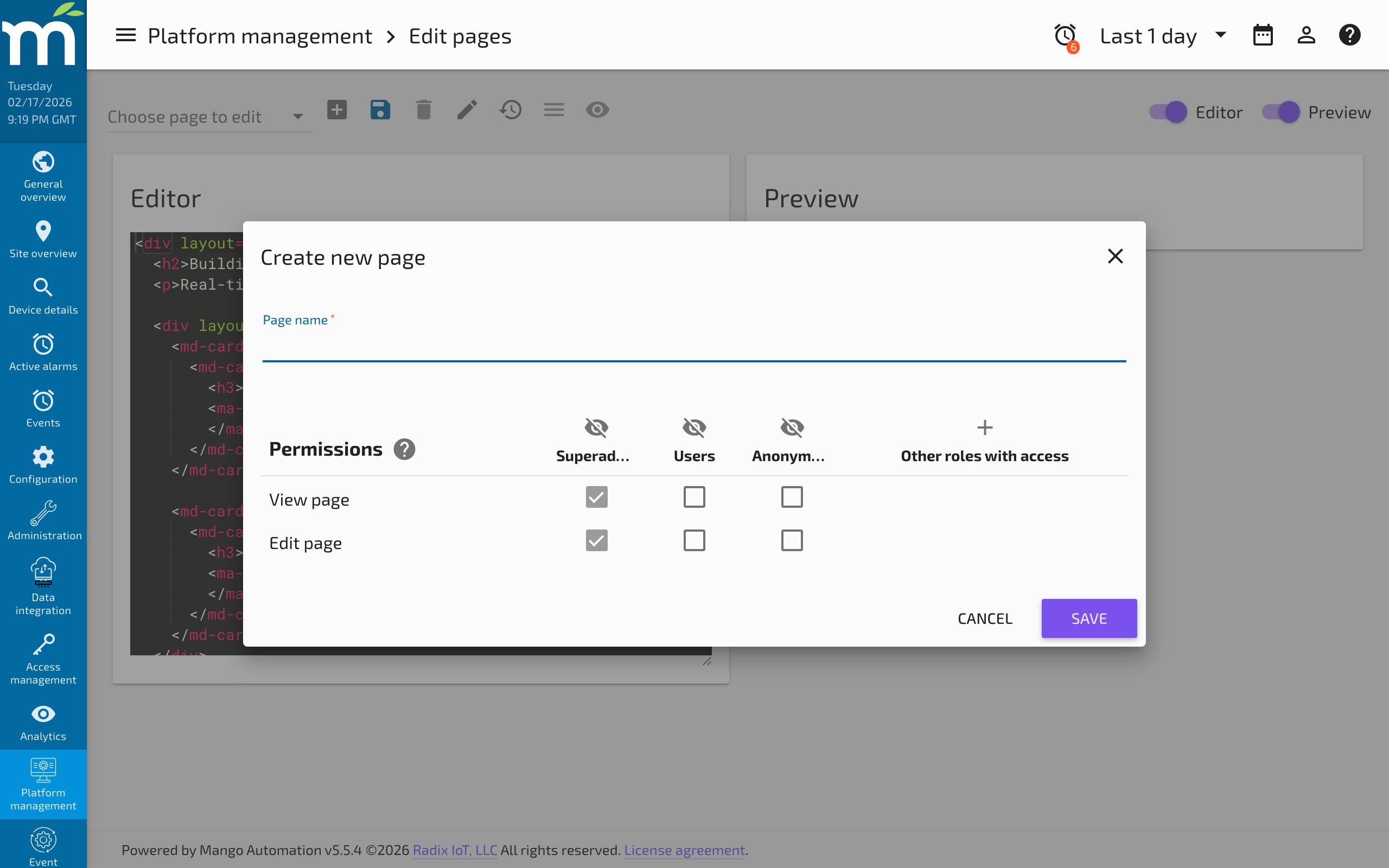
Editing Code
You enter HTML into the code editor on the left. If you prefer, you can work in your desktop code editor of choice and copy your code into the Editor pane.
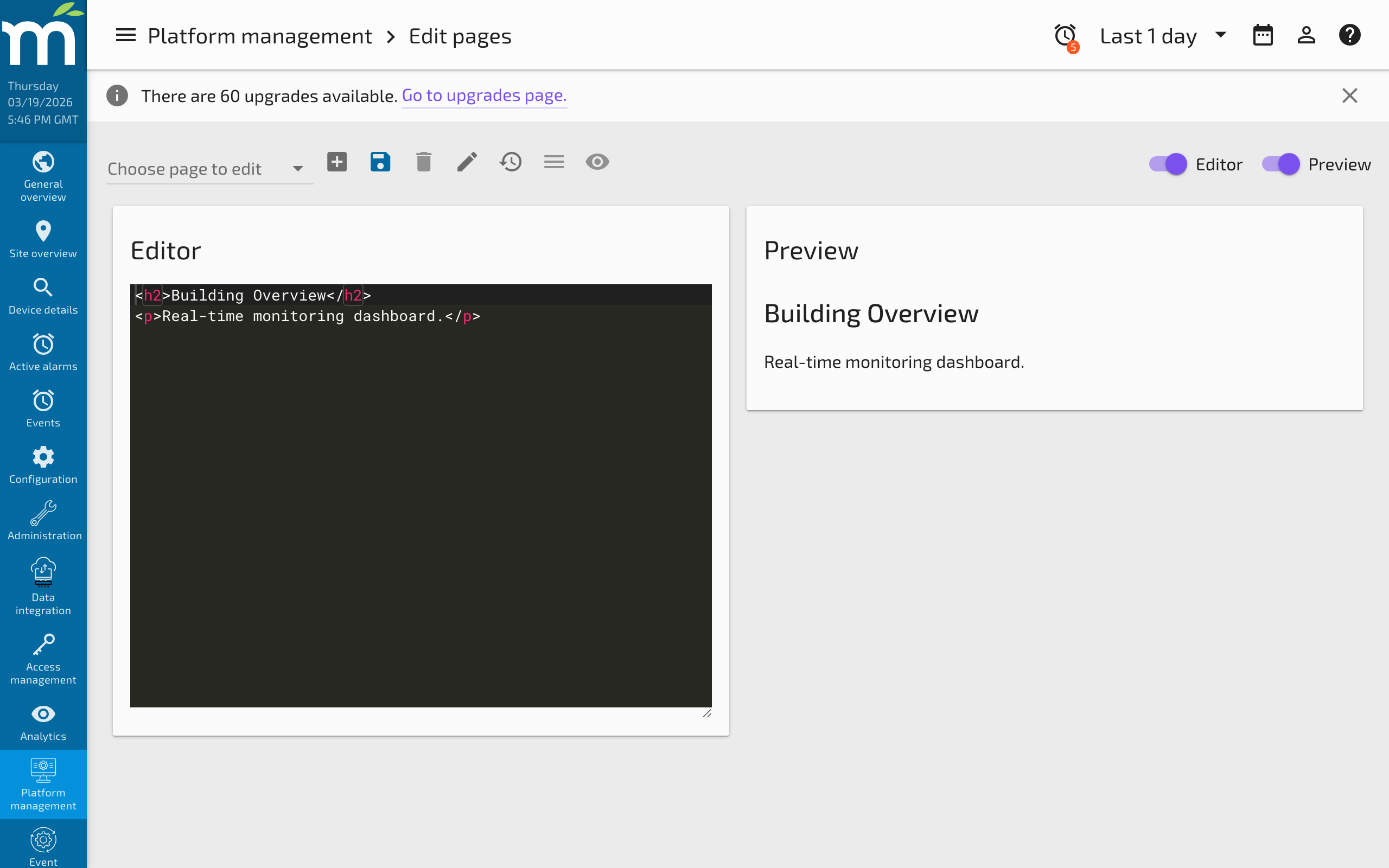
You can toggle the Editor pane and Preview pane on and off, allowing you to view just one pane or both in a side-by-side view.
Previewing the Page
You will see a live preview of your page in the Preview pane on the right as you enter code. At any time you can Save and View the page in full screen (F11) or even from a different browser or mobile device.
The View page icon opens the last saved state of the page in a new tab. This is the same URL that you can use to share the page with someone, and it will be used by the page's menu item.
Starting from an Example or Template
A quick way to get started is to click the Copy markup to new custom page link from any of the example pages. This creates a new page with the code copied into it.
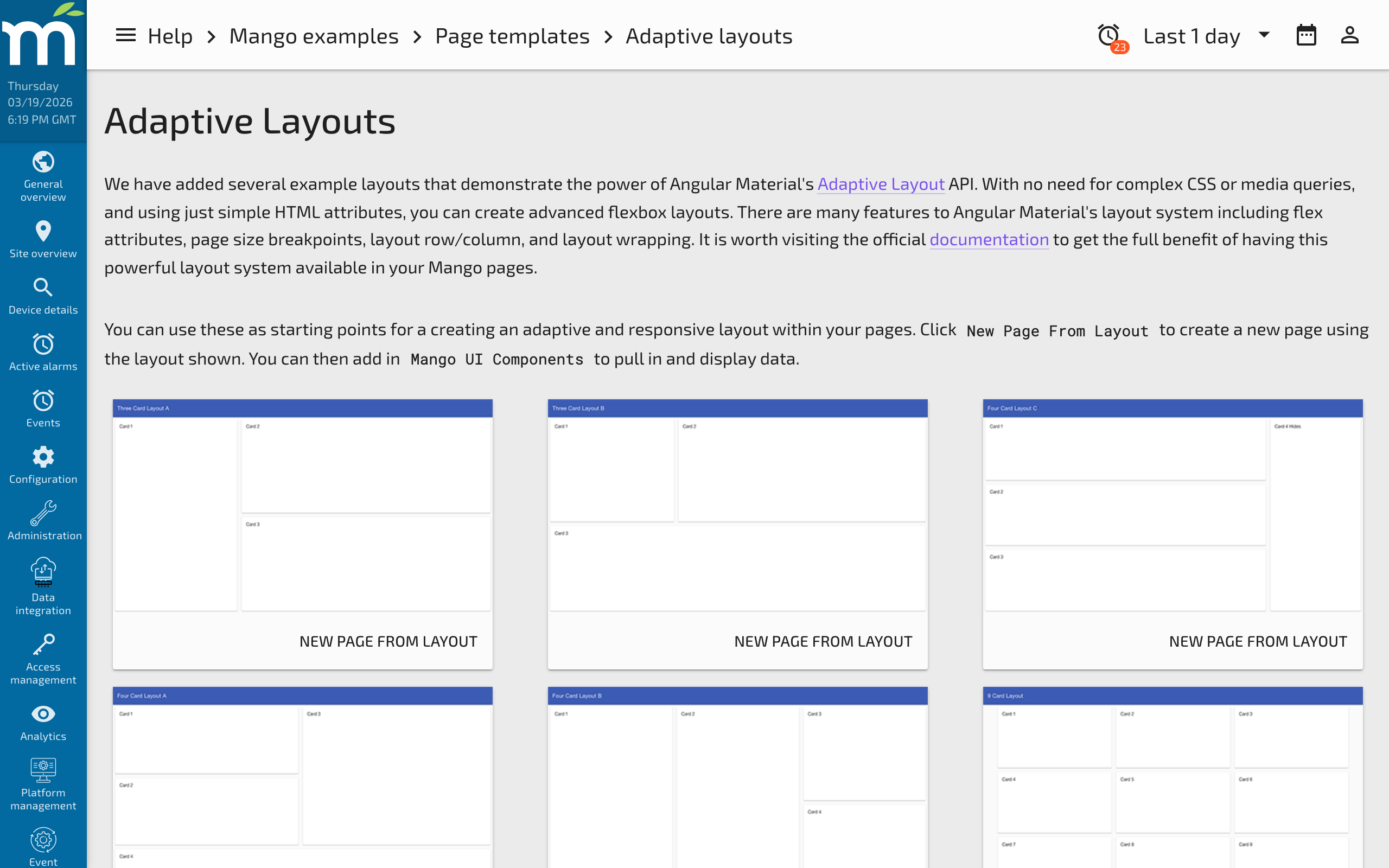
If you are looking to start with a pre-made layout, you can also copy one of the Adaptive Layout templates as a starting point. Click the New Page From Layout button to create a new page using the layout shown. These examples give you a predefined responsive layout that you can adapt to your needs.
Adding Your Own Images
If you would like to include your own images on a page, upload them using the File Store (found under Administration > File Store in the menu). You can then insert the image onto a page using:
<img src="/rest/latest/file-stores/default/MyImage.jpg" alt="My Image"/>
The file store provides a web-accessible URL for each uploaded file that works across all pages and for all users with appropriate permissions.
Permissions
By default, all custom pages can be viewed by users with user permission (the default permission for a new user) but require the user to have edit-ui-pages permission to edit them. If you want to restrict a page to be viewable only by admin users, change the read permission to superadmin.
Users with the edit-ui-menus permission can edit the menus. When editing menu items, you can set a permission for each item. If the user does not have this permission, the menu item will not be shown.
Adding a Menu Item
The Add/Edit Menu Item icon opens the Edit menu item dialog. From here you give the menu item a Parent item, URL, Menu text, and Menu icon. The entire menu is completely customizable from the Menu Editor under Administration > Edit menu in the menu, or at the URL /ui/administration/edit-menu. For more information see the Editing the Menu page.
Related Pages
- Editing the Menu — Add menu items to make your custom pages accessible in the sidebar
- Linking Between Pages — Navigate between custom pages and pass parameters
- Styling with Data — Bind data point values to CSS for dynamic visual effects
- Dashboard Designer Basic Usage — Visual alternative for creating pages without writing HTML
- Browser Debugging — Debug issues in custom pages using Chrome DevTools