Getting Started
Mango Automation is a powerful tool for a wide variety of applications. If you are interested in integrating, evaluating, and visualizing multiple data streams over time, you will be amazed at what you can accomplish after only a little learning.
Mango features a refreshed UI experience built on a modern single-page application framework. The Watchlist, Events, and Data Point Details pages are designed to be fast, look great on any screen size, and provide more functionality than ever before.
Custom Dashboards and Pages
Using the Page Editor and library of Mango UI Components, you get a CMS-like experience that allows you to create your own dashboards and pages. These are designed to both impress and offer superior functionality and performance over previous methods of creating dashboards. The development environment supports rapid development and deployment through high-level HTML coding with Mango's UI Components and Templates.
Interactive Demos and Live Previews can be found under Examples in the menu. These menu items may require being enabled on the administration Edit Menu page. Full documentation of all parameters for each component can be found under API Docs. The menu itself is completely customizable, allowing you to reorder and hide items as well as create a hierarchy of your own custom pages. If you want to change the look and feel of the app, you can change theme colors and set your own logo with the UI Settings page.
Key UI Features
- Responsive layout -- Pages adapt to desktop, tablet, and mobile screen sizes automatically.
- Real-time data binding -- Components update live as data point values change, with no page refresh needed.
- Component library -- A rich set of
<ma-*>components for charts, gauges, tables, point value displays, watch lists, and more. - Dashboard Designer -- A visual drag-and-drop editor for building dashboards without writing code.
- Page Editor -- A code-based editor with live preview for creating custom pages with full HTML and AngularJS support.
- Theming -- Choose from Material Design color palettes or create your own custom theme with brand colors.
- Permission-based access -- Control page visibility and editing rights based on user roles and permissions.
Navigation
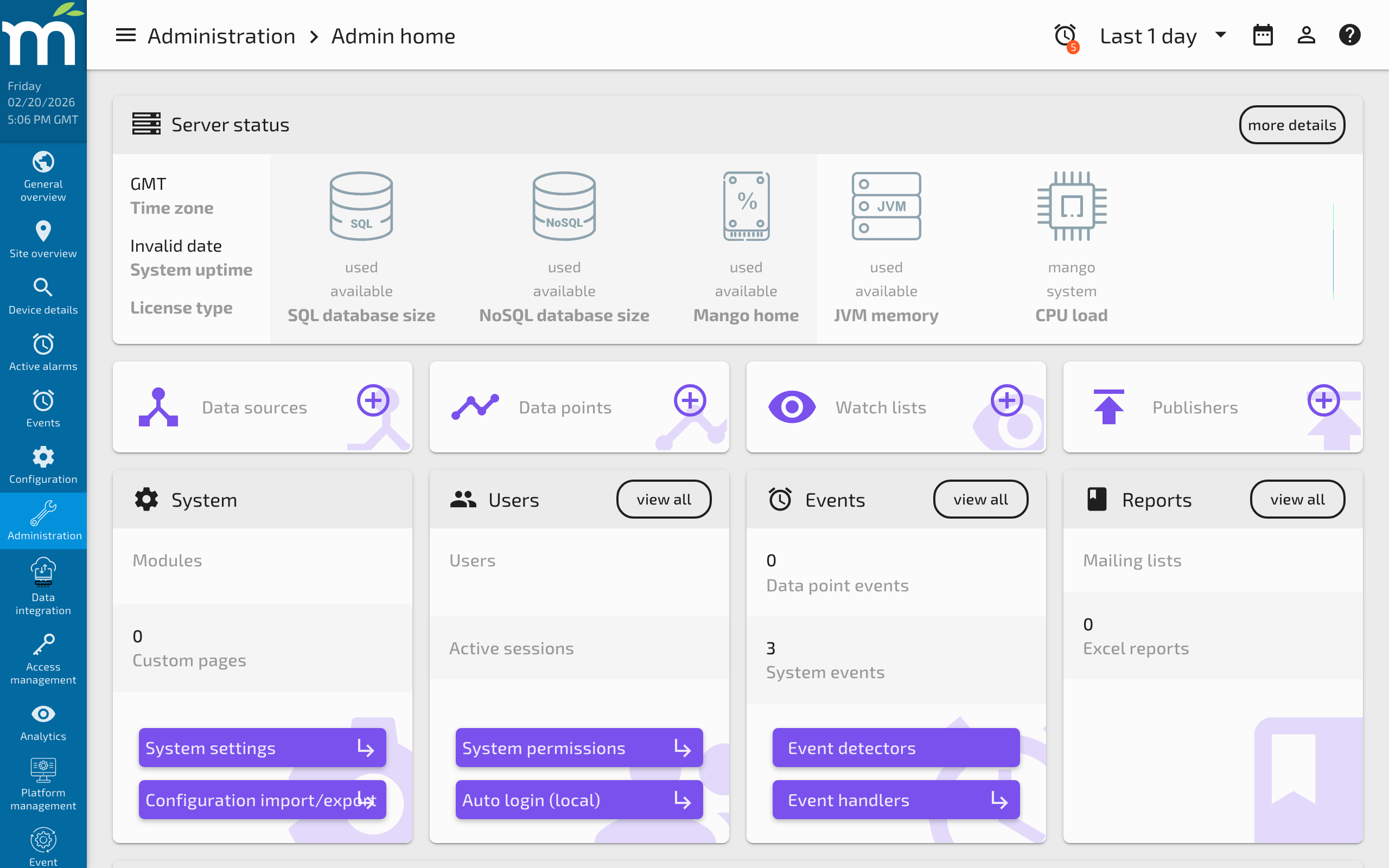
The menu on the left is used to access all pages.
The currently logged-in user information is displayed at the top of the menu, under the logo and server time. You can click the username dropdown to log out of Mango.
The sidebar menu automatically hides on mobile views. You can also click the three-line menu icon in the header to hide or expand the menu when viewing on smaller desktop screens.
Getting Help
For more information on all the features of the UI, click the help icon to get contextual help articles based on the page you are viewing. For more help on getting started with Mango, continue to browse the support site.
Related Pages
- Dashboard Designer Basic Usage — Drag-and-drop page creation tool
- Custom Pages — Create custom pages with the code editor and component library
- Introduction to HTML5 Web Apps — Architecture overview of Mango's AngularJS UI
- User Interface Overview — Getting started tour of the Mango interface