Editing the Menu
The sidebar menu on the left is completely customizable from the Edit Menu page (found under Administration > Edit Menu). You can hide or show menu items, edit menu item labels and icons, reorder menu items, create new menu items, and delete custom menu items.
The Edit Menu Page
The Edit Menu page is where you modify the menu structure. After making changes, click the Save button to apply them.
- Undo Changes -- Resets the menu structure to its last saved state.
- Delete Custom Menu -- Resets any modifications you have made to the default menu structure.
The table below initially shows the root (top-level) menu items. Each row is a separate menu item or parent folder for other menu items. The order shown is the order they appear on the menu.
Table Controls
| Icon | Action |
|---|---|
| Toggle | Hide or show the menu item in the sidebar. |
| Pencil | Open the Edit Menu Item dialog. |
| Trash | Delete the menu item. Only available for user-created (custom) menu items. |
| 3 Dashes | Reorder menu items by clicking and dragging up or down. |
| Down-Right Arrow | Expand a parent folder to view its child menu items. |
If you expand a parent folder, the table updates to show the menu items under that parent. The Menu path breadcrumb updates to show which folder you are viewing. You can click a parent name (such as Root) to jump back up to a higher level.
At any point you can click the Plus FAB Icon hovering over the bottom right of the table to create a new menu item under the currently open parent folder.
The Create/Edit Menu Item Dialog
The Create/Edit menu item dialog opens when you click the add new menu item button on the Edit Menu page or the Add/Edit Menu Item button on the Page Editor.
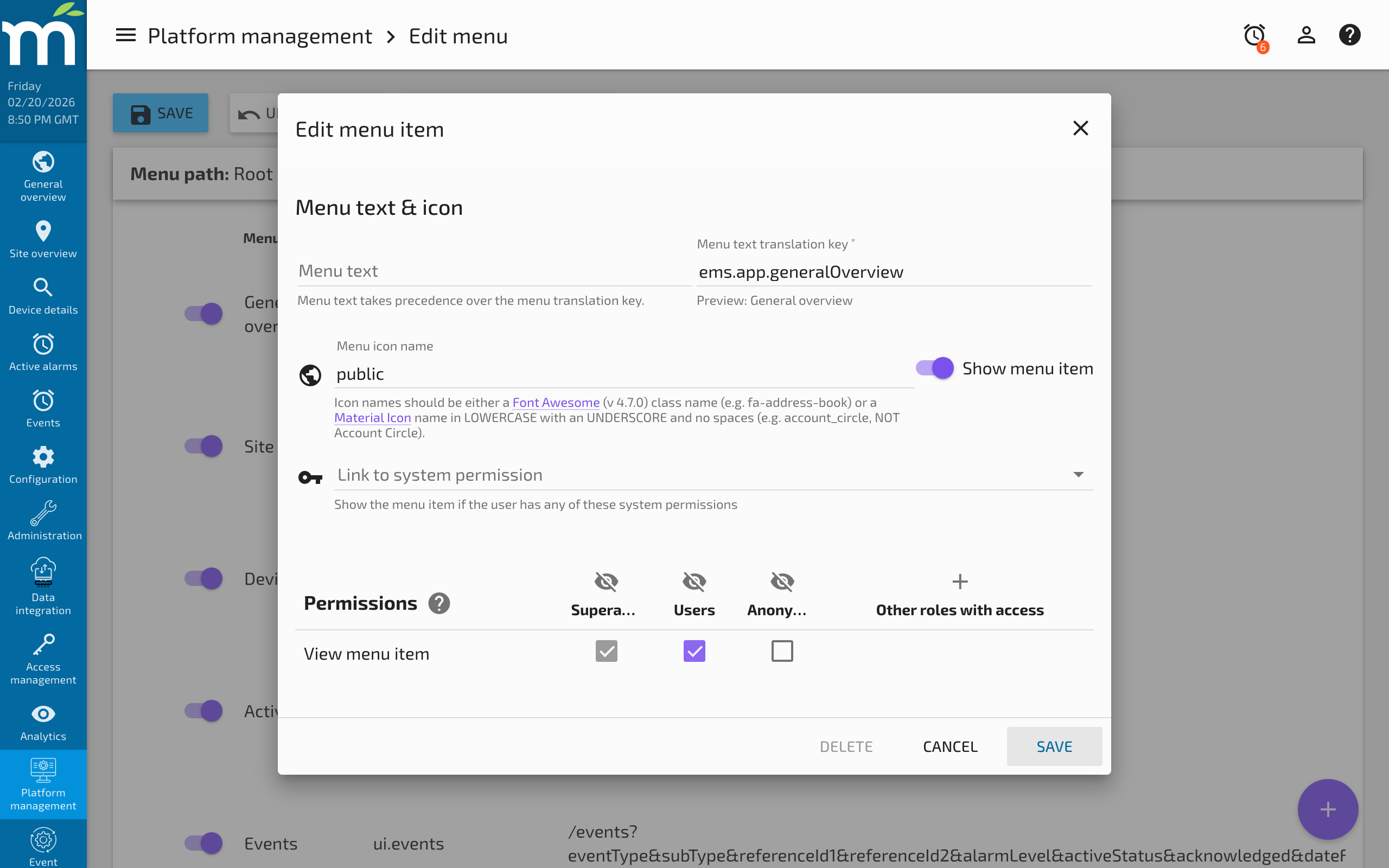
Menu Text
The Menu text input defines the label that displays with the menu item and also in the Header Bar. If you are using custom translations, you can enter the translation key defined in i18n.properties. You can also override the menu text on default pages here.
Menu Icon
The Menu icon name can be set using a Font Awesome or Material Icon name. A preview of the icon displays on the left of the input.
Permission
You can set a user permission in the Permission required input. If the user does not have this permission, the menu item will not be shown. You can also choose to hide the item entirely from the menu by clicking the Show menu item toggle.
Parent and URL
You can choose a parent item to nest your menu item under. The State name is the unique ID for the menu item. The URL path is what displays in the browser's address bar and will be used in the URL to directly link to the page. It will be prefixed with the parent state's URL path.
Page Link Options
The Choose a Custom Page dropdown lists all user-created custom pages saved in the system. You can choose one to link the menu item to. Alternatively, you can set the menu item as:
| Option | Description |
|---|---|
| Custom Page | Links to a custom page stored in Mango. |
| Folder | Acts as a parent container for child menu items (no page content). |
| External Link | Opens an external URL in a new tab. |
| Template URL | Opens a template file relative to the UI directory in the file system. |
Date Bar Settings
Radio buttons at the bottom let you control whether the Date Bar is visible on the page and whether rollup controls display on the Date Bar.
User Permissions
Users with the edit-ui-menus permission can edit any of the menu items or structure. When editing menu items, you can set a permission under the Permissions input of the Edit Menu dialog. If the user does not have this permission, the menu item will not be shown to them.
Related Pages
- Custom Pages — Create the pages that your menu items will link to
- Linking Between Pages — Navigate between pages using UI-Router states
- Custom Menus — Build in-page navigation menus beyond the sidebar
- Users and Roles — Manage permissions that control menu item visibility