Date Bar
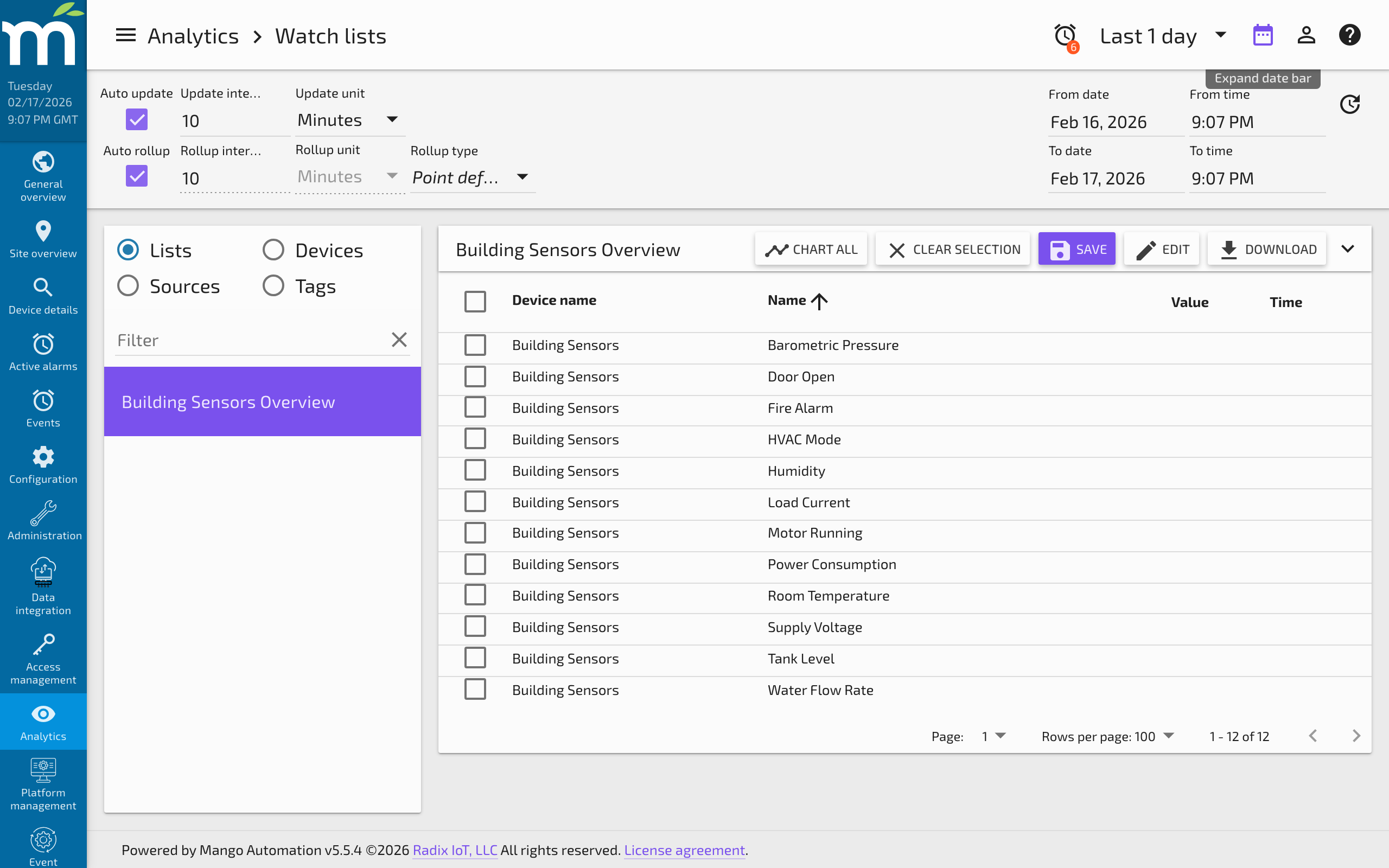
The Date Bar is used to manually override the selected time range in the Header Bar. It is used by the Watch List, Data Point Details, and Events Page -- all pages where date settings apply. To the right of the time period selector in the Header Bar is a Calendar icon.
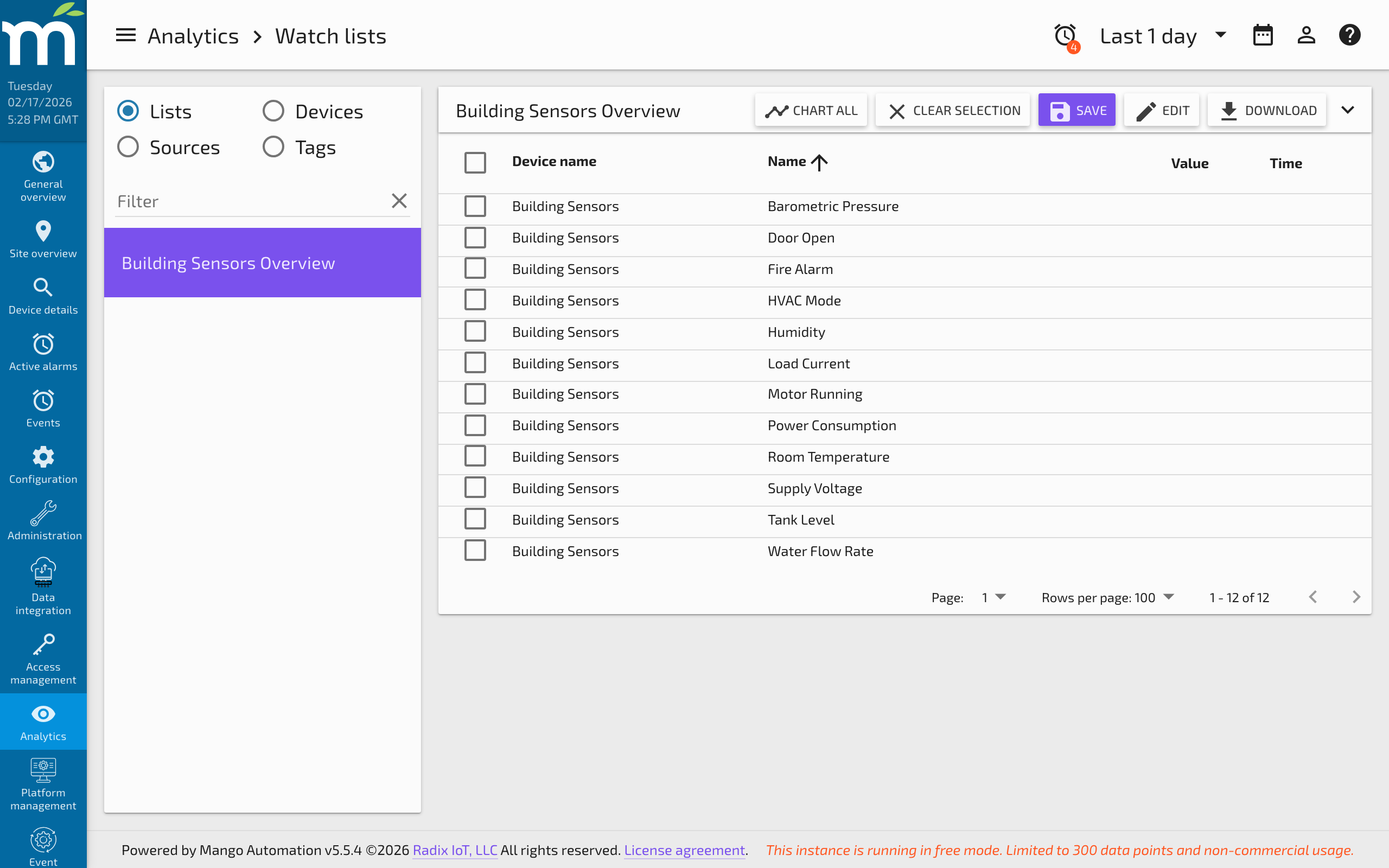
Clicking this icon expands or hides the Date Bar.
Setting a Custom Date Range
The Date Bar can be used to set a specific range of dates and times. Clicking any of the date inputs opens a calendar popup for selecting a date. Clicking on the time inputs opens a clock popup for selecting a time.
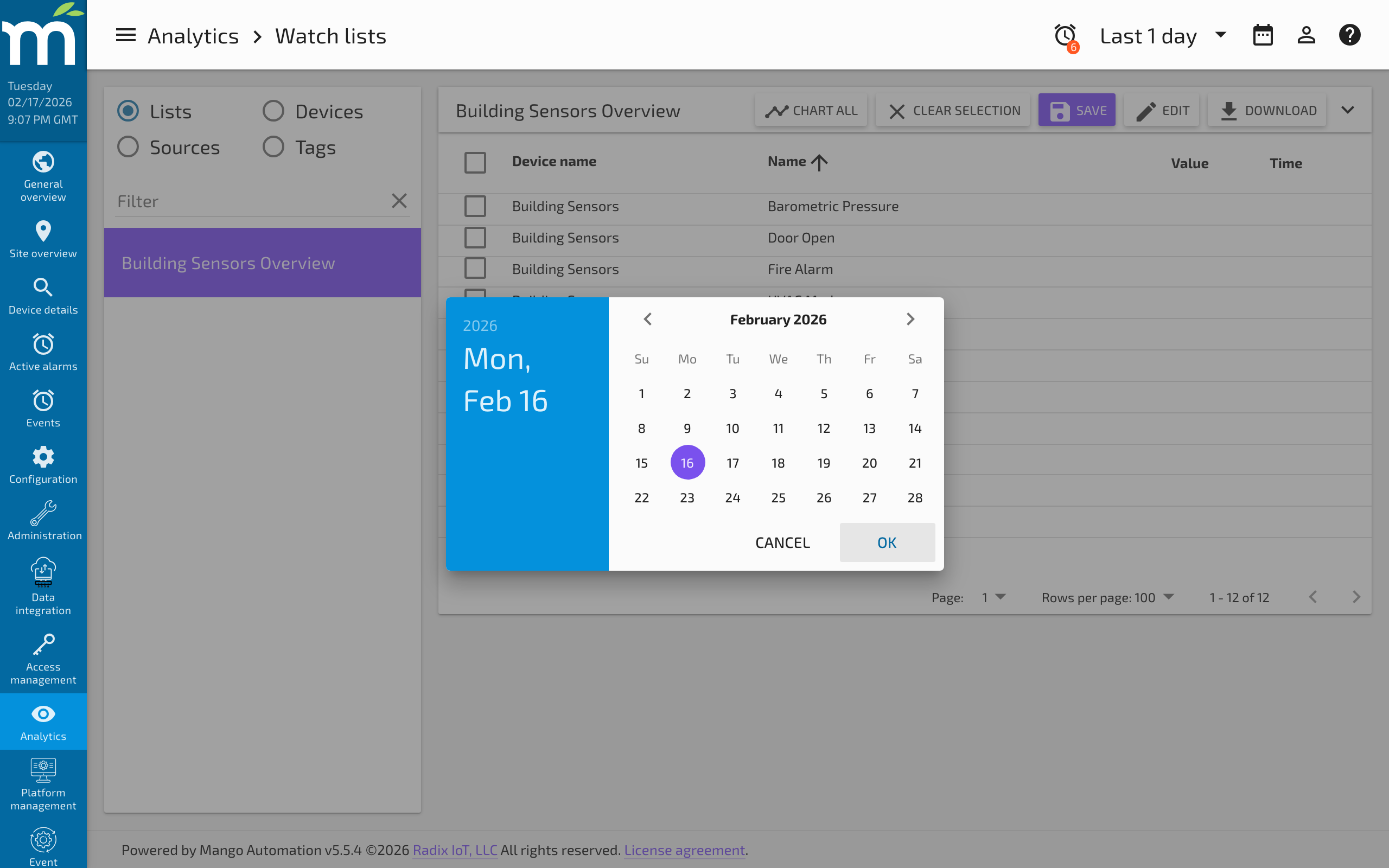
You can combine the date and time selectors to define a precise window for viewing historical data. The selected range applies to all data-aware components on the page, including charts, value history tables, and statistics panes.
Preset Time Ranges
If you do not manually specify a date range, you are using one of the preset ranges available in the Header Bar dropdown (such as "Last 5 minutes", "Last 1 hour", "Last 24 hours", etc.). When using a preset range, the Date Bar shows additional options for controlling auto-update behavior.
Rollup Settings
Rollup settings are shown in the Date Bar if they apply to the current page. For example, rollup settings are not shown on the Events Page because they do not apply to event data.
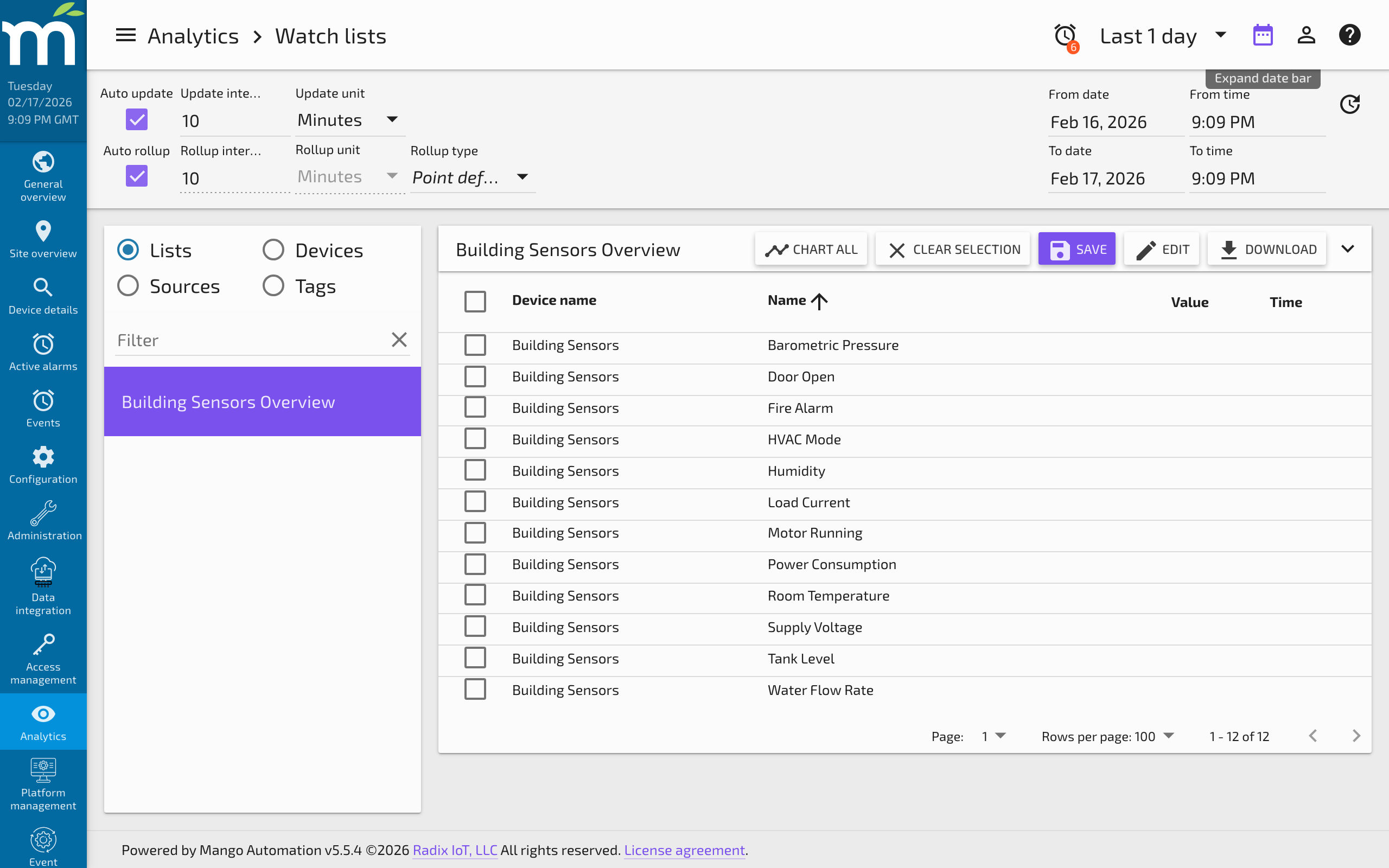
By default, Auto rollup settings are used, which automatically calculates an appropriate rollup interval based on the selected time range and the number of data points to display. If you turn off Auto rollup, you can manually specify a rollup interval.
Changing the Rollup type allows you to view rollups other than Average, such as:
| Rollup Type | Description |
|---|---|
| Average | Mean value over each rollup interval. |
| Minimum | Lowest value in each interval. |
| Maximum | Highest value in each interval. |
| Sum | Total of all values in each interval. |
| First | First recorded value in each interval. |
| Last | Last recorded value in each interval. |
| Count | Number of values recorded in each interval. |
| Delta | Difference between the first and last value in each interval. |
| None | Raw values with no aggregation. |
If you have a data point selected on the Data Point Details page which is not numeric, the rollup type will automatically be set to None and only certain types will be available.
Auto Update
When using a preset time range, the Auto update option becomes available. When Auto update is checked, the time range refreshes on the given Update interval and re-queries values for use in charts and history tables. Whether Auto update is selected or not, you can click the reload icon on the far right of the Date Bar to manually refresh the time range and load the latest data.
Date Filtering on the Events Page
The Events Page has an option to disable date filtering entirely. When the Date filter toggle is turned off (the default), events are shown regardless of their timestamp. When enabled, only events within the selected date range appear in the table. See the Events Page help for more details.
Related Pages
- Events Page — View and filter system events using the date bar time range
- Data Point Details — Examine a single data point's history within the selected date range
- Buttons to Set the Date Bar — Tutorial on creating custom date range preset buttons