Events
The Events Page allows you to view a table of all Events (also known as Alarms) that are stored in the system. You can sort the table by clicking a column header. The arrow next to a header shows which column the table is sorting by and whether it is ascending or descending.
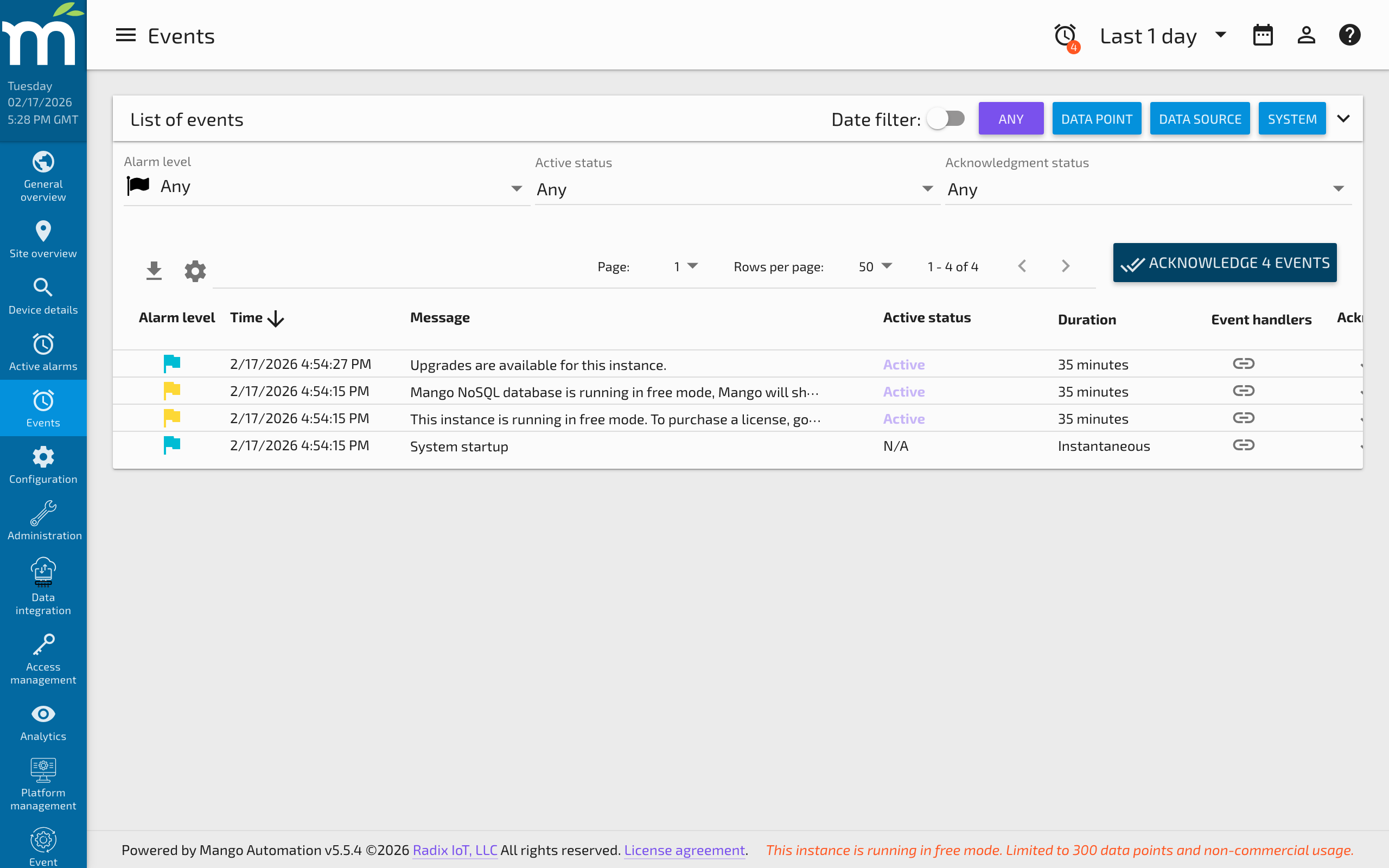
Filtering Events
You can filter the table by Event Type, Alarm Level, Active Status, and whether or not the event has been Acknowledged.
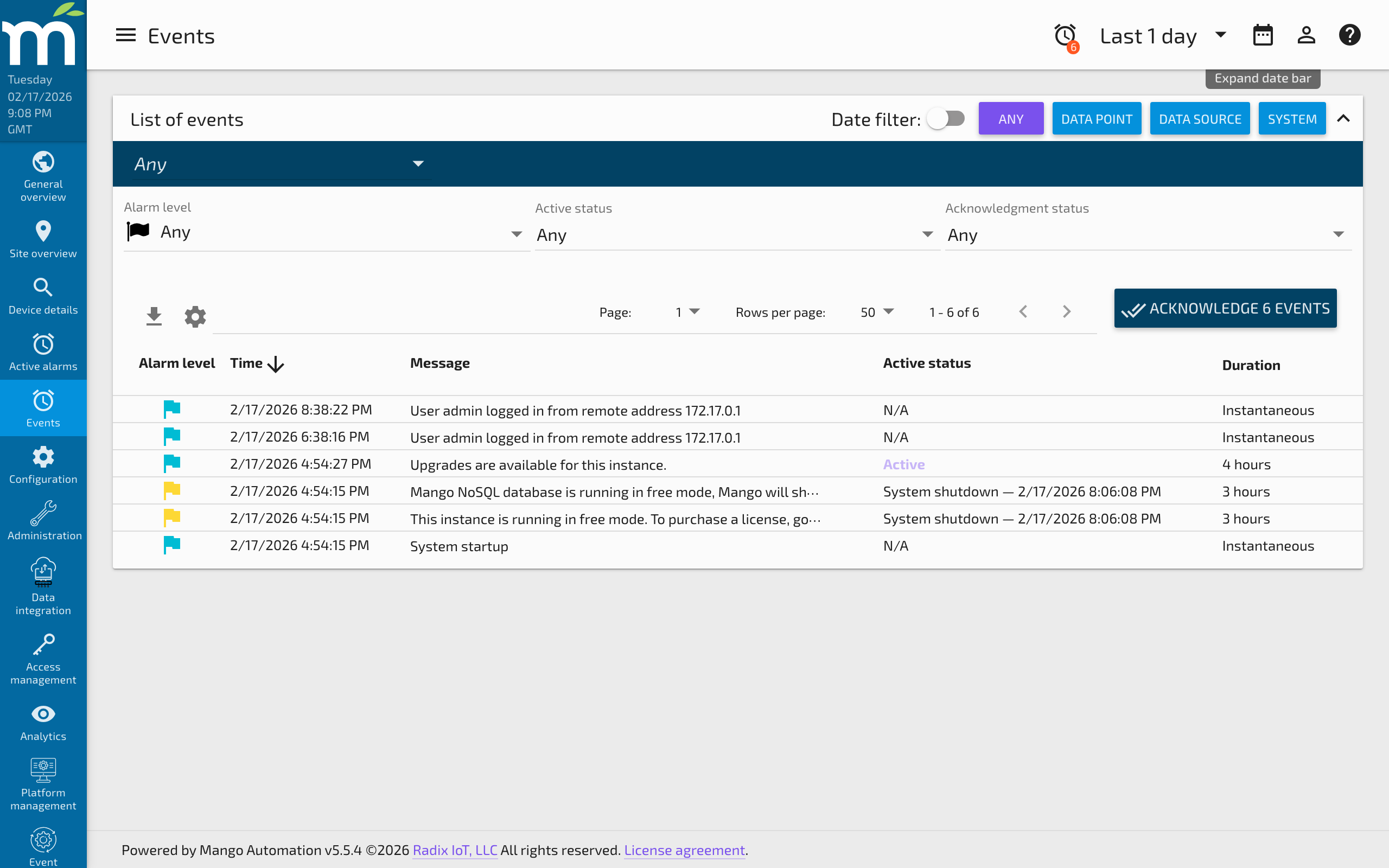
Available filter options include:
| Filter | Options |
|---|---|
| Event Type | Data Point, Data Source, System, Audit, etc. |
| Alarm Level | None, Information, Important, Warning, Urgent, Critical, Life Safety |
| Active Status | All, Active, Returned to Normal, No Return |
| Acknowledged | All, Acknowledged, Unacknowledged |
Message Column
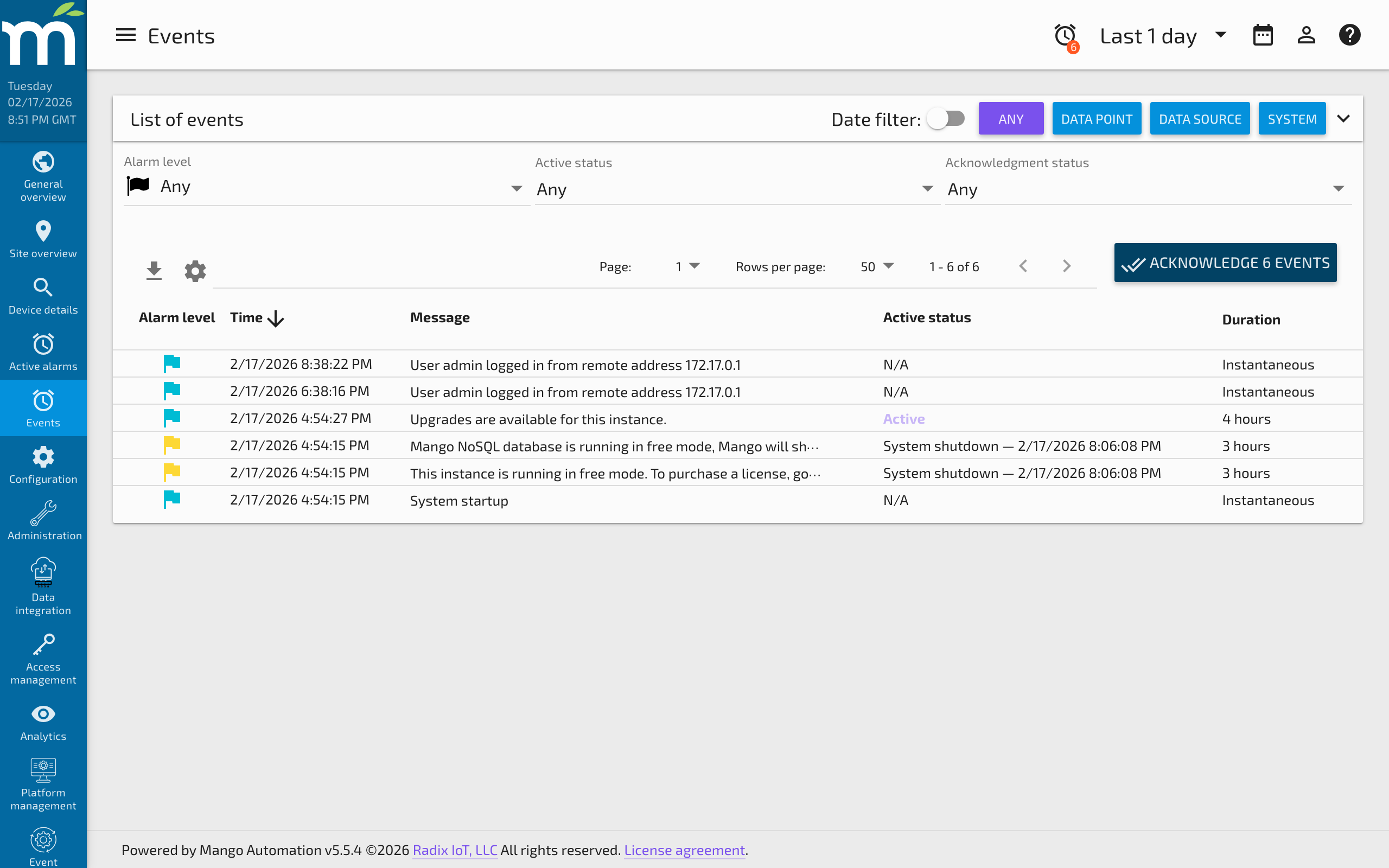
The Message column shows the message associated with the event. If the message is too long to fit on one line, it will be truncated and shown with an ellipsis. You can click the truncated message to expand it and show the entire text.
Adding Notes to Events
You can add notes to an event by clicking on the alarm level flag icon at the far left of the row. If an event has notes, a notes icon is shown to the left of its message. You can click the message to expand and show the notes. Notes are useful for documenting the cause of an alarm, actions taken, or any other contextual information.
Status Column
The Status column represents the current status of the alarm. You can filter on status using the Active Status dropdown at the top of the table. The filter options are:
- All -- Shows all events regardless of status.
- Active -- Shows only events that are currently in an active (alarm) state.
- Returned To Normal -- Shows events that have returned to a non-alarm state. The time at which the return occurred is shown in the Status column.
- No Return -- Shows events that do not have a "return to normal" concept (one-time events).
Duration Column
The Duration column represents the total time between the alarm start and when it Returned To Normal. If the alarm is still active, this time represents the alarm start until now.
Acknowledging Events
The Acknowledge column represents whether an alarm has been acknowledged. An empty green circle icon displays for unacknowledged events, and a filled green checked icon displays for acknowledged events. You can acknowledge a single event by clicking the empty circle icon.
You can acknowledge all events that match the current filter by clicking the Acknowledge # Events button at the top of the table.
Header Bar Alarm Indicators
If you have any unacknowledged events in your system, they display in the Header Bar under the Alarm Icon. You can see the total count of unacknowledged events as well as the breakdown by Alarm Level by clicking the Alarm Icon to expand the menu. Clicking any of these menu items opens the Events Page with the filters automatically set to the chosen alarm level.
Note: If you do not see all the events in the table after clicking one of these menu items, the Date filter toggle switch may be enabled. If so, events older than the selected time range will not show in the Events Table. By default this option is turned off and events are not filtered by timestamp.
Related Pages
- Date Bar — Control the time range used for filtering events
- Data Point Details — View events specific to a single data point
- HVAC Dashboard: Alarm List — Tutorial on building a custom alarm list component