Users and Roles
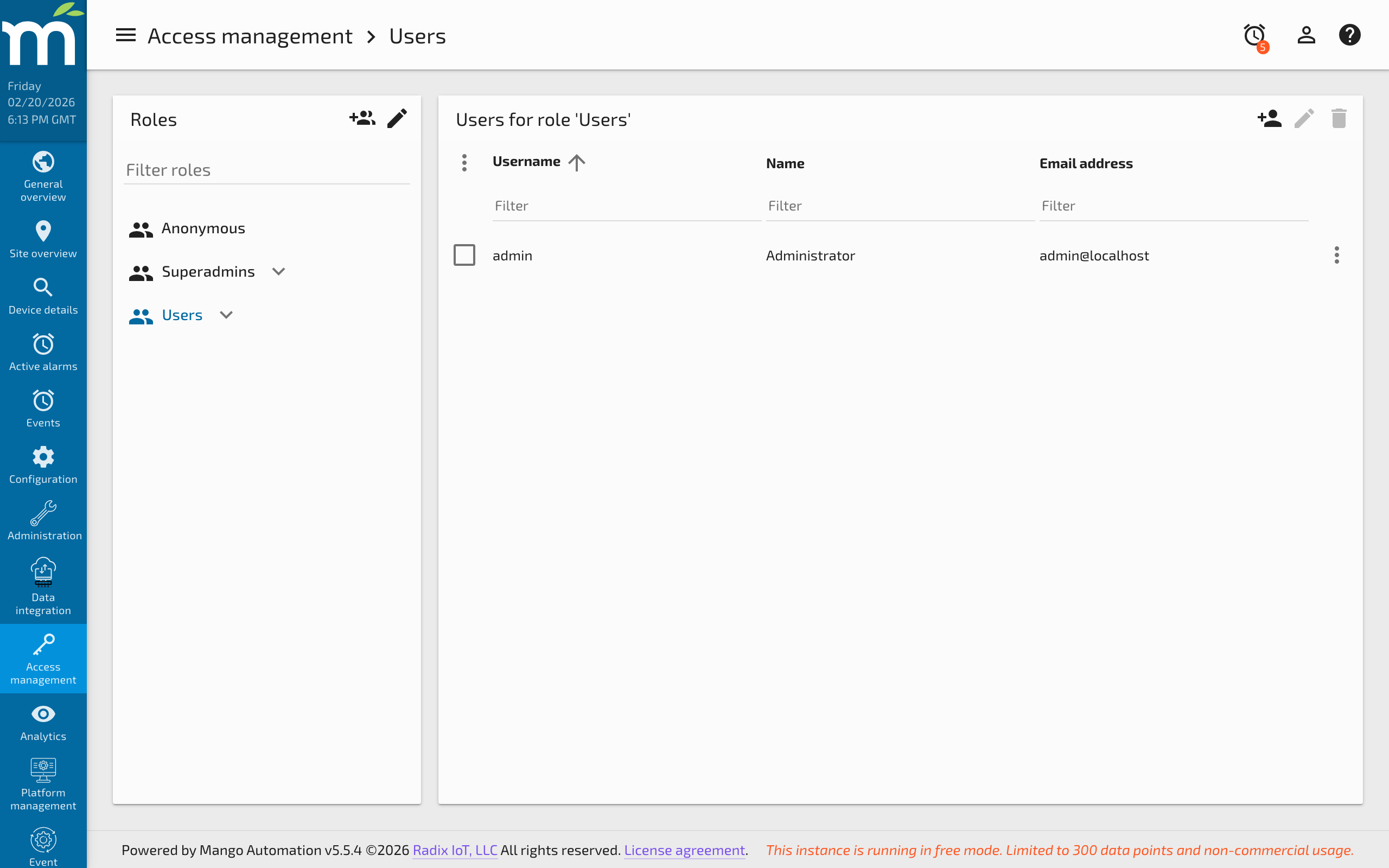
Users represent individuals who use the system. Various privileges can be assigned to users to grant them the ability to read and alter data and system behavior.
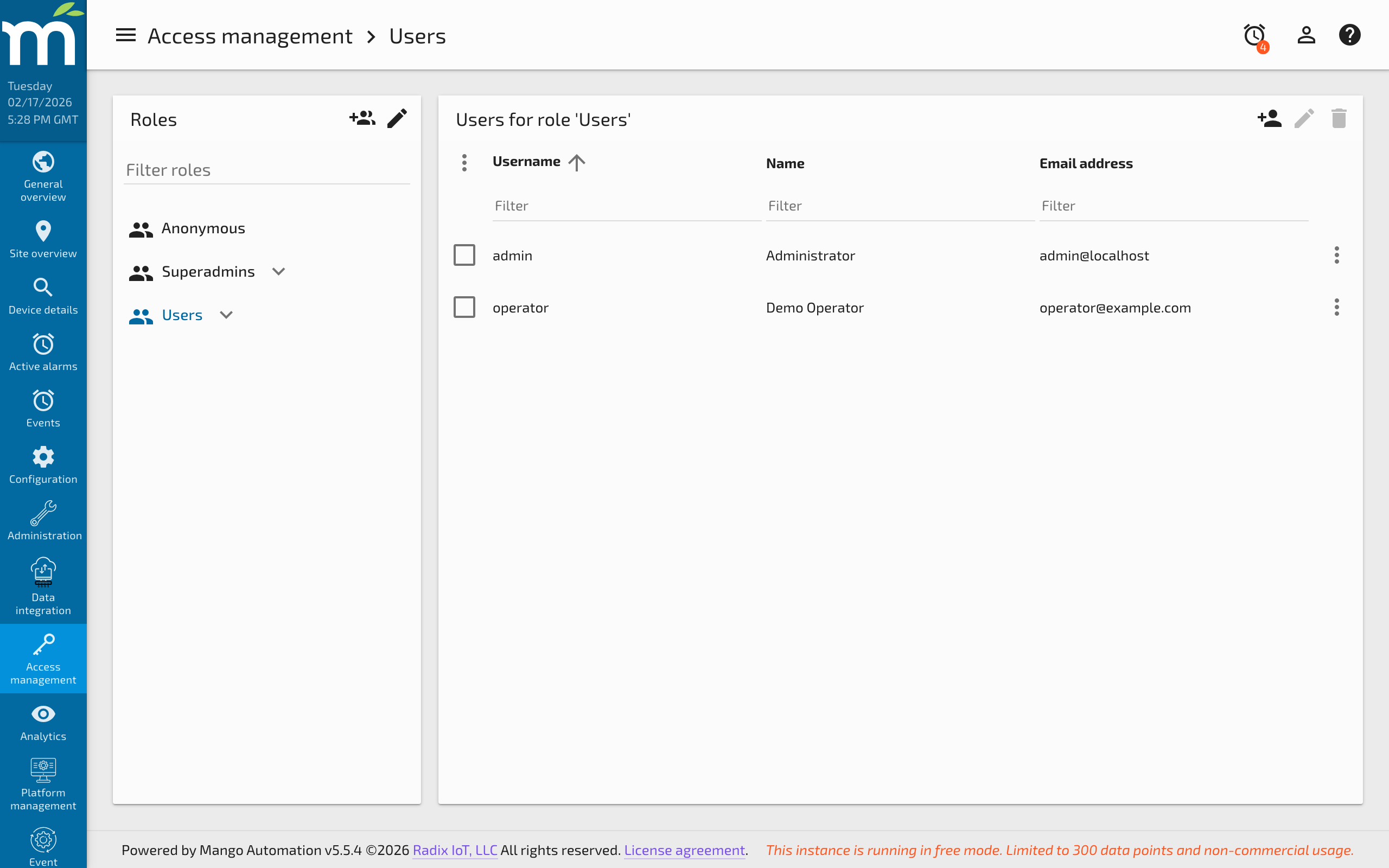
User Roles
There are three basic roles:
- Superadmins -- Have access to all system functionality. This is the administrative role.
- Users -- Have various privileges based upon permission configuration. Access is determined by the roles assigned to the user.
- Anonymous -- Used when you want to make a view or configuration "public" without requiring authentication.
Editing Users
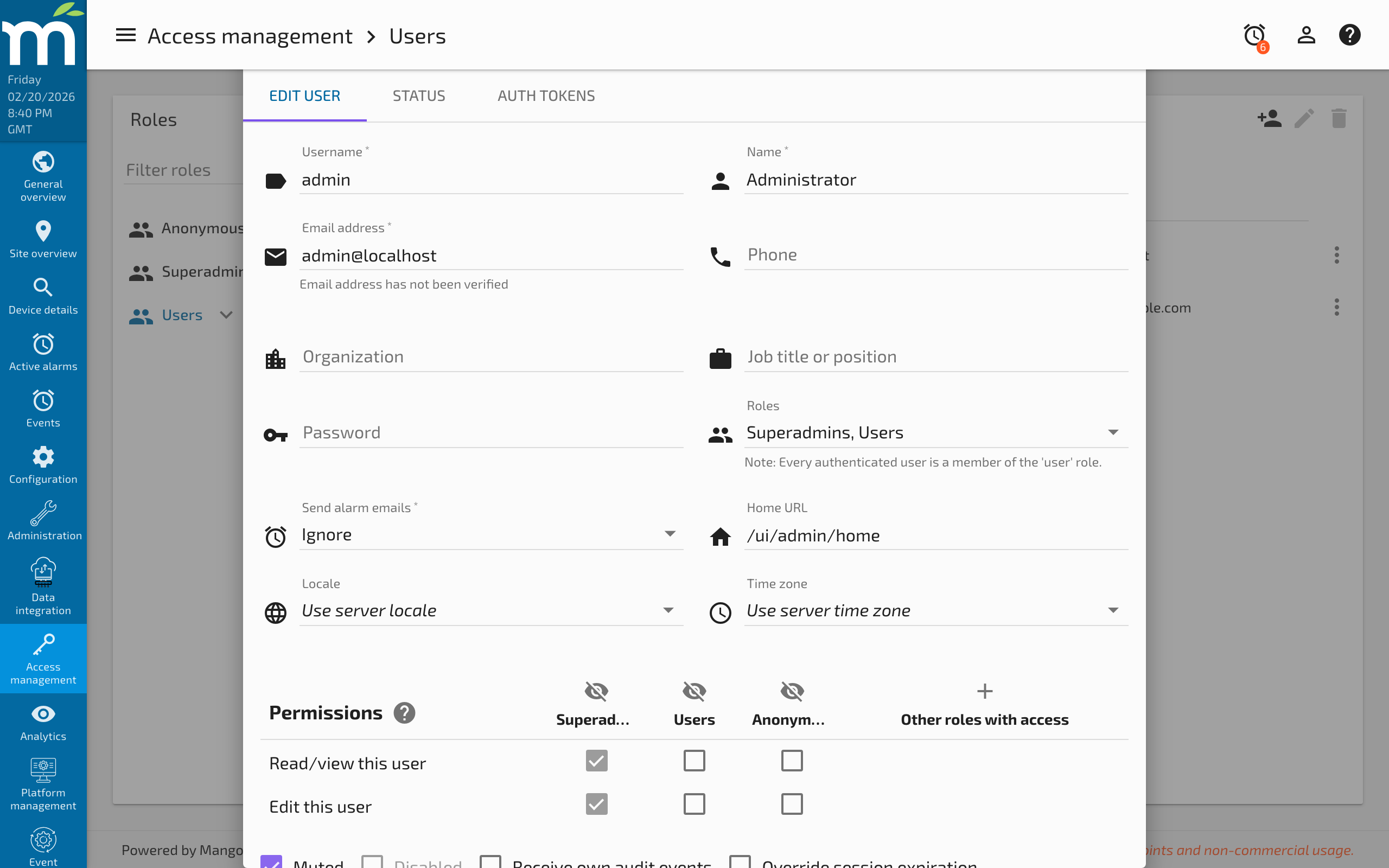
To add a new user, click the New user icon button. The user will not actually be added until it is successfully saved. To edit an existing user, click the user's name in the Users list.
Alarm Email Notifications
Users may have alarm notification emails sent to their email addresses without explicitly being specified on an email event handler. Selecting a Send alarm emails alarm level above Ignore will cause these notifications to be sent when the event's alarm level is greater than or equal to the user's minimum alarm level, but only when the event is raised (no escalation or inactive notifications). If the user is already specified on an email event handler, they will not be sent duplicate emails.
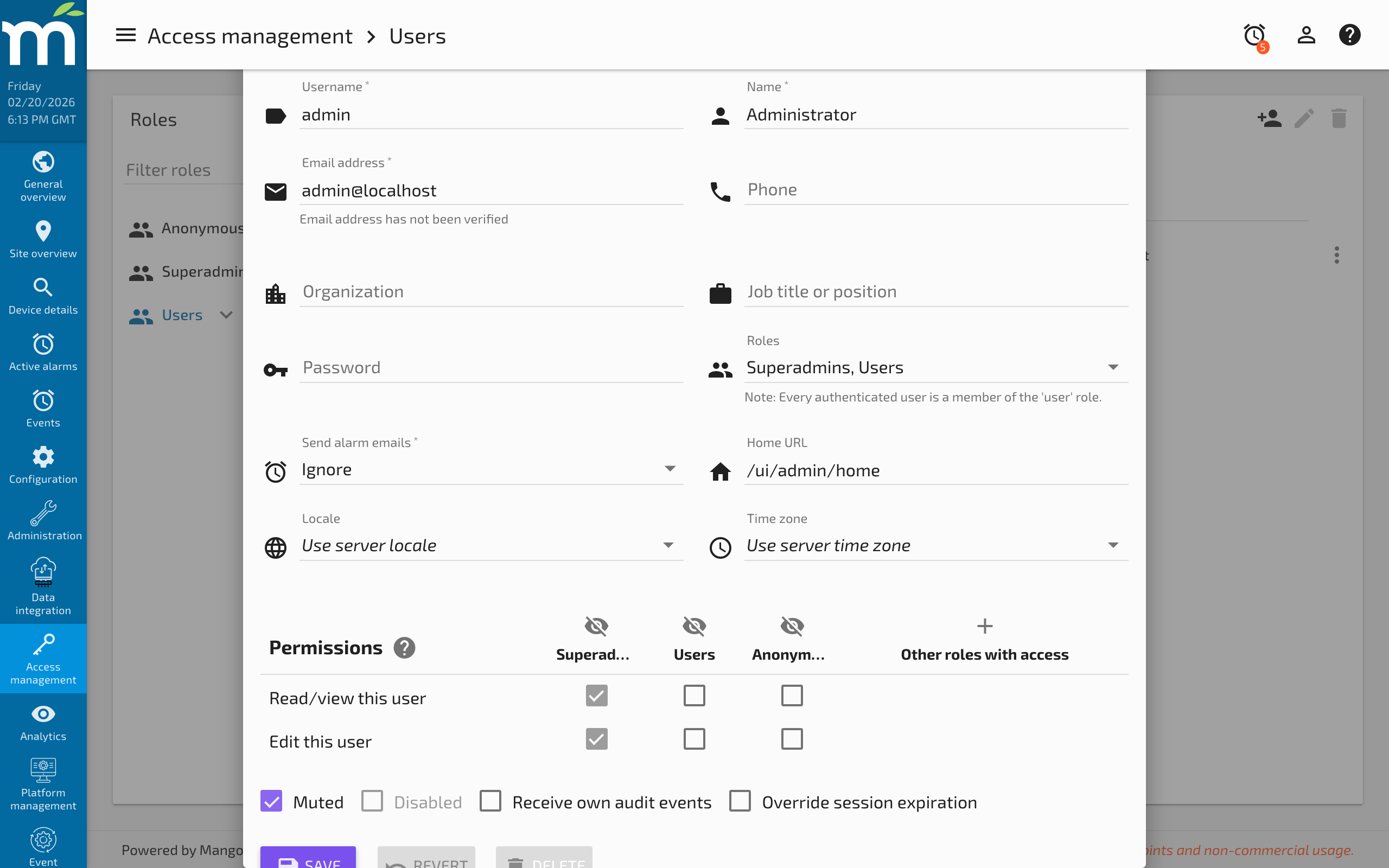
User Actions
- Delete -- Remove the user from the system.
- Revert -- Reset changes to the last saved state.
- Save -- Persist changes to the user account.
User Options
| Option | Description |
|---|---|
| Muted | The user will not hear the alarm sound for alarms. |
| Disabled | The user is not allowed to log in. |
| Receive own audit events | The user receives emails from their own audit trail. Only audit events at or above the user's Send alarm emails setting will be emailed. |
| Override session expiration | Shows additional input fields to edit the expiration time of the user's session. |
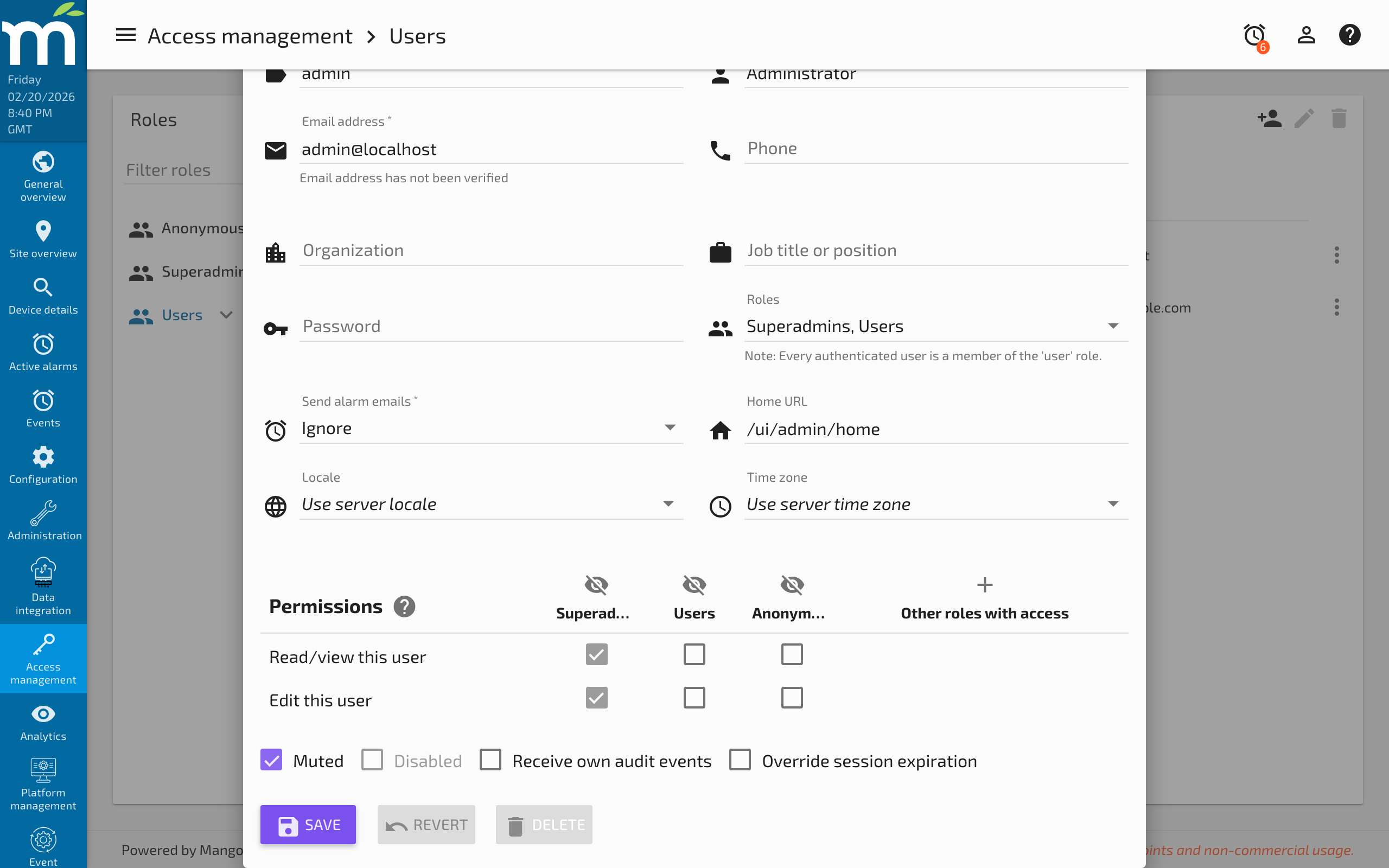
Additional Actions
Click the three-dot menu button to access additional actions:
- Send Test Email -- Sends a test email to the user's configured email address to verify email delivery.
- Send verification email -- Sends an email verification link to the user.
- Switch To User -- Quickly log in as the selected user (available when editing a user other than the one you are currently logged in as).
Roles and Permissions
The role Superadmins determines whether a user is an administrator. If the user is not an administrator, the Roles field determines what access to various areas of Mango the user has. You can select multiple roles (groups) to which the user belongs.
Permission matching works as follows: if the user should have access to a particular area (for example, data source management), then at least one of the roles in that area's permission list needs to match at least one of the roles assigned to the user.
Common permission areas include:
- Data source management -- Create and edit data sources.
- Data point editing -- Modify data point configurations.
- Event handling -- Manage event handlers and alarm responses.
- Custom page editing -- Create and modify custom UI pages.
- Menu editing -- Customize the sidebar menu structure.
The user must be saved for any permission changes to take effect.
Related Pages
- Editing the Menu — Control menu visibility based on user permissions
- REST API Authentication — Authentication methods for API access