OPC DA Data Source
The OPC DA (Data Access) data source connects Mango to OPC Classic servers using Microsoft's DCOM (Distributed Component Object Model) technology. OPC DA was the first of the OPC Classic specifications and deals exclusively with real-time data (not historical data). It allows Mango to read and write tag values from OPC servers running on Windows machines.
OPC DA is a legacy protocol that predates the platform-independent OPC UA standard. Because it depends on DCOM, OPC DA is Windows-only and requires specific system configuration on both the client and server machines. For new installations, consider using OPC UA instead if the server supports it. OPC DA remains necessary for connecting to older systems that have not been upgraded to OPC UA.
Overview
| Property | Value |
|---|---|
| Module | mangoAutomation-OpcDa |
| Protocol | OPC DA (DCOM) |
| Direction | Polling |
| Typical Use | Legacy OPC server integration (Windows only) |
Prerequisites
- Windows operating system on the OPC DA server machine (DCOM is a Windows-only technology).
- An OPC DA server installed and running on the Windows machine (e.g., Kepware KEPServerEX, Matrikon OPC, Wonderware, or any OPC DA 2.0/3.0 compliant server).
- DCOM configuration completed on the server machine (see setup instructions below).
- Network access from Mango to the OPC DA server machine, including DCOM port 135 (TCP).
- Windows credentials (domain, username, password) for authentication with the OPC server machine.
- The Windows Firewall on the OPC server machine must allow DCOM communication.
DCOM Configuration
DCOM configuration is the most common source of connection problems with OPC DA. Follow these steps carefully on the OPC server machine.
Step 1: Open DCOM Configuration
- Open the Start menu and in the Run dialog, type
DCOMCnfgand click OK. - In Console Root, expand Component Services, then Computers.
Step 2: Configure Computer-Level Permissions
- Right-click My Computer and select Properties.
- Go to the COM Security tab.
- Under Access Permissions, click Edit Limits:
- For all users, check Allow for both Local Access and Remote Access.
- Under Launch and Activation Permissions, click Edit Limits:
- For all users, check Allow for Local Launch, Remote Launch, Local Activation, and Remote Activation.
Step 3: Configure the Windows Firewall
- Open Control Panel and navigate to Windows Firewall.
- In the Exceptions tab:
- Add all OPC Server executables.
- Add all OPC Client executables.
- Add
OPCEnum.exe(found inWindows\System32orWindows\SysWOW64). - Add a port exception: Name = "DCOM", Port = 135, Protocol = TCP.
Alternatively, for testing purposes, you may temporarily disable the Windows Firewall entirely. However, this is not recommended for production environments.
Step 4: Verify OPCEnum Service
The OPCEnum service must be running on the OPC server machine. This service allows remote clients to enumerate available OPC servers. Check that it is started in the Windows Services console (services.msc).
Configuration
Data Source Settings
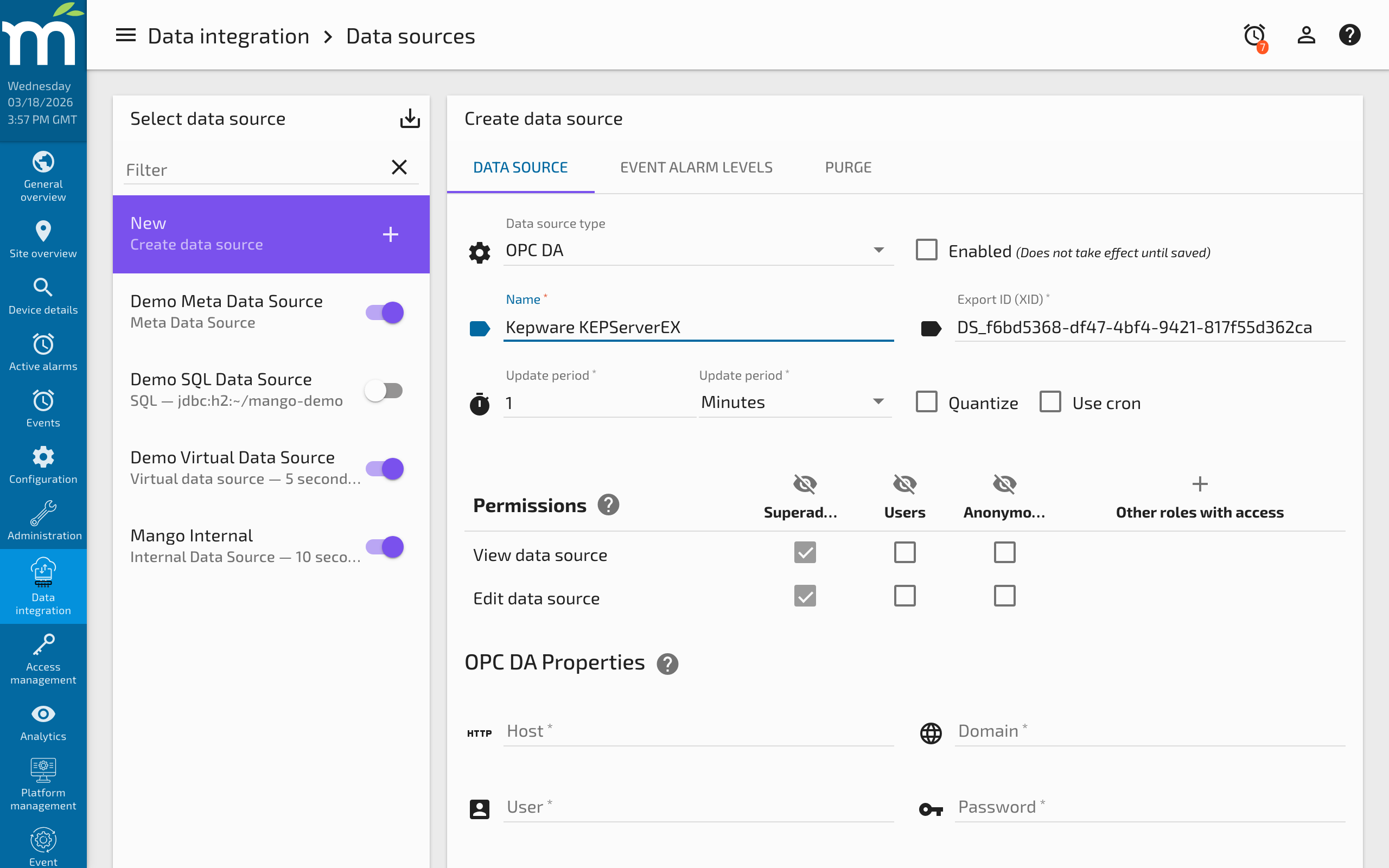
The following connection settings are all required to discover and connect to OPC DA servers:
| Setting | Description |
|---|---|
| Name | A descriptive name for the data source. |
| Host | IP address or hostname of the OPC server machine. |
| Domain | Windows domain of the OPC server machine. Leave empty for workgroup or local account authentication. |
| Username | Windows username for DCOM authentication. |
| Password | Windows password for DCOM authentication. |
| Server | The OPC DA server to connect to (selected from the server list after discovery). |
| Update period | How often Mango polls the OPC server for tag values. |
Discovering OPC Servers
After entering the Host, Domain, Username, and Password fields, click the Refresh button next to the Server list dropdown. Mango will connect to the remote machine via DCOM and enumerate all registered OPC DA servers. A notification appears when the server list has loaded. Select the desired server from the dropdown and save the data source.
Data Point Configuration
OPC DA is a polling data source. Each poll cycle retrieves new values for all enabled data points.
| Setting | Description |
|---|---|
| Tag | The OPC item ID (tag name) on the server. Must exactly match a tag name on the OPC server. |
| Data type | The Mango data type. The OPC DA server provides the native data type, which Mango converts automatically. |
| Settable | Whether Mango can write values to this tag on the OPC server. |
Important: Creating a data point in Mango does not create a corresponding tag on the OPC server. Mango can only read from and write to tags that already exist on the OPC server.
For both the data source and the data point to poll successfully, both must be enabled and the tag name must exactly match a tag on the server. If the data point was created using the built-in tag import tool (see below), the tag name, data type, and settable flag are populated automatically.
Tag Import Tool
The OPC DA data source includes a specialized tool for converting OPC server tags into Mango data points. This tool appears in a separate tab after the data source is saved.
Using the Tag Import Tool
- Save the data source with valid connection settings.
- Open the Tools tab.
- Mango connects to the OPC server and retrieves all available tags, displaying them in a table with their Tag name, Data type, and whether they are Settable.
- Select the tags you want to import by checking their checkboxes.
- Click the Add tags button above the table.
- A dialog opens showing the data point configuration. The tag name becomes the point name and is also set as the OPC DA tag value.
Note: When adding multiple tags at once, if you change the name of the data point in the dialog, the same name will be applied to all selected tags. To give each point a unique name, add them individually or rename them after creation.
Common Patterns
Connecting to Kepware KEPServerEX
Kepware is one of the most widely used OPC DA servers, acting as a gateway between industrial protocols and OPC clients:
- Install and configure KEPServerEX on the Windows server machine.
- Add channels and devices in KEPServerEX for the industrial equipment you want to monitor.
- Complete the DCOM configuration steps on the Kepware machine.
- In Mango, create an OPC DA data source and enter the Windows machine's credentials.
- Refresh the server list and select the Kepware server (usually listed as "KEPware.KEPServerEx.V6").
- Use the Tag Import tool to browse and import the desired tags.
Testing with a Simulation Server
For testing without physical hardware, Matrikon provides a free OPC DA simulation server:
- Download the Matrikon OPC Simulation Server.
- Install it on a Windows machine and start the server.
- Do not close the simulation server application -- closing it stops the OPC server.
- Configure DCOM as described above.
- Connect from Mango and browse the simulated tags.
Migrating from OPC DA to OPC UA
If your OPC server supports both DA and UA, consider migrating to OPC UA for these benefits:
- No DCOM configuration required.
- Works from Linux-based Mango installations.
- Built-in security with certificate-based authentication and encryption.
- Support for subscriptions (event-driven updates) instead of polling only.
- Better performance for large tag counts.
To migrate, create a new OPC UA data source pointing to the same server, map the UA Node IDs to the corresponding DA tags, verify values match, then disable the DA data source.
Troubleshooting
Cannot Discover OPC Servers
- DCOM not configured -- follow the DCOM configuration steps carefully. Missing permissions are the most common cause of connection failures.
- OPCEnum not running -- verify the OPCEnum service is started on the server machine.
- Firewall blocking port 135 -- ensure TCP port 135 is open between Mango and the OPC server.
- Wrong credentials -- the domain, username, and password must match a Windows account with DCOM access on the server machine.
- Network connectivity -- verify you can reach the OPC server machine from the Mango server (ping, traceroute).
Connection Errors After Discovery
- Server closed -- if using a simulation server, ensure the server application is still running.
- DCOM access denied -- even if enumeration works, the specific OPC server may have additional DCOM permission requirements. Check the server-specific DCOM settings in
DCOMCnfg. - Windows credentials expired -- if the password was changed on the Windows account, update it in the Mango data source configuration.
Tags Not Updating
- Tag name mismatch -- the tag name in the Mango data point must exactly match the tag name on the OPC server, including case and any hierarchical separators.
- Data point or data source disabled -- both must be enabled for polling to occur.
- OPC server not updating -- the OPC server itself may have lost connection to the underlying device. Check the server's status and diagnostics.
- Poll period too long -- reduce the update period to see values change more frequently.
Write Failures
- Tag not settable -- verify the tag is writable on the OPC server. Check the settable flag in the tag import tool.
- Data type mismatch -- the value being written must be compatible with the OPC server's expected type for that tag.
- OPC server write permissions -- the OPC server or the underlying device may restrict write operations based on security settings.
Cross-Platform Considerations
OPC DA requires DCOM, which is a Windows-only technology. If Mango is running on Linux:
- Use OPC UA instead if the server supports it.
- Use an OPC gateway that converts DA to UA or to another protocol accessible from Linux.
- Run Mango on Windows if OPC DA is the only option.
Related Pages
- Data Sources Overview — General data source and data point concepts
- OPC UA Data Source — The modern, cross-platform successor to OPC DA with subscription support
- Data Source Performance — Tuning poll periods for OPC DA polling data sources
- Modbus Data Source — Alternative industrial protocol that does not require DCOM