Z-Wave Data Source
The Z-Wave data source connects Mango to Z-Wave wireless devices through a USB Z-Wave controller. Z-Wave is a low-power mesh networking protocol designed for home and building automation, supporting hundreds of device types including sensors, switches, dimmers, thermostats, locks, and motorized actuators. Mango acts as the primary controller on the Z-Wave network, managing device inclusion, reading sensor values, and sending commands to actuators.
Communication is bidirectional: Mango polls devices for current values and also receives unsolicited reports when devices send updates (e.g., a motion sensor reporting detection, or a thermostat reporting a temperature change). This combination of polling and event-driven updates provides responsive monitoring and control.
Overview
| Property | Value |
|---|---|
| Module | mangoAutomation-ZWave |
| Protocol | Z-Wave (ITU-T G.9959) |
| Direction | Bidirectional (polling + event-driven) |
| Typical Use | Building automation sensor and actuator integration, HVAC monitoring, lighting control, access control |
Z-Wave operates in the sub-GHz frequency band (908.42 MHz in North America, 868.42 MHz in Europe), which provides better range and wall penetration than Wi-Fi or Zigbee. The mesh topology means that mains-powered devices act as repeaters, extending the effective range of the network. A single Z-Wave network supports up to 232 devices.
Common deployment scenarios include:
- Building automation -- monitoring temperature, humidity, and occupancy across zones while controlling HVAC setpoints, lighting, and motorized blinds.
- Energy management -- reading power consumption from Z-Wave energy meters and controlling loads based on demand.
- Access control -- monitoring door/window sensors and controlling electronic locks.
- Environmental monitoring -- collecting data from multi-sensor devices that report temperature, humidity, luminance, and motion.
Prerequisites
Before you begin, make sure you have:
- The
mangoAutomation-ZWavemodule installed on your Mango instance.- A USB Z-Wave controller (e.g., Aeotec Z-Stick Gen5+, Zooz ZST10, or Silicon Labs UZB-7) connected to the Mango host.
- The controller must support the Z-Wave serial API (most USB sticks do).
- Serial port access permissions on the Mango host (on Linux, the user running Mango must be in the
dialoutgroup).- Z-Wave devices ready for inclusion (typically in factory-reset state or previously excluded from other networks).
Controller setup
On Linux, verify the controller is recognized:
ls /dev/ttyACM*
# Should show: /dev/ttyACM0 (or similar)
Add the Mango user to the dialout group if not already a member:
sudo usermod -aG dialout mango
On Windows, the controller appears as a COM port in Device Manager. Note the port number (e.g., COM3) for data source configuration.
Data source configuration
Creating the data source
- Navigate to Data Sources in the Mango menu.
- Click New and select Z-Wave from the data source type list.
- Enter a descriptive Name (e.g., "Building A Z-Wave Network").
- Configure the connection and polling settings described below.
- Click Save to create the data source.
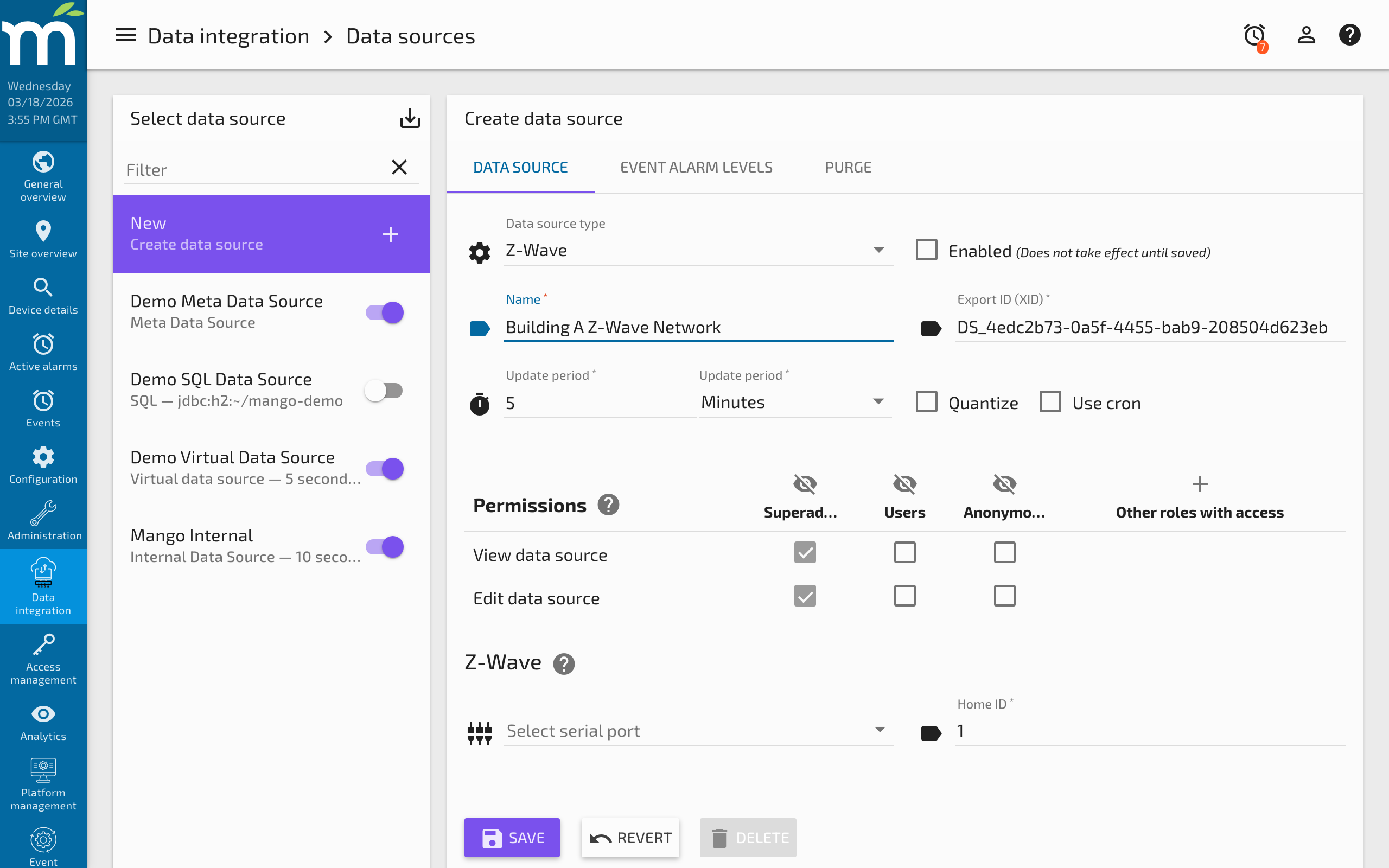
Connection settings
| Parameter | Type | Default | Description |
|---|---|---|---|
commPortId | String | "" | The serial port of the USB Z-Wave controller (e.g., /dev/ttyACM0 on Linux, COM3 on Windows). |
homeId | Long | 0 | The Z-Wave network Home ID. Automatically assigned when a Z-Wave controller is initialized; do not set manually. |
Polling settings
| Parameter | Type | Default | Description |
|---|---|---|---|
updatePeriodType | Enum | MINUTES | Time unit for the polling interval. |
updatePeriods | Integer | 5 | Number of time units between polls. During each poll, Mango requests updated values from all configured devices. |
Network management
The data source provides network management operations accessible from the data source editor:
| Operation | Description |
|---|---|
| Include device | Places the controller in inclusion mode. Activate inclusion on the device (usually by pressing a button) to add it to the network. |
| Exclude device | Places the controller in exclusion mode. Activate exclusion on the device to remove it from the network. |
| Discover network | Scans for all devices currently in the Z-Wave network and retrieves their node information. |
| Heal network | Re-optimizes the mesh routing tables. Run this after adding or moving devices. |
Including a device
- Open the Z-Wave data source and click Include device.
- Within 30 seconds, activate inclusion mode on the Z-Wave device (consult the device manual for the specific procedure -- typically pressing a button 3 times quickly).
- Mango detects the device and assigns it a node ID.
- The device appears in the node list with its manufacturer, product name, and supported command classes.
- Click Stop inclusion when finished.
For devices that support S2 security, Mango prompts for the device's DSK (Device-Specific Key) during inclusion. Enter the 5-digit PIN printed on the device or its packaging.
Point configuration
Creating points
- With the Z-Wave data source open, navigate to the Points section.
- Select a device node from the discovered nodes list.
- The available command classes and endpoints for that device are displayed.
- Select the command class and value to monitor or control.
- Click Add point and configure the point settings.
- Click Save.
Point settings
| Parameter | Type | Default | Description |
|---|---|---|---|
nodeId | Integer | -- | The Z-Wave node ID of the target device (assigned during inclusion). |
commandClass | Enum | -- | The Z-Wave command class to use for this point (e.g., SENSOR_MULTILEVEL, SWITCH_BINARY, THERMOSTAT_SETPOINT). |
instance | Integer | 0 | The instance number for multi-channel devices (also referred to as endpoint). Single-instance devices use 0. |
index | Integer | 0 | The value index within the command class. For example, a multilevel sensor may report temperature at index 0 and humidity at index 1. |
dataType | Enum | Varies | The Mango data type. Determined automatically based on the command class but can be overridden. |
settable | Boolean | Varies | Whether the point can send commands to the device. Automatically set based on the command class (sensors are read-only; switches and setpoints are settable). |
Common command classes
| Command Class | Data Type | Settable | Typical Devices |
|---|---|---|---|
SENSOR_MULTILEVEL | Numeric | No | Temperature, humidity, luminance, power sensors |
SENSOR_BINARY | Binary | No | Motion detectors, door/window sensors, water leak sensors |
SWITCH_BINARY | Binary | Yes | On/off switches, smart plugs, relay modules |
SWITCH_MULTILEVEL | Numeric | Yes | Dimmers, motorized blinds, fan speed controllers |
THERMOSTAT_SETPOINT | Numeric | Yes | Thermostat heating/cooling setpoints |
THERMOSTAT_MODE | Multistate | Yes | Thermostat operating mode (off, heat, cool, auto) |
THERMOSTAT_FAN_MODE | Multistate | Yes | Thermostat fan mode (auto, low, high) |
METER | Numeric | No | Energy meters (kWh, W, V, A) |
DOOR_LOCK | Multistate | Yes | Electronic door locks (locked, unlocked) |
BATTERY | Numeric | No | Battery level for battery-powered devices |
NOTIFICATION | Multistate | No | Event notifications (smoke, CO, water, access control) |
Examples
Example 1: Multi-sensor environmental monitoring
Deploy an Aeotec MultiSensor 7 that reports temperature, humidity, luminance, UV index, and motion.
- Include the MultiSensor by clicking Include device and pressing the action button on the sensor.
- After inclusion, the device appears with node ID (e.g., 5) and lists the
SENSOR_MULTILEVELandSENSOR_BINARYcommand classes. - Create five data points:
- Temperature: Command class
SENSOR_MULTILEVEL, index 0 (Air Temperature). Data type: Numeric. - Humidity: Command class
SENSOR_MULTILEVEL, index 1 (Humidity). Data type: Numeric. - Luminance: Command class
SENSOR_MULTILEVEL, index 2 (Luminance). Data type: Numeric. - UV Index: Command class
SENSOR_MULTILEVEL, index 3 (UV). Data type: Numeric. - Motion: Command class
SENSOR_BINARY, index 0 (Motion). Data type: Binary.
- Temperature: Command class
- The sensor sends unsolicited reports when motion is detected and at configured intervals for environmental readings.
Example 2: Thermostat control
Integrate a Z-Wave thermostat for HVAC monitoring and setpoint control.
- Include the thermostat.
- Create read-only points for current temperature (
SENSOR_MULTILEVEL) and operating state (THERMOSTAT_OPERATING_STATE). - Create settable points for heating setpoint and cooling setpoint (
THERMOSTAT_SETPOINT). - Create a settable point for the mode (
THERMOSTAT_MODE) to switch between Off, Heat, Cool, and Auto. - Set values from the Mango UI, dashboards, or automation scripts to control the HVAC system.
Troubleshooting
| Symptom | Cause | Solution |
|---|---|---|
| "Controller not found" or no serial port listed | USB controller not recognized, missing drivers, permission issue | Verify the controller appears in /dev/ttyACM* (Linux) or Device Manager (Windows). On Linux, ensure the Mango user is in the dialout group. |
| Device does not include | Device already on another network, out of range, or not in inclusion mode | Exclude the device first (even from the new controller), then retry inclusion. Move the device closer to the controller during inclusion. |
| Device included but no command classes shown | Device interview not complete, battery device asleep | Wake the device (press its action button) to allow Mango to complete the node interview. Wait up to 60 seconds. |
| Communication timeout on poll | Device out of range, mesh route not established, dead node in route | Run Heal network to re-optimize routes. Add a mains-powered Z-Wave device as a repeater between the controller and distant nodes. |
| Values not updating for battery devices | Battery device sleeps between reports to conserve power | Battery devices only report at their configured wake-up interval. Configure the device's wake-up interval (via its configuration parameters) to control reporting frequency. |
| Stale values after device firmware update | Node information changed after update | Exclude and re-include the device, or run Discover network to refresh node information. |
| Thermostat setpoint not applied | Wrong setpoint type (heating vs. cooling) or mode mismatch | Verify the thermostat is in a mode that uses the setpoint being written (e.g., heating setpoint only applies in Heat or Auto mode). |
Related Pages
- Data Sources Overview — General data source and data point concepts
- BACnet Data Source — Alternative protocol for commercial building automation
- Modbus Data Source — Alternative protocol for industrial device integration
- OneWire Data Source — Another bus-based protocol for sensor networks and home automation