How to Set Data Point Values
Most data points in Mango read values automatically — on a polling interval or by receiving updates from a device. But many protocols also support writing values back to the device. This lets you change setpoints, flip switches, send commands, or update configuration registers directly from the Mango UI.
Prerequisites
Before you can set a point's value, two conditions must be met:
- The data source protocol supports writing. Most industrial protocols do (Modbus, BACnet, OPC-UA, MQTT, SQL), but some read-only sources (like HTTP Retriever or Virtual) may not.
- The data point is configured as settable. In the point's configuration, enable the Settable (or Read & Write) option. Read-only points do not display set controls in the UI.
Setting values from the UI
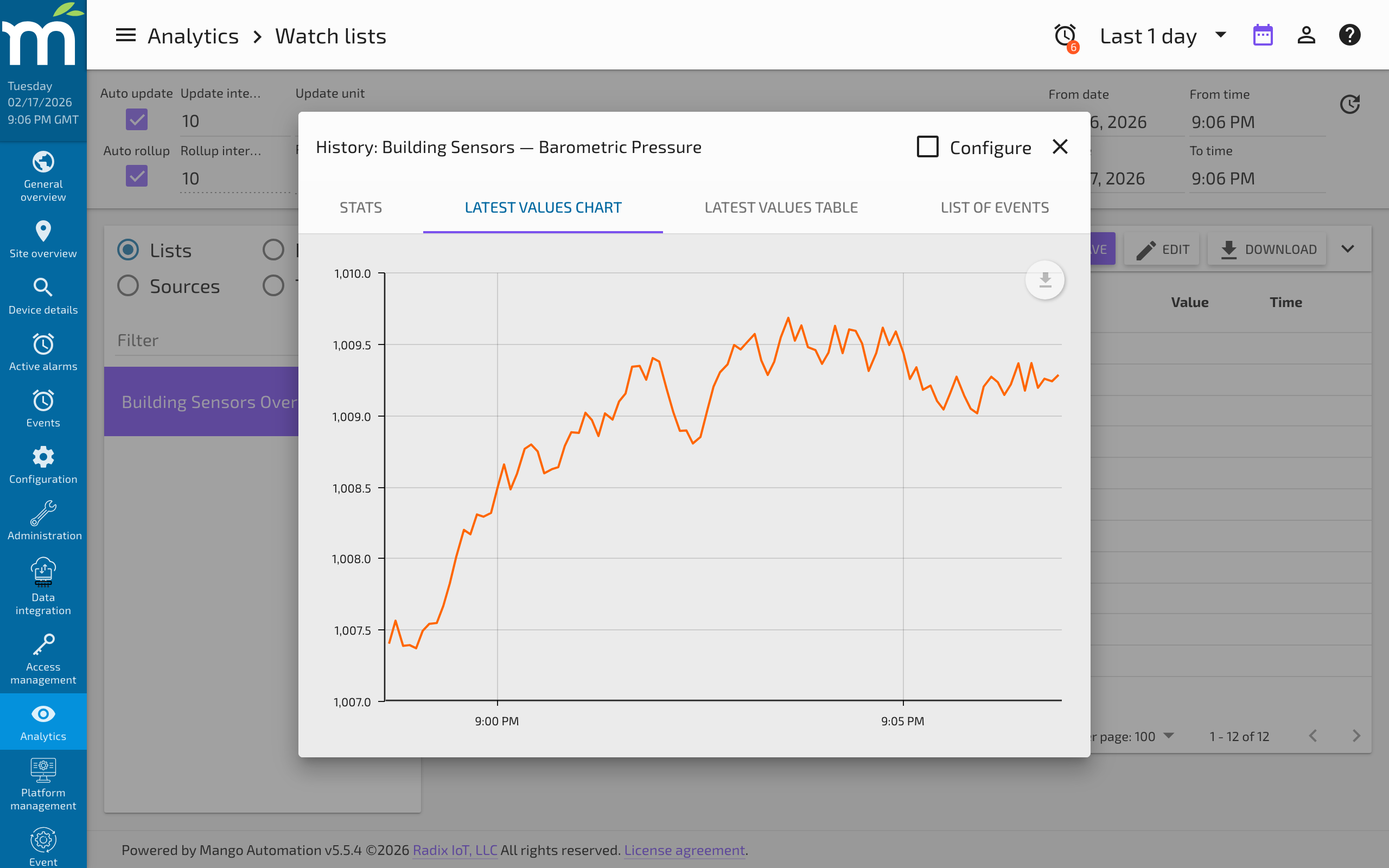
Watch list
The fastest way to set a value is from a Watch List:
- Open Watch List from the main menu
- Hover over the point's current value
- Click the pencil icon that appears
- Enter the new value in the input field
- Click Set or press Enter
The value is sent to the device immediately. The displayed value updates once the device confirms the change (or on the next poll cycle).
Point details page
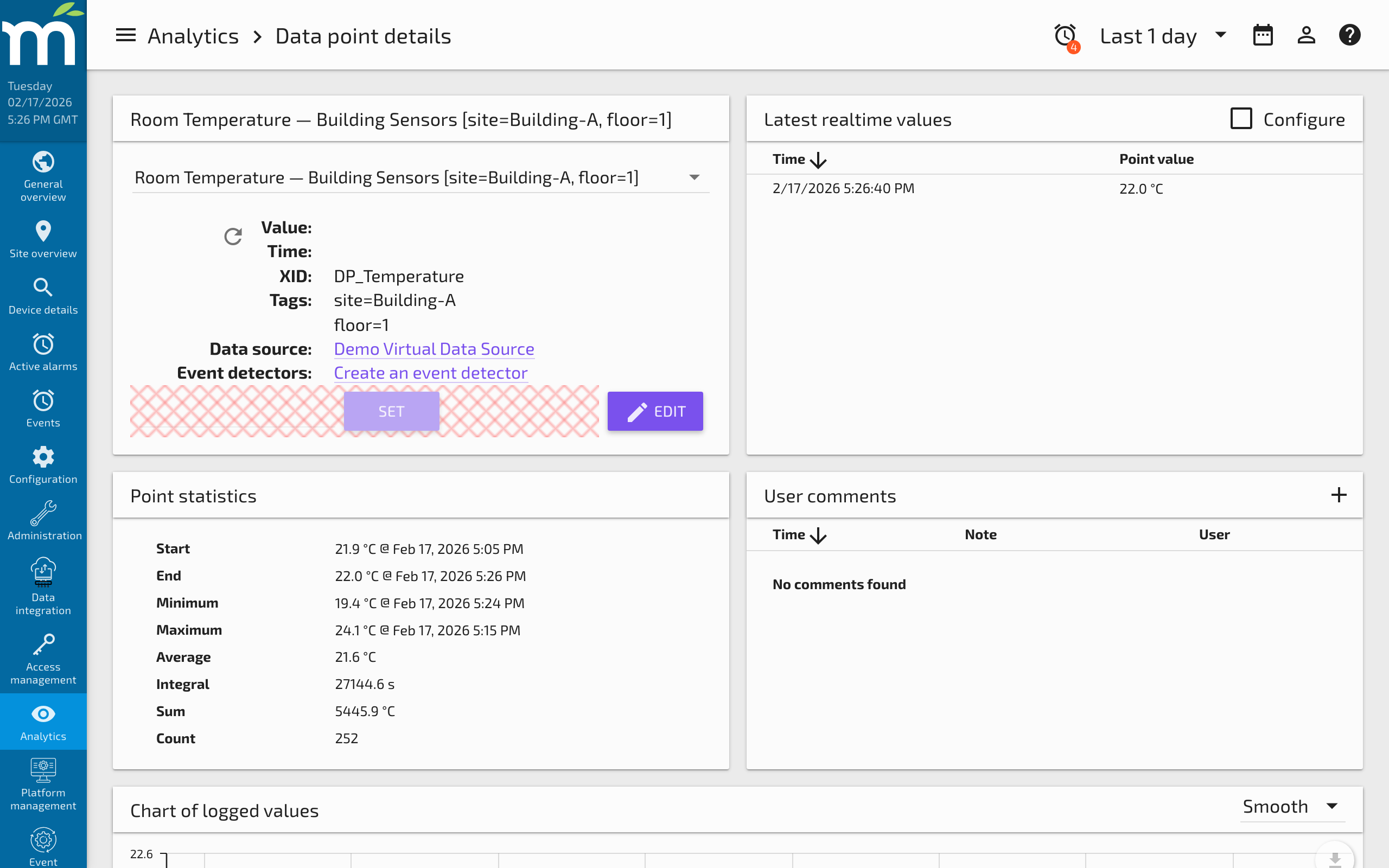
The Data Point Details page always shows the set-point control (for settable points) below the point's current value and chart:
- Navigate to Data Point Details for the target point
- Enter the new value in the Set point input
- Click Set
Custom dashboard pages
On custom pages built with the Dashboard Designer or code editor, you can use set-point components:
<ma-set-point-value>— A component that provides a set-point input for a specific data point<ma-switch>— A toggle switch for binary points<ma-slider>— A slider for numeric points within a range
These components bind to a point by XID and send write commands through the REST API.
Data type considerations
The input format depends on the point's data type:
| Data Type | Input Format | Example |
|---|---|---|
| Binary | Select from two states (e.g., On/Off) | true or false |
| Multistate | Select from defined states | 0, 1, 2 (integer value) |
| Numeric | Decimal number | 72.5 |
| Alphanumeric | Free text | HVAC_MODE_AUTO |
What happens when you set a value
- Mango sends a write command to the device through the data source protocol (e.g., a Modbus write register command, a BACnet WriteProperty request)
- The device processes the command and (typically) confirms the new value
- On the next poll or event update, Mango reads back the confirmed value
- The point's history logs the change with a timestamp
There may be a brief delay between setting a value and seeing it reflected in the UI. This depends on the polling interval and the device's response time.
Permissions
Only users with set permission on a data point can change its value. Permissions are configured per-point or inherited from the data source. See Users & Permissions for details.
Related Pages
- What Is a Data Point? — Understand data point types and how values are stored
- Data Point Details — Set values from the Data Point Details page
- API Examples — Set point values programmatically via the REST API