HTTP Sender Publisher
The HTTP Sender publisher sends data point values to an external URL via HTTP requests. Data can be sent every time a data point changes, on every update, or at regular snapshot intervals. The publisher supports both query parameter and JSON payload formats.
Data Formats
The HTTP Sender can transmit data in two formats:
URL Query Parameters (Text):
jvm=155.0%402020-10-05T16%3A25%3A49.774-04%3A30&point=0%402020-10-05T16%3A25%3A49.774-04%3A30
JSON (POST requests only):
{"jvm":"165.0@2020-10-05T16:19:19.774-04:30","point":"1@2020-10-05T16:19:19.774-04:30"}
Each data point is identified by its configured query parameter name, and the value is formatted as value@timestamp when timestamps are included.
Creating an HTTP Sender Publisher
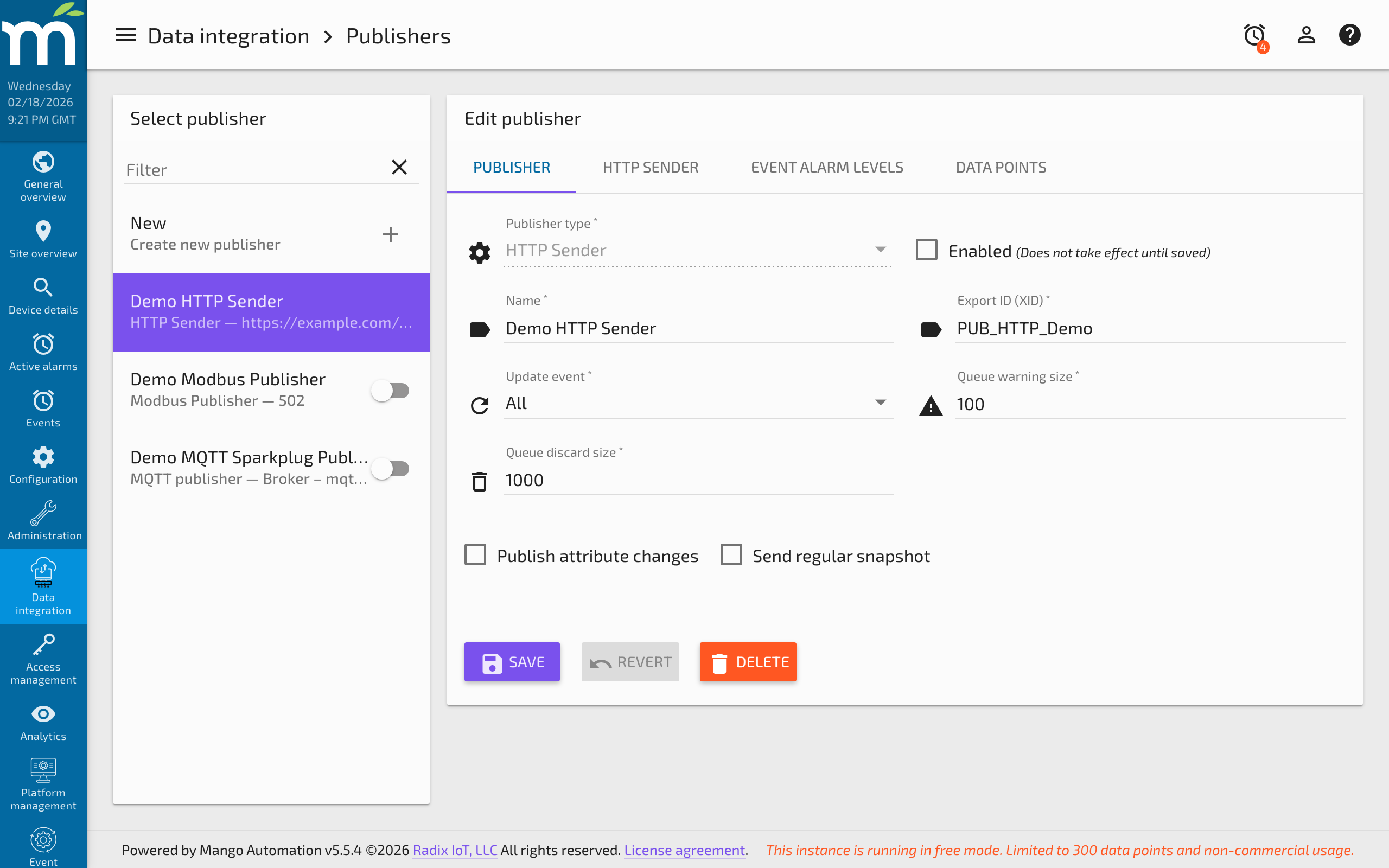
Navigate to Administration > Publishers, click New, and select HTTP Sender from the publisher type dropdown.
Common Settings
Configure the common publisher settings on the main tab:
| Setting | Description |
|---|---|
| Update event | When to send point values: All, Changes only, Logged only, or None. |
| Cache warning size | Raises a warning alarm when the publish queue exceeds this number of entries. |
| Cache discard size | Starts discarding the oldest entries when the queue reaches this size. |
| Send regular snapshots | When enabled, shows the Snapshot send period for configuring periodic value broadcasts. |
HTTP Sender Configuration
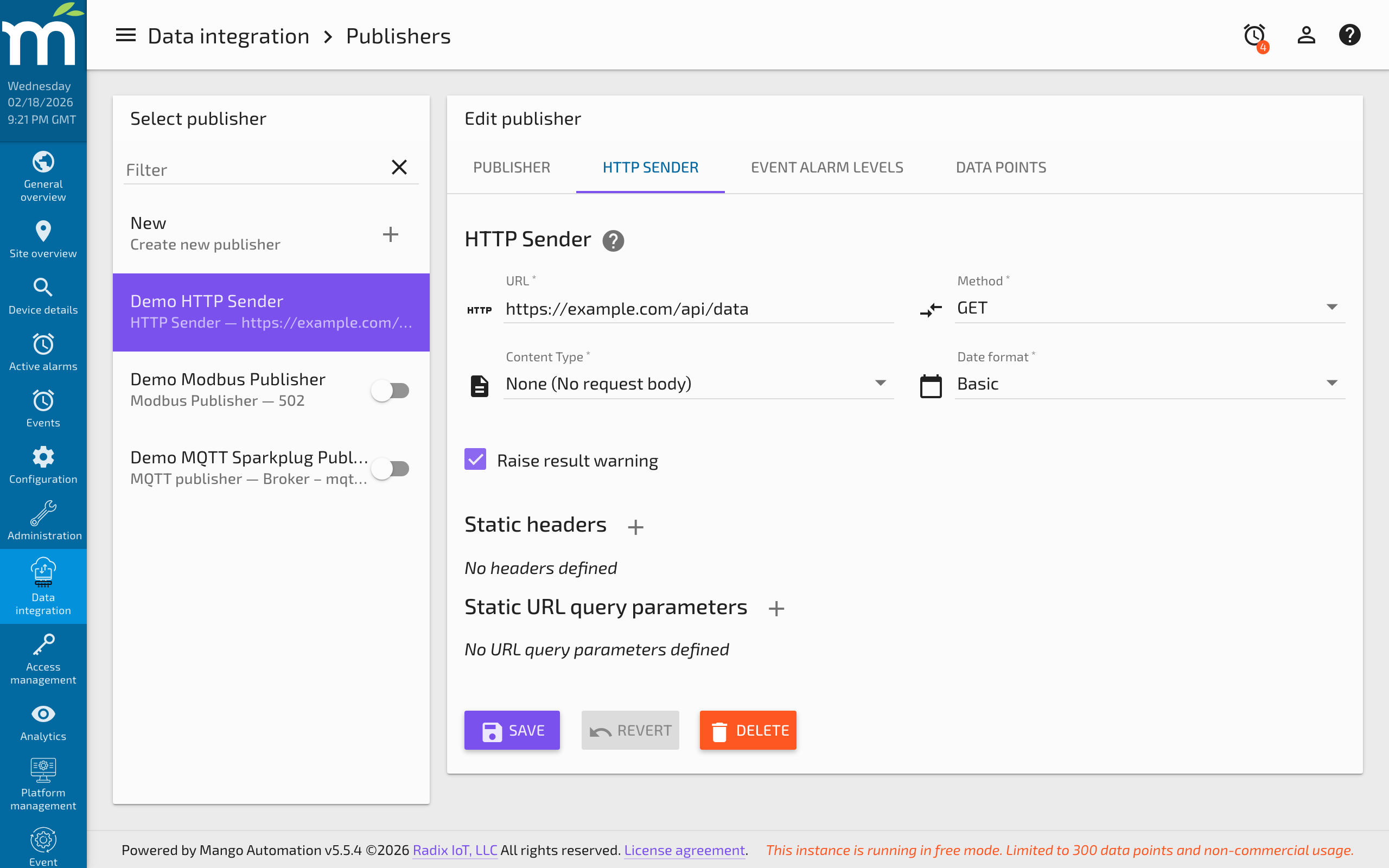
Switch to the HTTP SENDER tab to configure the HTTP-specific settings:
| Setting | Description |
|---|---|
| URL | The destination URL where data will be sent. |
| Method | HTTP request method: GET or POST. |
| Content type | None (query parameters) or JSON. JSON is only available with the POST method because GET requests do not have a body. |
| Date format | The format used for data point timestamps when timestamps are included. |
| Raise result warning | When enabled, raises a warning alarm if the HTTP response has a non-successful status code (4xx or 5xx). |
| Static headers | Custom HTTP headers included in every request. Use this for authentication headers (e.g., Authorization: Bearer <token>) or API keys. |
| Static URL query parameters | Custom query parameters appended to every request URL, in addition to the data point values. |
Method Selection
- GET: Data point values are sent as URL query parameters. Suitable for simple integrations and webhook receivers that accept GET requests.
- POST: Data can be sent as either query parameters (Content type = None) or as a JSON body (Content type = JSON). POST is preferred for sending larger volumes of data or when the destination expects a request body.
Authentication
If the destination URL requires authentication, use the Static headers section to add an Authorization header:
- Bearer token:
Authorization: Bearer your-api-token-here - Basic auth:
Authorization: Basic base64-encoded-credentials - API key:
X-API-Key: your-api-key-here
Data Points Configuration
Switch to the DATA POINTS tab to select which data points to publish and configure how each point is represented in the HTTP request.
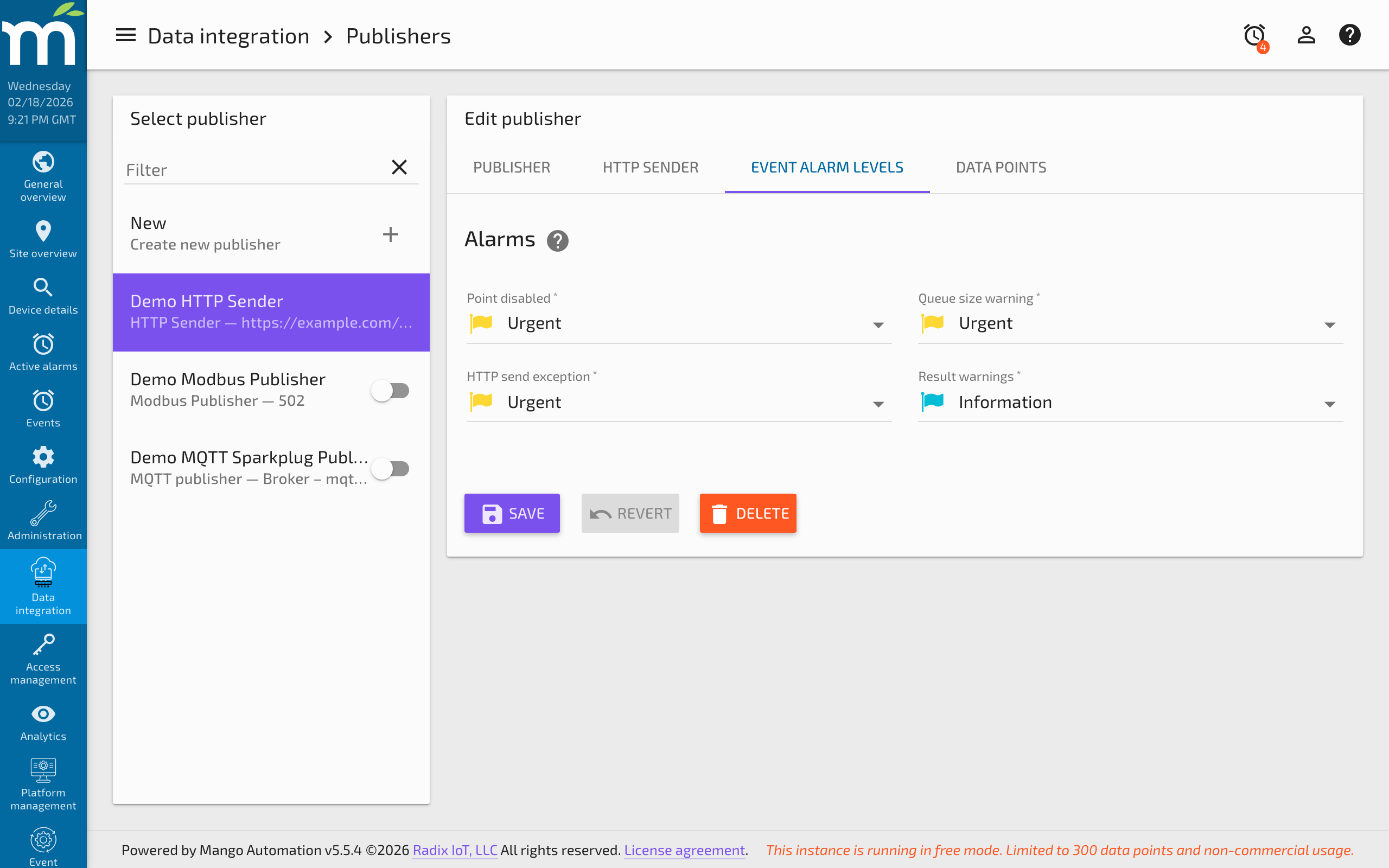
For each published point, configure:
| Setting | Description |
|---|---|
| URL query parameter | The identifier used for this point in the JSON payload or query parameter. This is the key name in the key-value pair sent to the destination. |
| Include timestamp | Whether to append the timestamp to the point's value in the configured date format. |
Practical Example
To send temperature and humidity data to a REST API endpoint:
- Create an HTTP Sender publisher with URL
https://api.example.com/data. - Set method to POST and content type to JSON.
- Add an
Authorizationheader with your API token. - Add the temperature data point with parameter name
temperature. - Add the humidity data point with parameter name
humidity. - Enable timestamps with an ISO 8601 date format.
The resulting JSON payload will look like:
{
  "temperature": "72.5@2026-02-16T14:30:00.000-05:00",
  "humidity": "45.2@2026-02-16T14:30:00.000-05:00"
}
Troubleshooting
- Connection timeouts: Verify the destination URL is reachable from the Mango server. Check firewall rules and DNS resolution.
- Authentication failures (401/403): Verify the authentication headers are correct. Check that tokens have not expired.
- Growing queue: Monitor the queue size. A growing queue indicates the destination is not accepting data fast enough or is unreachable.
- Non-successful responses: Enable the "Raise result warning" option to generate alarms on 4xx/5xx responses. Check the destination server logs for error details.
Related Pages
- Publishers Overview — Common publisher settings including queue management and snapshot scheduling
- MQTT Sparkplug Publisher — Alternative publisher for MQTT-based data distribution
- gRPC Publisher — Secure gRPC-based publishing with mutual TLS
- Event Handlers — Handle queue warning events raised by the publisher