Slack Message Event Handler
Mango allows you to handle any event by sending a Slack message to a channel in your workspace. When an event is triggered (such as an alarm condition, a data source error, or a system event), the Slack message event handler sends a notification to the configured Slack channel using a bot user. This provides real-time visibility into your SCADA system directly within your team's communication platform.
Prerequisites
Before configuring the Slack event handler in Mango, you need a Slack workspace and a configured Slack application with a bot user. If you do not have a workspace, create one at https://slack.com/create.
Step 1: Create a Slack App
- Log into your Slack account in a browser.
- Navigate to https://api.slack.com/apps.
- Click Create New App.
- Give your app a descriptive name (e.g., "Mango SCADA Alerts").
- Select the workspace where you want the app to operate.
- Click Create App.
Step 2: Create a Bot User
- In your app's settings, navigate to the Bot Users tab (under Features).
- Click Add a Bot User.
- Give the bot an appropriate display name (e.g., "Mango Bot").
- Set the default username.
- Click Add Bot User.
Step 3: Install the App to Your Workspace
- Navigate to the Install App tab in your app's settings.
- Click Install App to Workspace.
- Authorize the bot user by clicking Allow.
- A notification will be posted to the workspace confirming the installation.
- After installation, you will see a Bot User OAuth Token starting with
xoxb-. Copy this token -- you will need it for the Mango configuration.
Step 4: Invite the Bot to Channels
The bot can only send messages to channels it has been invited to:
- Open the Slack channel where you want to receive Mango notifications.
- Click on the channel name to open channel settings.
- Click Add more people (or Integrations > Apps).
- Search for your bot name and add it to the channel.
Repeat this for each channel you want to receive notifications in. The bot must be invited to a channel before it can post messages there.
Note: The channel must be a public channel. The bot cannot post to private channels unless explicitly invited.
Step 5: Configure the Slack Event Handler in Mango
- Navigate to the Event Handlers page in Mango.
- Create a new event handler and select Slack Message as the type.
- Give the event handler a descriptive name (e.g., "Critical Alarms to #ops-alerts").
Slack Message Settings
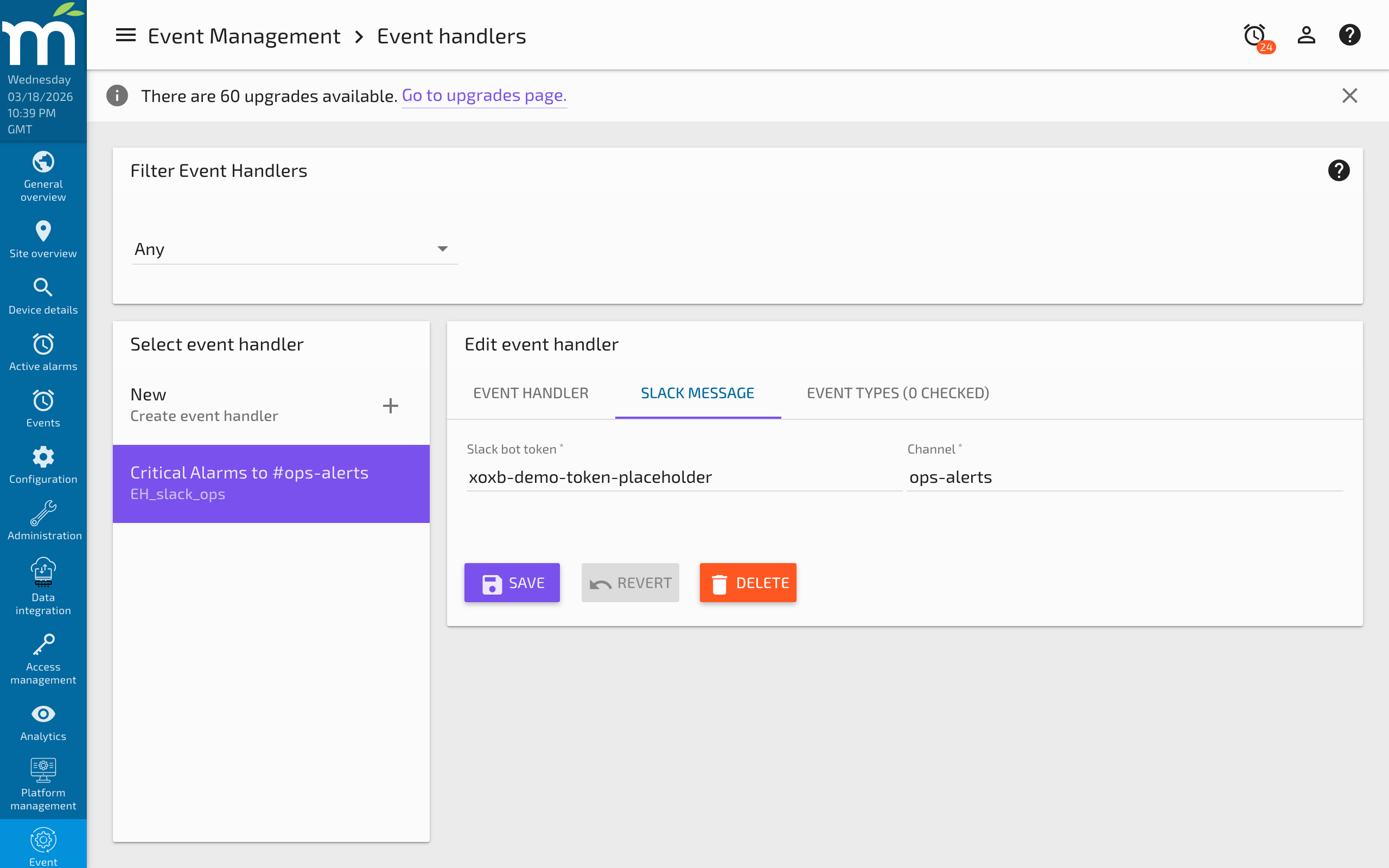
Switch to the Slack Message tab and configure:
| Setting | Description |
|---|---|
| Slack bot token | The Bot User OAuth Token from your Slack app (starts with xoxb-). |
| Channel | The Slack channel name where messages will be posted. Enter the name without the # prefix (e.g., ops-alerts not #ops-alerts). |
Link to Event Types
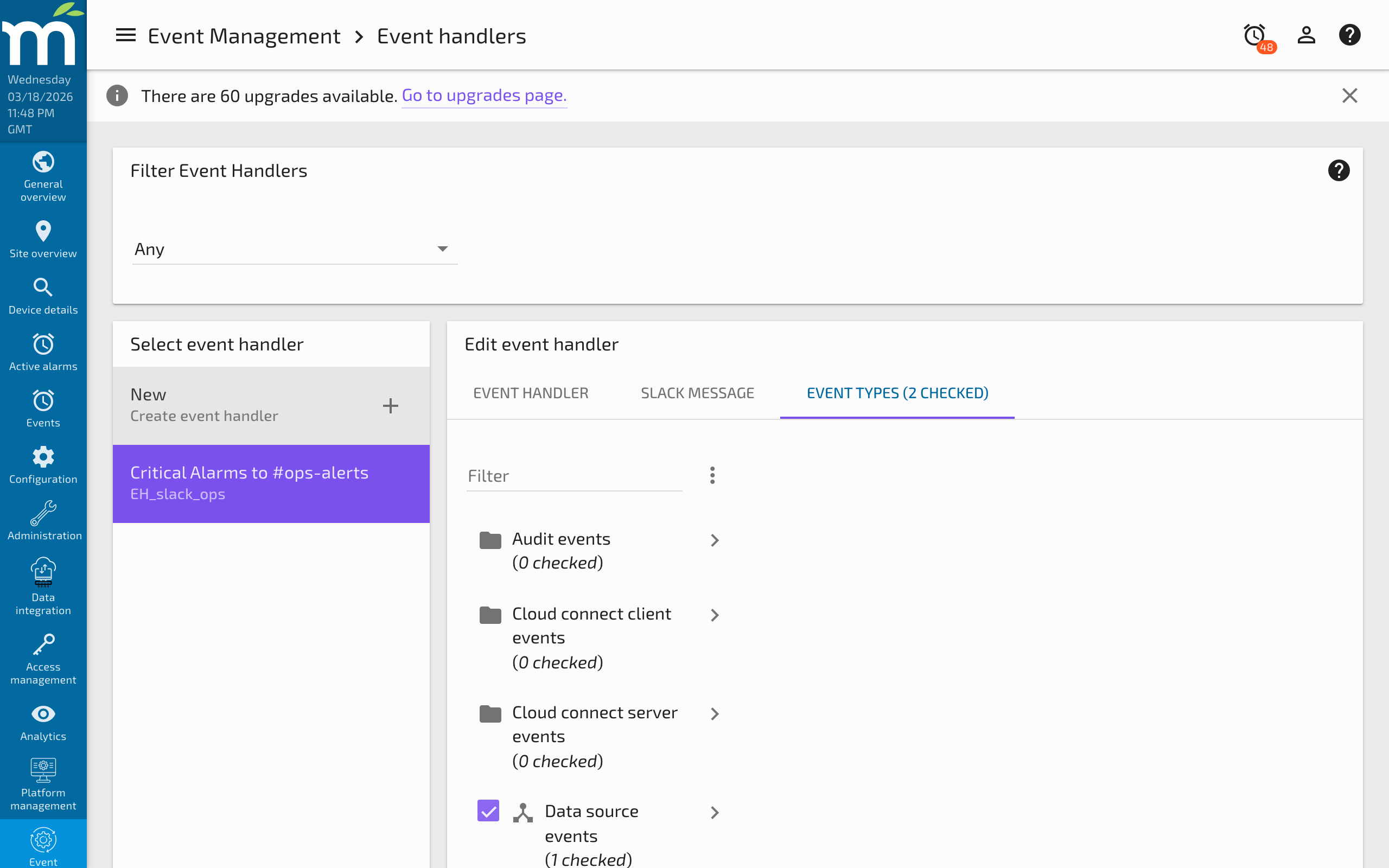
Switch to the Event Types tab and select the events you want to trigger Slack notifications:
- Data point event detectors (high limit, low limit, state changes)
- Data source events (connection errors, poll failures)
- System events (startup, shutdown, user login)
- Publisher events (queue warnings)
- Scheduled events from the Advanced Scheduler
You can create multiple Slack event handlers with different configurations to route different event types or severity levels to different Slack channels. For example:
- Critical and Life Safety alarms to
#ops-critical - Warning and Urgent alarms to
#ops-alerts - Information-level events to
#ops-info
Message Format
When an event triggers the Slack handler, the message posted to the channel includes:
- The event status (
[active]or[inactive]) and the event message - The alarm level is reflected as the attachment color: green (None/Information), yellow (Important/Warning), red (Urgent/Critical/Life Safety)
- Time — the timestamp when the event became active (or inactive)
- Event # — the event ID for reference
- Instance — the Mango instance description from system settings
- Version — the Mango version
- For data point events: the current Value and its timestamp
Troubleshooting
- Messages not appearing: Verify that the bot token is correct and has not been regenerated since configuration. Check that the bot has been invited to the target channel.
- Invalid token errors: Regenerate the Bot User OAuth Token from the Slack app settings and update it in Mango.
- Channel not found: Ensure the channel name is entered without the
#prefix. Verify the channel exists and is public. - Rate limiting: Slack imposes rate limits on bot messages. If Mango generates many events rapidly, some messages may be delayed. Consider raising the alarm level threshold for Slack notifications to reduce volume.
- Bot permissions: Ensure the bot has the
chat:writescope. This is typically configured in the OAuth & Permissions section of your Slack app settings.
Best Practices
- Use separate channels for severity levels: Route critical alarms to a high-priority channel with aggressive notification settings, and informational events to a lower-priority channel.
- Configure alarm levels carefully: Sending every Information-level event to Slack can create notification fatigue. Focus on Warning and above for Slack notifications.
- Name handlers descriptively: Use names like "Critical Alarms -> #ops-critical" so the purpose is clear when reviewing event handler configurations.
- Test with low-severity events first: Create a test event detector at the Information level to verify the Slack integration works before relying on it for critical alarms.
- Rotate bot tokens periodically: For security, regenerate the bot token periodically and update the configuration in Mango.
Related Pages
- Event Handlers — Overview of all event handler types including the Slack message handler
- Setting Up Event Detectors — Create the detectors that trigger Slack notifications
- Alarms and Alarm Management — Understand alarm levels for routing events to different Slack channels
- Email Notification Setup — Alternative notification method via email for alarm events